IPTV Deck app icon
IPTV Deck
IPTV player for 8 platforms

An IPTV player for every screen you own.

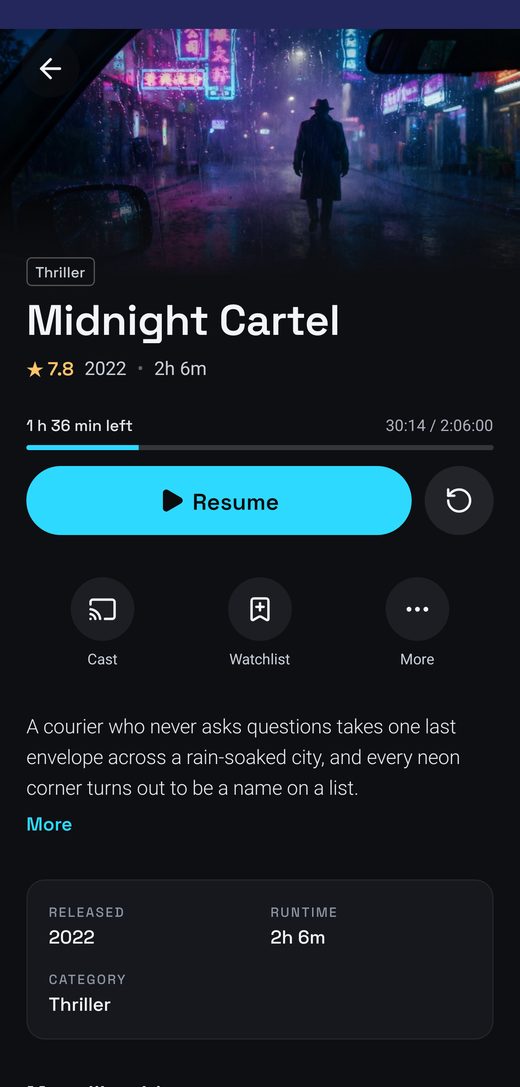
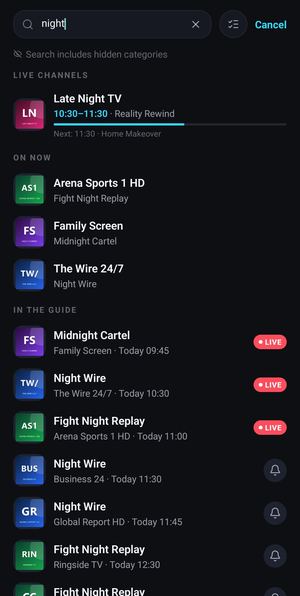
Built for lists that break other players: a hundred thousand channels stay searchable and the guide loads in full. Sports tells you which of your channels has tonight’s match, and your Plex, Jellyfin or Emby library sits next to your playlists.

Works with Xtream, M3U, MAC portals (Stalker), Plex, Jellyfin, Emby, Trakt, SIMKL and live subtitles from Google Gemini.

7-day free trial. Add a playlist before you create anything.

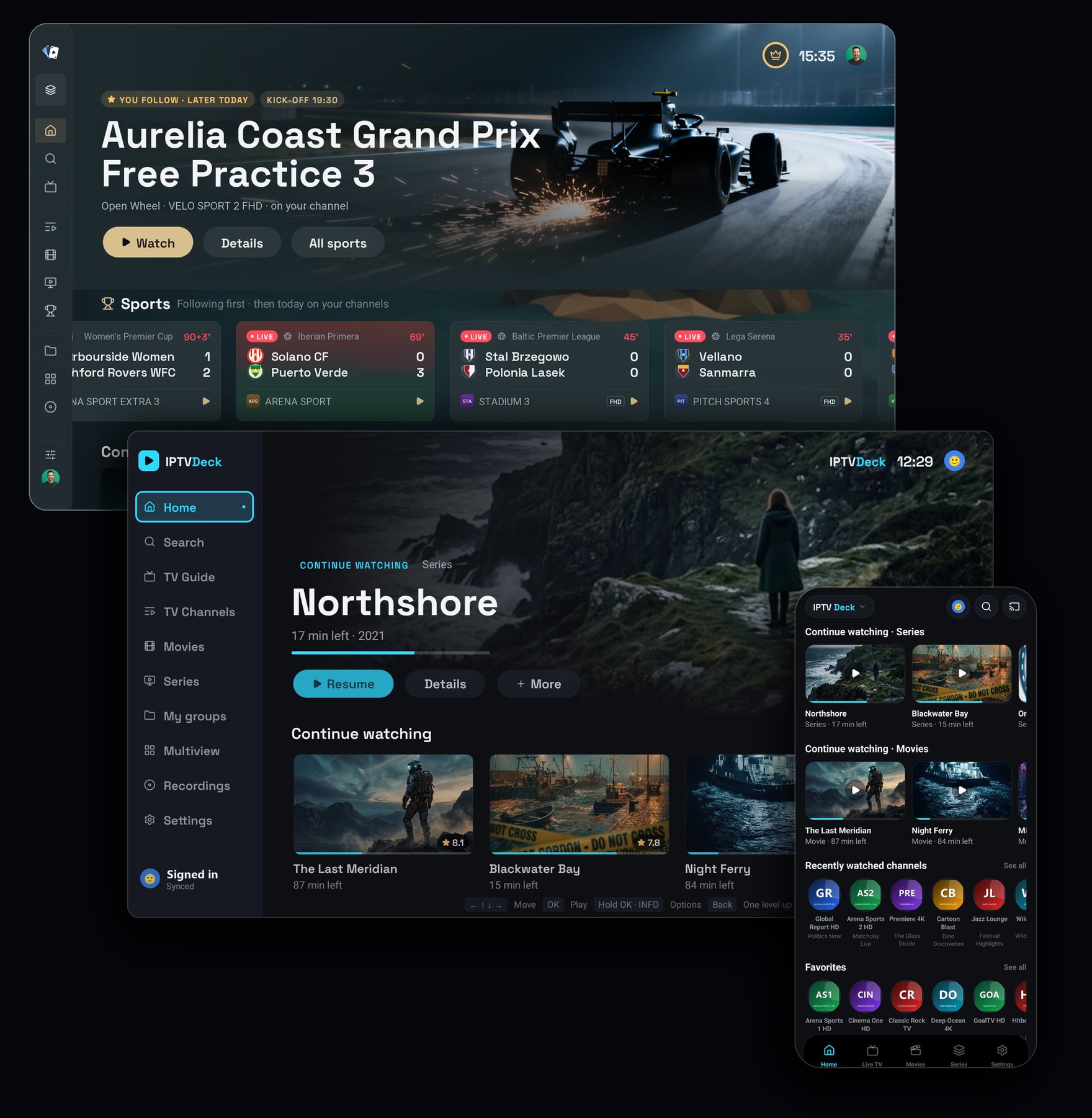
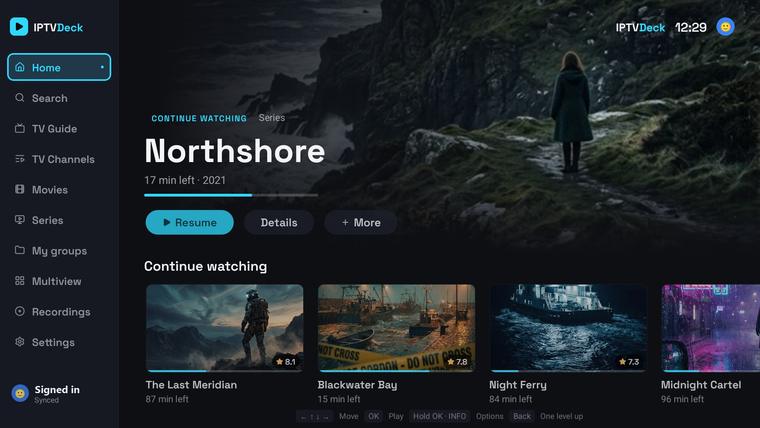
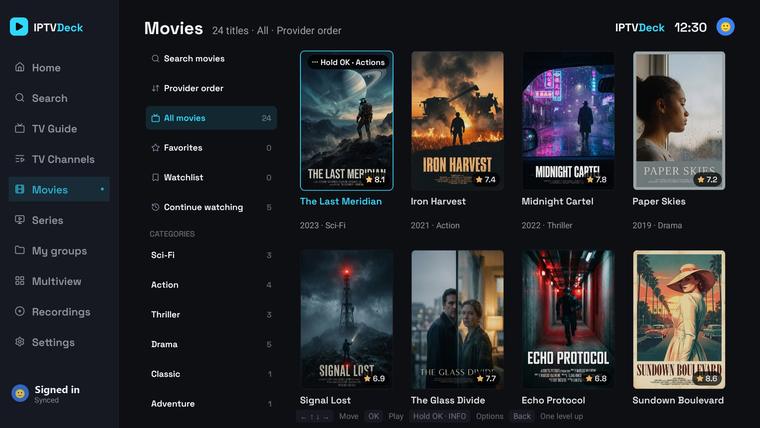
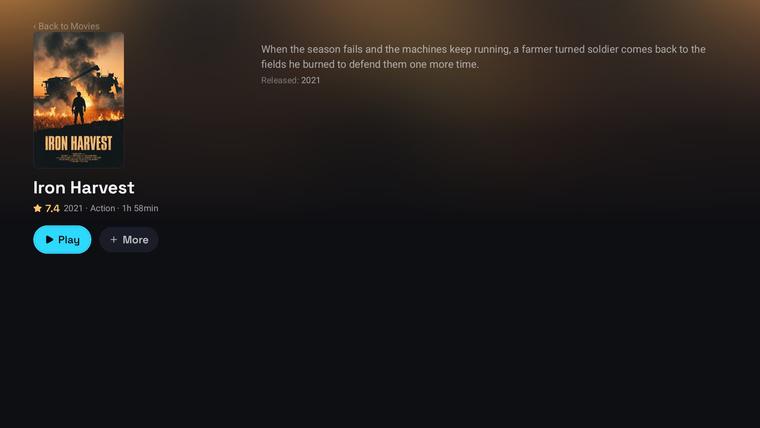
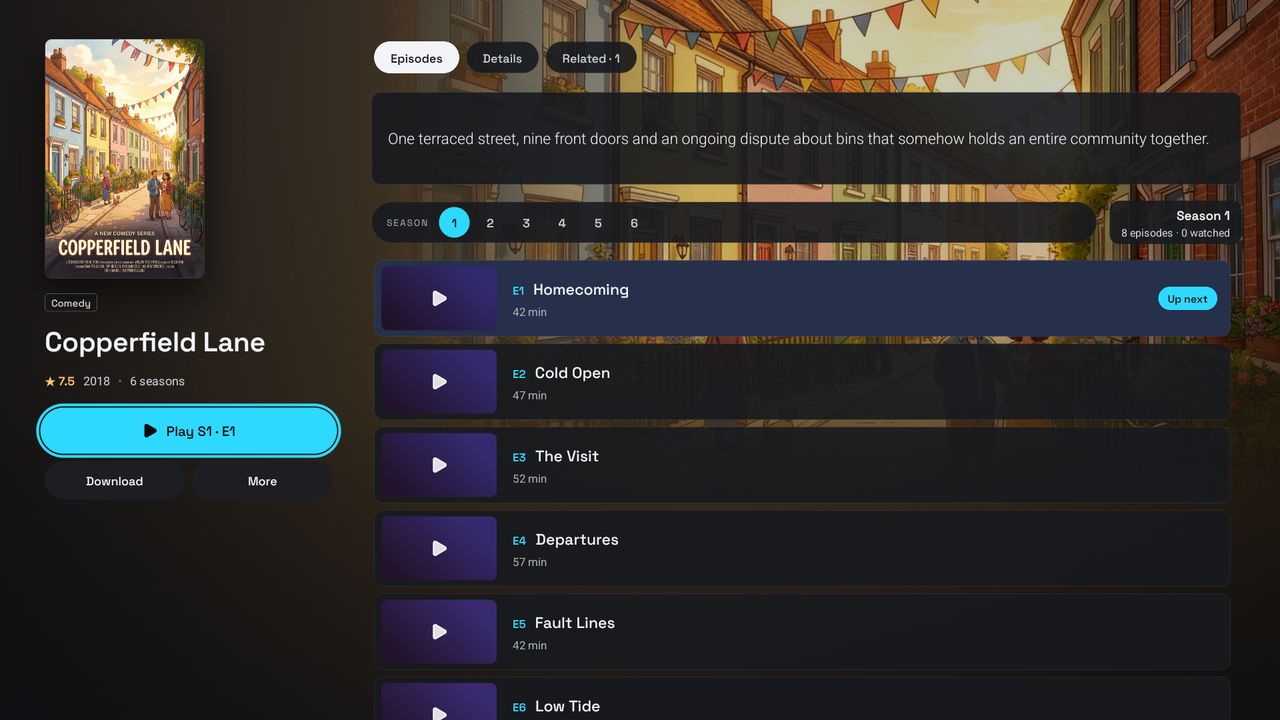
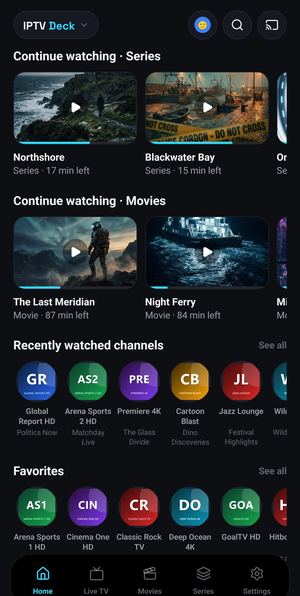
IPTV Deck on two televisions, one with a Grand Prix and Sports, one with a series to resume, and on a phone
TrailerIPTV Deck on every screen you own
SportsFind tonight’s game in one click

Sports that knows your channels

Matches, races and live scores from yesterday to six days ahead, each one tied to the channel of your own playlist that shows it. Pick a match and it plays. IPTV Deck never adds a channel you do not have.

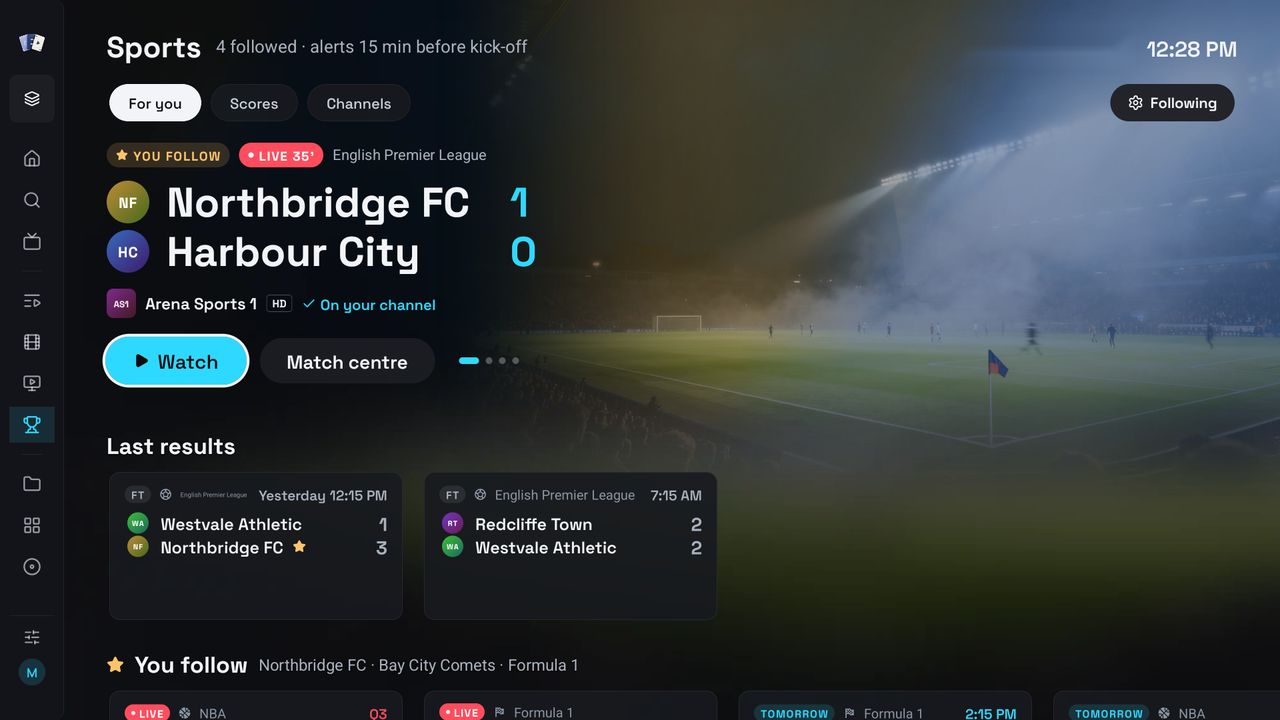
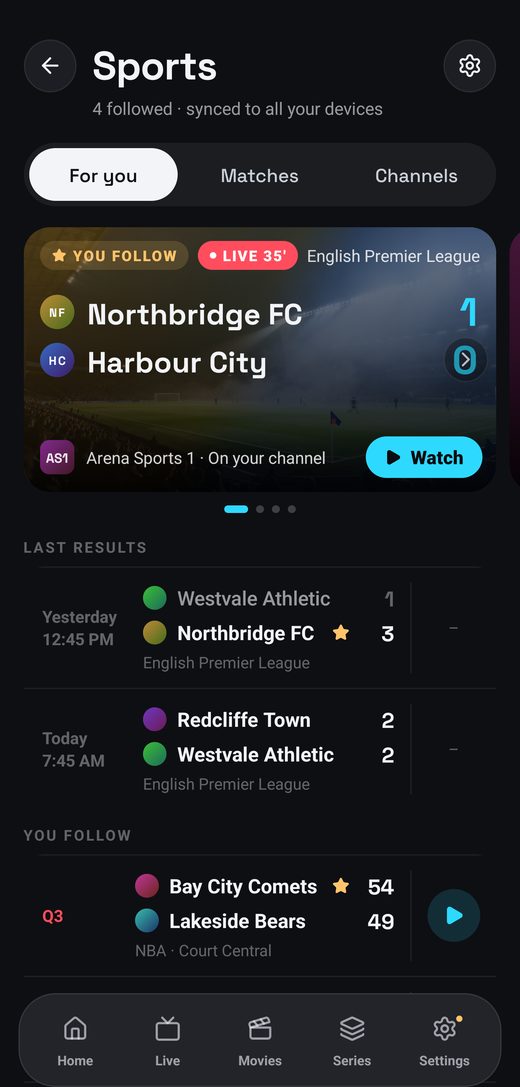
The Sports screen on a television with a live match and last results The Sports screen on a phone
  • Which channel has it

    The app looks the broadcaster up among your channels and checks your guide around the start time. With several channels you see the quality and the playlist of each.

  • What you follow comes first

    Follow teams, players and competitions. Their live matches lead, then last results and what comes next, on all your devices.

  • Alerts, and scores in the player

    An alert 15 minutes before your team plays. Sports mode keeps scores over whatever you watch, and a card pops up when someone scores.

  • The match centre

    Events and statistics, line-ups, the league table and the venue on one page.

  • Record it without spoilers

    Record one match or every match of a team, with room for extra time. Hide scores keeps the result away until you have watched it.

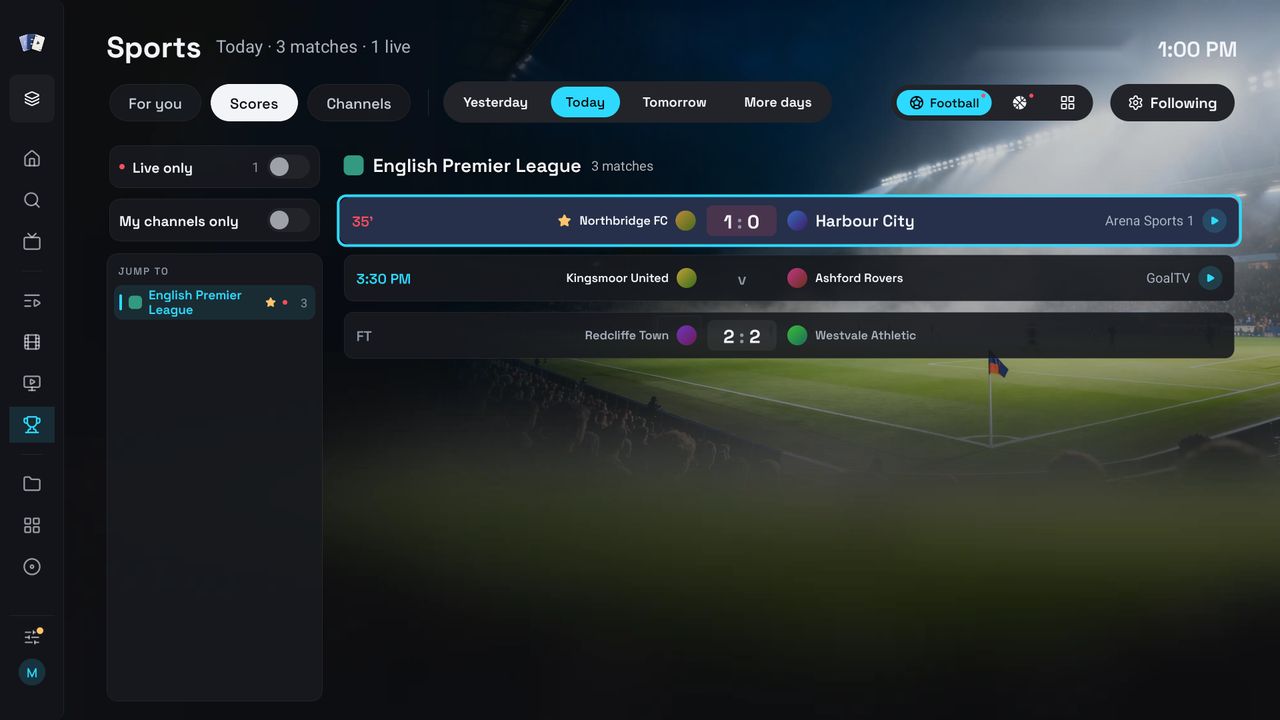
Scores by league on a television
Every match of the day, by league
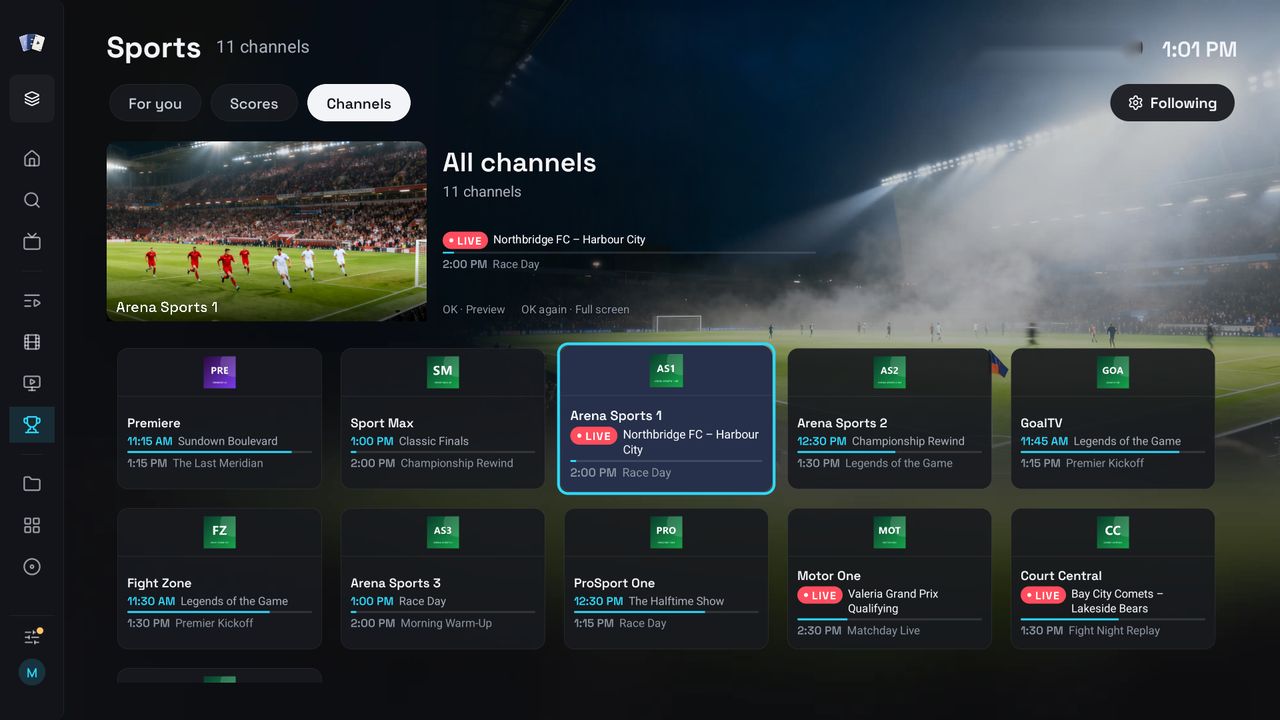
Sports channels on a television
The sports channels of your playlist in one place
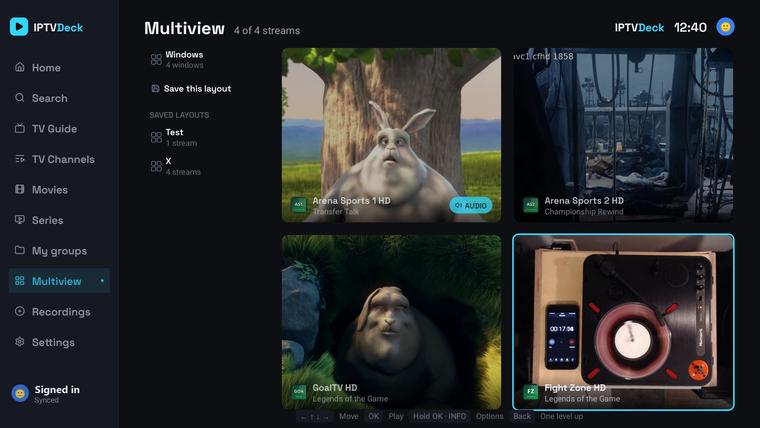
Four matches at once in multiview

Football, basketball, American football, baseball, tennis, Formula 1 and MotoGP, MMA and boxing, hockey, cricket, rugby, golf, handball, volleyball, darts, snooker, cycling and Australian football.

Sports needs an IPTV Deck account and comes with the trial and Premium, on phones, tablets, televisions, Windows and the Mac. How it works

Your portal, your server, your accounts

IPTV Deck works with no outside account at all. Each one you connect adds something.

MAC portal

Stalker and Ministra portals. Enter the portal address and the MAC your provider registered, and IPTV Deck acts as your set-top box, next to your Xtream and M3U playlists.

How to connect

Plex

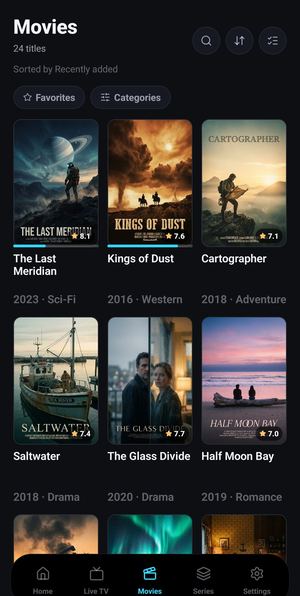
Sign in with a code. Films and series with their posters and episodes show in Movies, Series, Home and Search next to your playlists. Channels of a tuner set up in Plex play on every device, and films can be downloaded.

How to connect

Jellyfin and Emby

Server address, user, password. Films, series and the server’s Live TV with its guide. Watched marks, where you stopped and favourites stay in step with the server, and a programme can be recorded on the server.

How to connect

Google Gemini

Live subtitles in your language while a channel or a film plays, on Android, Android TV, Fire TV, Windows and the Mac. Subtitles translated into any language, subtitles made from the audio of a download, and search in your own words. All on your own key.

How to connect

Trakt

Approve a code on trakt.tv. Watched marks both ways, watchlist and ratings, and IMDb, Rotten Tomatoes and Metascore scores on title pages.

How to connect

SIMKL

Approve a code on simkl.com. Watched marks both ways, Plan to Watch and ratings.

How to connect

TMDB

Plots, posters, cast, genres and trailers with your own key. Sign in for watchlist and ratings.

How to connect

OpenSubtitles

Subtitles for films and episodes that have none, on your own account.

How to connect

IntroDB

Skip intro, and Up next as the credits start, with nothing to connect.

How to connect

Pick your screen

Eight platforms and a recording server, one account, one playlist. Choose yours to see how it looks there, which version is live and how to install it.

Android TV & Google TV

A real television app, not a stretched phone screen — a side nav rail, a hero spotlight over content rails and focus handling tuned for a D-pad. The guide scrolls at the speed of the remote, the channel list keeps your place, and holding OK opens the options for whatever is focused.

Google Play
  • 1 Search for IPTV Deck on the device
  • 2 Sign in and your playlists arrive

Google TV boxes, Android TV sticks and television sets. Updates arrive from Play on their own.

No Play Store on the box? Use Downloader:

Downloader code 7083371
  • 1 Install the free Downloader app from the box's app store
  • 2 In the box's settings, allow Downloader to install unknown apps
  • 3 Open Downloader, type the code above and confirm the install

Needs Android 8.0 or newer. The address zssoftware.eu/tv serves the same file, and the app tells you when an update is ready.

Swipe or scroll sideways for more screens.

Fire TV

The same app as on Android TV, remote included. Get it from the Amazon Appstore, or install it with a Downloader code — the standard way players like this get onto a Firestick. Two minutes, no computer needed.

Which Fire TV devices it runs on

IPTV Deck needs Fire OS 7 or newer (Android 8.0+): Fire TV Stick 3rd gen (2020), Stick Lite, Stick 4K Max, Stick 4K (2023), Fire TV Cube 2nd gen and newer, and Fire TV televisions on Fire OS 7 or 8. Your version is under Settings → My Fire TV → About. The install needs about 250 MB free even though the app takes less afterwards.

On older hardware — the 2016 Fire TV Stick (Fire OS 5) and the 2018 Fire TV Stick 4K (Fire OS 6) among them — the download finishes and the screen says There was a problem parsing the package. That is the device, not the file: downloading it again cannot fix it.

The 2025 Stick 4K Select and the 2026 Stick HD run Vega OS and cannot sideload anything at all. Every other Fire TV works. On a Fire TV that is too old the Appstore does not list it.

Trouble installing? Common fixes

“App install failed” at the end — almost always free storage. Uninstall unused apps under Settings → Applications → Manage Installed Applications to get about 250 MB back, then try again.

A previous attempt failed — delete the downloaded file inside Downloader, uninstall any half-installed IPTV Deck, and download fresh. An interrupted download will not install.

“There was a problem parsing the package” — on Fire OS 7 or newer this means the download was cut short; the file should be about 101 MB in Downloader. Delete it there and fetch it again. On Fire OS 5 and 6 it means the device cannot run the app at all.

“App not installed” — a half-installed copy or too little free space. Uninstall IPTV Deck if it appears in your apps, free up about 250 MB, and install again.

Still stuck? Email [email protected] with the exact message from the screen plus your device model and Fire OS version.
Amazon Appstore
  • 1 Search for IPTV Deck on the Fire TV, or open the Appstore page and send it to your device
  • 2 Sign in and your playlists arrive

Updates come from the Appstore. Or use Downloader:

Downloader code 7083371
  • 1 Install the free Downloader app from the Amazon Appstore
  • 2 Settings → My Fire TV → Developer options → Install unknown apps → ON for Downloader
  • 3 Open Downloader, type the code above and confirm the install
  • 4 Sign in — or scan the QR with your phone — and your plan unlocks itself

The address zssoftware.eu/tv serves the same file. Day-to-day updates arrive inside the app; when a new install file is needed, the app shows a notice with this code. To move to the Appstore copy later, uninstall this one first and sign in again: your account brings everything back.

Swipe or scroll sideways for more screens.

Apple TV

Built for the Siri Remote, with multiview for watching four channels at once. Recording and offline downloads are not part of the tvOS build.

App Store on Apple TV
  • 1 Search for IPTV Deck on the Apple TV
  • 2 Sign in with the same account

One purchase covers iPhone, iPad and Apple TV on the same Apple ID.

Swipe or scroll sideways for more screens.

Android phone & tablet

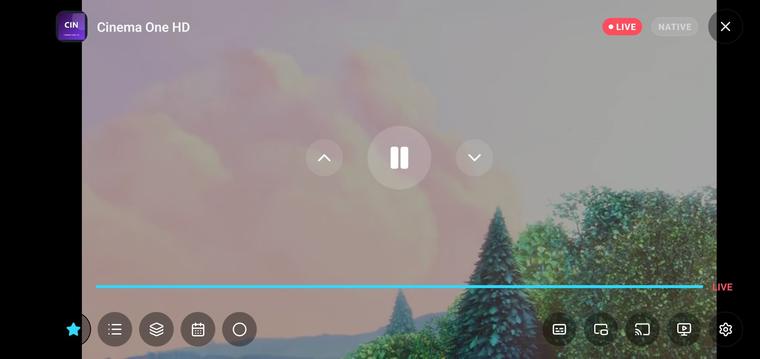
Portrait for browsing, landscape for watching. Picture-in-picture, background audio, and a cast button that hands the channel to the television without stopping it.

No Play Store on the device?

Plenty of Android devices never got the Play Store — a Meta Quest headset, a projector, a TV box. It is the same app, installed from a file instead: open zssoftware.eu/tv-full in the device browser, or in Downloader, and allow the install when Android asks.

That file carries both ARM builds, so it fits 32-bit and 64-bit devices alike. Needs Android 8.0 or newer. On a Firestick use the Fire TV tab instead — it hands you a smaller file built for that hardware.

Google Play Amazon Appstore on Fire tablets Download the APK

Phones and tablets. A tablet can switch to the television layout in Settings. Install from Play where you can — it keeps itself up to date.

Swipe or scroll sideways for more screens.

iPhone & iPad

The same app on both, with picture-in-picture, background audio and AirPlay. Your favourites arrive from whichever device you set them on. Syncing to your own Google Drive is Android-only.

App Store

One purchase covers iPhone, iPad and Apple TV on the same Apple ID.

Swipe or scroll sideways for more screens.

Windows

The television layout on a desktop, with a mouse and keyboard where you want them. Installs from a download and keeps itself up to date.

Download the installer
  • 1 Run the installer
  • 2 Sign in, playlists follow

64-bit Windows 10 and 11.

Swipe or scroll sideways for more screens.

macOS

A Mac build from the App Store, sharing the purchase with your iPhone, iPad and Apple TV.

Mac App Store

Apple silicon and Intel. Same account, same playlists.

Swipe or scroll sideways for more screens.

Linux

The television layout on a Linux PC, with a mouse and keyboard where you want them. One AppImage file that keeps itself up to date.

Download the AppImage
  • 1 Allow it to run, then open it
  • 2 Sign in, playlists follow

64-bit PCs with a usual desktop, no extra packages. If it does not open, see the manual.

Swipe or scroll sideways for more screens.

Recording server

IPTV Deck without a screen, in Docker on a NAS, a home server or a Raspberry Pi. It records for every phone, tablet and TV of your account, also while all of them are off, and they play its recordings at home. Repeating recordings and every match of a followed team run on it too.

Step-by-step guide ghcr.io/mistykuu/iptv-deck-server
  • 1 Start it with Docker Compose
  • 2 Enter the code it shows on your phone
  • 3 Record as usual, it lands on the server

Linux in Docker, amd64 and arm64. Needs Premium or the free trial and one free place among your devices. On a Windows PC or a Mac, turn on Record for other devices in the app instead.

What it actually does

Everything below works on every platform above, give or take what the platform itself allows. Nothing here is a paid extra.

Playback
  • Plays what others choke on

    Three decoding paths under one player: ExoPlayer, an FFmpeg software decoder and VLC as a full fallback. When a stream refuses the first, the next takes over without you touching anything, so HEVC and AC-3 channels other apps call unsupported still play.

  • Subtitles that match

    Embedded audio and subtitle tracks, closed captions, and OpenSubtitles searched and ranked against the actual film or episode on your own account when the stream carries none.

  • Live subtitles in your language

    With Google Gemini on your own key, a channel or a film gets subtitles as you watch, in the language you pick, on Android, Android TV, Fire TV, Windows and the Mac. Subtitles of a film or an episode translate into any language too.

  • Channel variants group themselves

    The same station often arrives five times over — HD, FHD, RAW, VIP, backup. The app reads them as one channel, orders them by quality, drops copies pointing at the same stream and puts up to eight behind a single switch in the player.

  • The whole screen when you turn it sideways

    Player, zapping and multiview each get the full screen, with gestures for brightness, volume, ±10 s and pinch zoom, plus a sleep timer and picture-in-picture.

Guide & catch-up
  • The whole guide

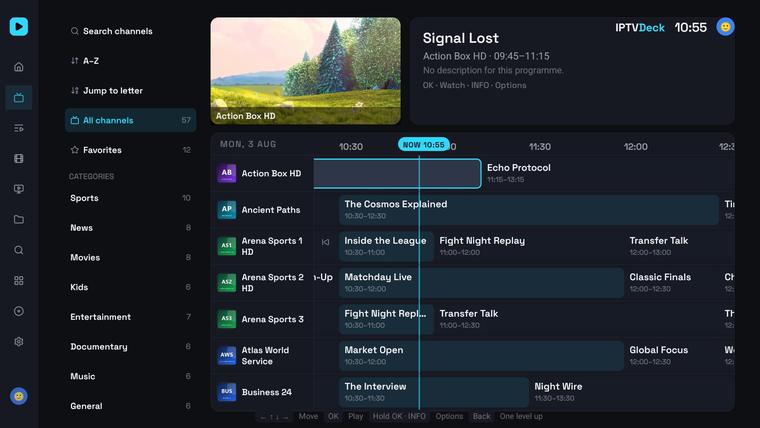
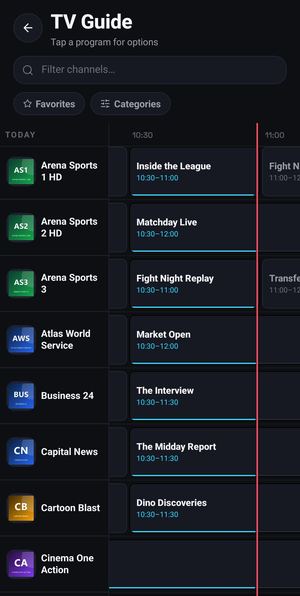
    Days of programming — seven back and seven forward — scrolling at the speed of the remote, on lists where other players give up. Sources are detected automatically, you can add any number of extra XMLTV feeds, and there is a ±3 h time offset for providers that need one.

  • It finds the channel itself

    Playlist names are almost never equal to guide ids, so both sides get normalised — country prefixes and quality tags go, accents fold — and only what is left gets compared. When one name could mean two channels it refuses to guess rather than show the wrong programme, and a match you made by hand is never overwritten.

  • Catch-up and timeshift

    Open a programme that already aired and watch it from the start, wherever the provider keeps an archive.

  • Reminders that still fire

    Tap the bell on any future programme. The notification arrives with the app closed, one set on the television reaches your phone on its own, and the television shows a panel when the programme starts.

Your library
  • Playlists, every way

    Xtream Codes, an M3U link, a local file, a MAC portal (Stalker or Ministra), or your Plex, Jellyfin or Emby server. Several at once with a quick switcher, a per-playlist User-Agent, alternative provider hosts and auto-refresh every 6, 12 or 24 hours.

  • Your playlist, your order

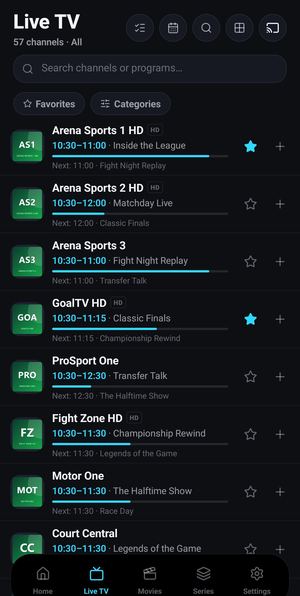
    Hide what you never watch, pin what you do, rename anything, build your own groups and drag them into the order you want.

  • Profiles, including kids

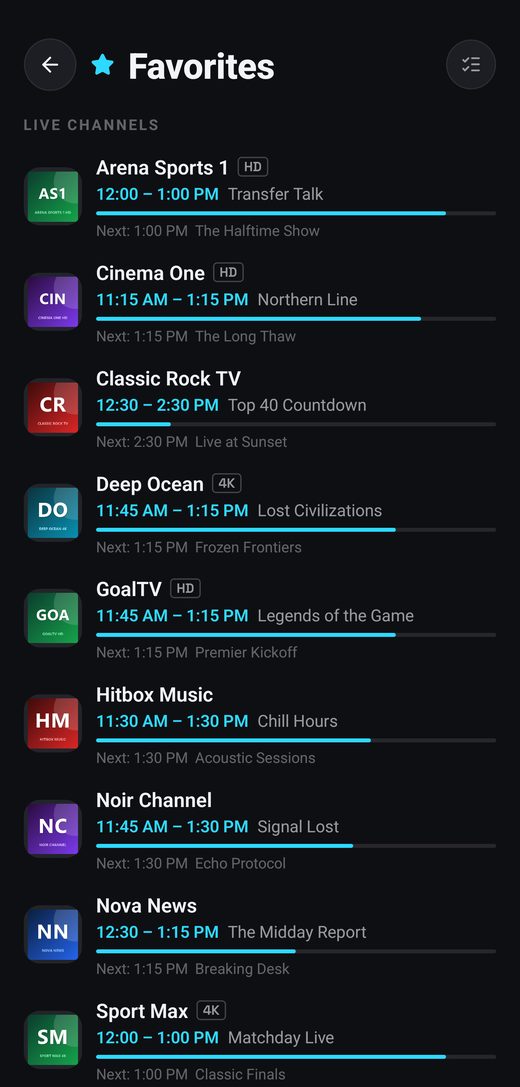
    Several profiles in one install, each with its own favourites, history, watchlist and groups. A kids profile hides the settings, and a PIN hides locked categories from a child completely.

  • Offline and recording

    A resumable chunked downloader for whole films or single episodes, and recording straight from the live stream, the guide or catch-up.

Across devices
  • Set it up from a computer

    Sign in at iptv-deck.com/panel and manage playlists, categories, favourites, profiles and the settings of each device with a keyboard and a mouse. Changes reach the television within seconds. Reading the channels of a playlist in the browser takes the free IPTV Deck Connector extension for Chrome or Edge, which fetches them straight from your provider, never through my servers.

  • One account, every screen

    A live listener, not a manual refresh: a change on one device shows up on the other straight away, playback position included, merged field by field so two devices can edit at once without losing anything. Every device picks which domains it takes part in.

  • Chromecast, properly

    Device discovery with its own picker, a mini control bar, remote audio and subtitle selection, external subtitles pushed to the television and the position kept in sync — rather than mirroring the screen.

  • Multiview

    Several channels at once in preset layouts, on the phone and on the television. Choose which channel lands in which cell, then blow one up to full screen.

SettingsPlaylistsFavouritesWatchlistContinue watchingCustom groupsHidden & renamedReminders
Phone and television together
  • One button, and it is on the television

    Find a film on the phone, press Watch on TV, and it starts on the television from the position you stopped at, decoded by the television itself — films, single episodes, live channels or a whole multiview layout. If the box is asleep, the same tap wakes it over your own network and waits for it to come up. Nothing goes through the phone, so nothing is re-encoded and nothing drops when you lock it.

  • No passwords on a remote

    Pair the two once with a QR code. After that you sign in on the television from your phone and add a playlist with its credentials without retyping a thing.

  • A remote when the real one is lost

    A full D-pad on the phone plus play, pause, seek, channel up and down and volume — and whatever the television is playing shows up on the phone, so you can pause it or change channel from there.

Privacy
  • Your provider password never leaves in readable form

    Sync is end-to-end encrypted on the device before anything is uploaded. The key is derived from a recovery code only you hold, the payload is compressed and sealed with XChaCha20-Poly1305, and what reaches the cloud is one opaque blob. There is no key on the server, so playlist URLs, logins and passwords cannot be read there.

  • A recovery code, not a password

    54 characters in groups of six, with a checksum and no letters that look like digits. Type it on the second device and everything unlocks. Lose it and the data stays encrypted — that is the whole point of holding the only key.

  • Your own storage, if you prefer

    On Android you can point sync at your own Google Drive instead of my backend, or export the whole thing to a single encrypted file you keep yourself. The catalogue never leaves the device either — channels, films and the guide stay in local SQLite.

Built for enormous playlists

Most players load the whole channel list into memory and fall over somewhere past ten thousand. IPTV Deck keeps the catalogue in SQLite on the device and never holds it whole: lists are virtualised with fixed row heights, filtering happens in the database on composite indexes rather than in JavaScript, jumping to a letter is a query instead of a scroll, and screens paint from cache and revalidate underneath instead of showing you a spinner.

200 000+Live channels, films and series in one catalogue, still searchable in milliseconds
~83 sA full refresh of a catalogue that size on an old Chromecast with Google TV, one of the slowest boxes there is
0Provider passwords kept in readable form, on the device or in the cloud

One account. Every screen.

Everything is unlocked for 7 days, free, on your account rather than on one device. After that, pick a plan. Every Premium plan covers up to 4 devices of any kind: phones, tablets, TVs and computers in any mix.

Yearly

$12.99 / year

Over seven months free compared with monthly.

Monthly

$2.99 / month

The full app. Cancel any time.

Premium add-on

Family Devices

Adds 4 more devices of any kind, so the household runs up to 8 devices while Premium is active.

$12.99 once + VAT
Premium add-on

Large Family Devices

Adds 10 more devices of any kind for big households: up to 18 with Family Devices, 14 with Premium alone.

$29.99 once + VAT

Payments are handled by Stripe: cards, Apple Pay and Google Pay. Subscriptions renew until cancelled and can be managed or cancelled any time. Family and Large Family are permanent add-ons and need active Premium. Prices in USD. Lifetime and the device add-ons are charged plus VAT or sales tax where it applies; subscription prices already include it.

Good to know

IPTV Deck is a player, nothing else

It ships with no channels, no films and no series, and it neither provides, hosts nor sells any content. To watch anything you add your own playlist — an Xtream Codes account, an M3U link or a local file — from a source you already have the right to use.

The screenshots show the app, not an offer. The posters, titles and programmes visible in them are sample content, put together for this presentation — they are not available in the app and say nothing about what any playlist contains.

Questions before you install? The FAQ covers playlists, providers, devices and billing, the documentation goes through every screen and setting, and IPTV Deck compared with TiviMate is there if you are weighing a move. Or write to [email protected].