
TMDB, step by step
Providers send a title and, with luck, a poster. The Movie Database (TMDB) fills in the rest: plot, cast with photos, trailers, ratings, genres and a page for every actor. IPTV Deck uses your own free TMDB key. You set it up once, it takes about five minutes, and with one switch every device on your account picks it up.
The titles, names and pictures in the screenshots below are made up.
Without and with TMDB
Section titled “Without and with TMDB”The same film, on the same playlist:
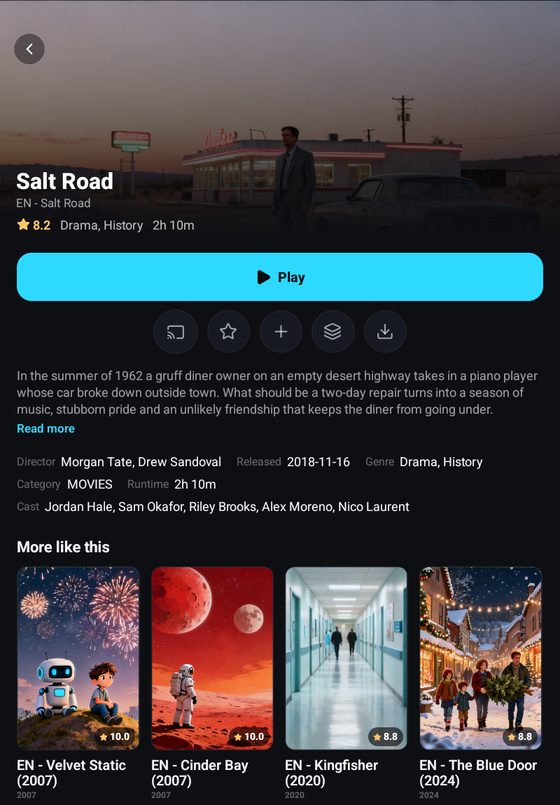
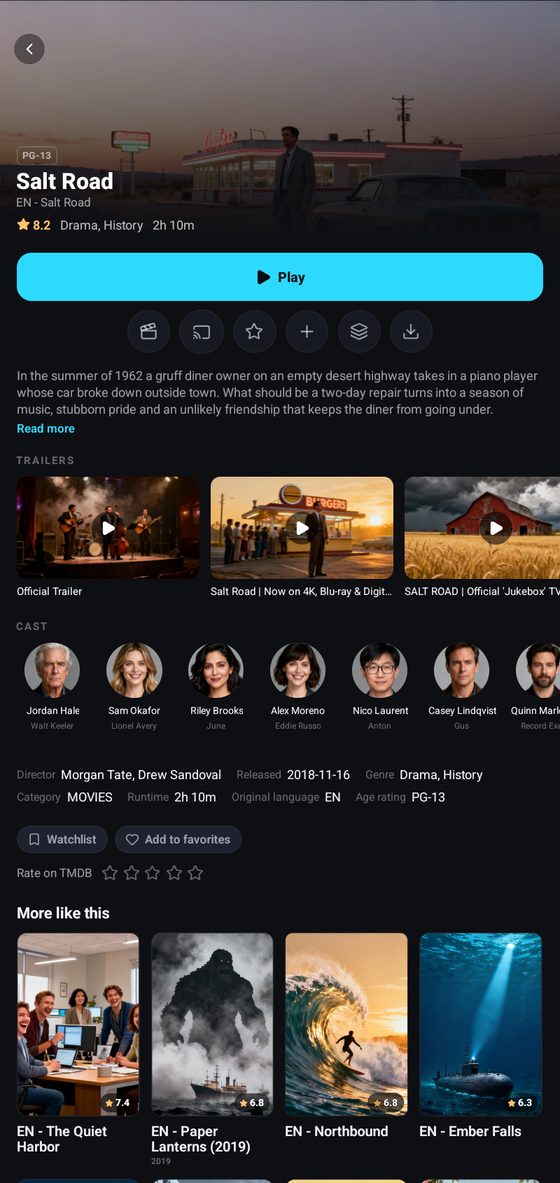
How much you get without TMDB depends on the provider. This one sends a plot and a backdrop; many M3U playlists send nothing but a name and a logo.
1. Create a free account
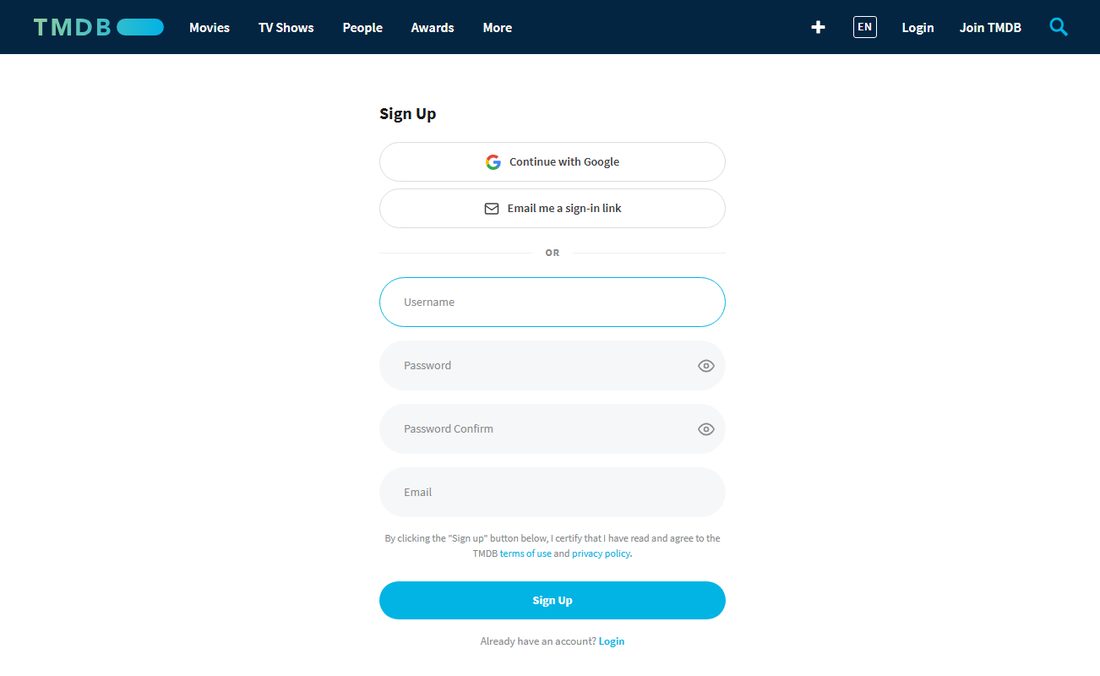
Section titled “1. Create a free account”Open themoviedb.org/signup and sign up with Google, an e-mail link or a username and password. Confirm the e-mail TMDB sends you.
2. Ask for an API key
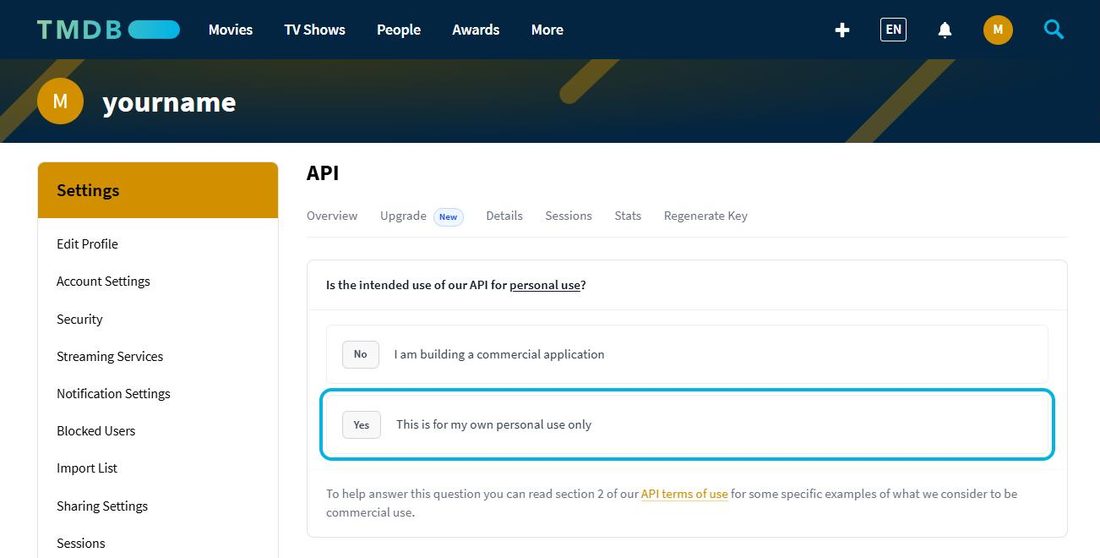
Section titled “2. Ask for an API key”- Click your avatar in the top right corner, then Settings, then API in the menu on the left.
- Choose to create a new key. To “Is the intended use of our API for personal use?” answer Yes, This is for my own personal use only.
- Accept the terms and fill in the short form: a name for your use (for example IPTV Deck at home), a website address (the IPTV Deck page will do), one sentence on what it is for, and your contact details.
A personal key is usually ready straight away.
3. Copy the API Key
Section titled “3. Copy the API Key”Settings → API now shows two values. Copy the one called API Key, the short one of 32 characters. The long API Read Access Token above it does not work in the app.
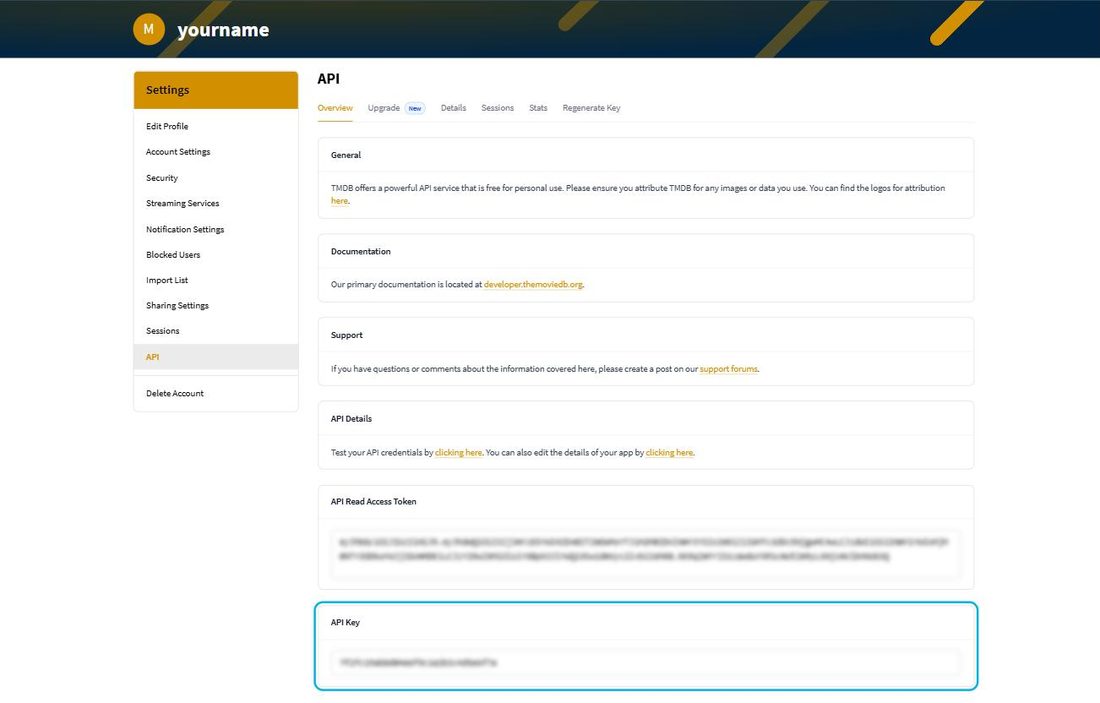
The easiest way to get it into the app is to open this page on the phone or tablet you are going to paste it on.
4. Paste it into IPTV Deck
Section titled “4. Paste it into IPTV Deck”Settings → Integrations → TMDB, on a phone, a tablet, a television or a computer.
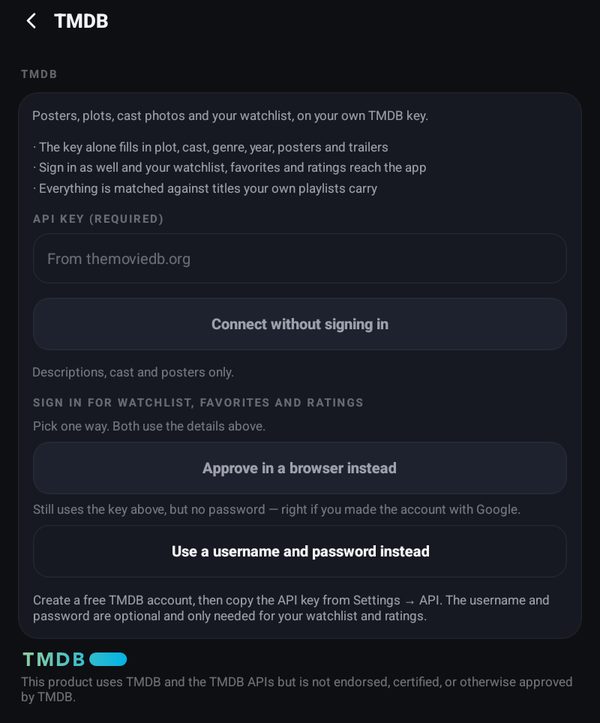
- Paste the key into API key (required).
- Press Connect without signing in. That is enough for plot, cast, posters, trailers, ratings and genres.
- Optional: sign in as well, and your TMDB watchlist, favorites and ratings reach the app. Choose Approve in a browser instead if you made the TMDB account with Google, or Use a username and password instead.
Connected with the key alone, the card reads Connected with an API key · Titles and posters only.
On a TV: enter the key on your phone
Section titled “On a TV: enter the key on your phone”A 32-character key is no fun to type with a remote. On a TV:
- Open Settings → Integrations → TMDB and choose Enter it on your phone.
- Scan the code the TV shows with your phone. No camera? On the phone open Settings → Devices → Connect a device and type the code.
- Paste the key on your phone and send it. If the phone already has TMDB connected, Send the one from this phone does it in one step.
The key goes to the TV end-to-end encrypted. The phone has to be signed in to IPTV Deck.
5. It is on every device
Section titled “5. It is on every device”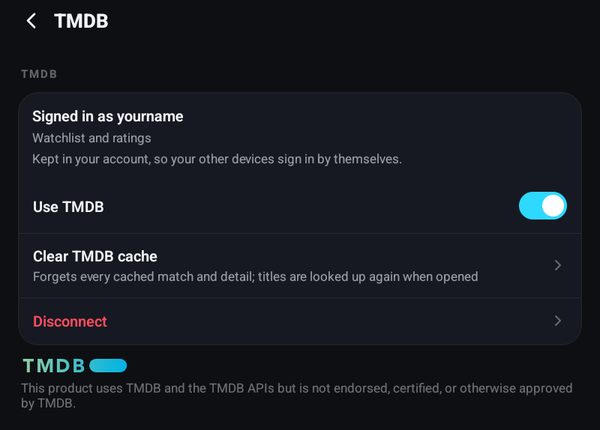
With Keep my passwords in my account switched on (Settings → Encryption on a phone, Settings → Account on a television and a computer), the key and the sign-in of each profile are stored in your IPTV Deck account. Every phone, tablet, television and computer you sign in to then uses TMDB on its own, so nobody types a 32-character key with a remote. More about that switch in Encryption.
With the switch off, send the sign-in from the device that has it: Settings → Devices, see Moving to another device. That carries the key and the sign-in of the first profile; another profile signs in again on the new device.
Use TMDB on the same screen turns it off on this device only. The key stays, and switching it back on needs nothing else.
One key, a sign-in for each profile
Section titled “One key, a sign-in for each profile”The key is shared by every profile, so plots, posters, cast, trailers and genres work for everybody as soon as it is connected. The sign-in belongs to one profile, because a watchlist, favorites and ratings are personal.
- A sign-in made before profiles had their own stays with the first profile, the one the app started with.
- In any other profile, open Settings → Integrations → TMDB and choose Sign in to TMDB. It asks you to approve in a browser, on the key that is already there.
- Instead of signing in again, a profile can take the sign-in of another one: Use …’s sign-in on the same screen copies it, and the two profiles then share one TMDB watchlist, favorites and ratings. For a kids profile, do it from your own profile: Settings → Profiles & PIN, the child’s profile, What … sees, then Integrations.
- Sign out of TMDB signs out the profile you are in and nobody else.
- A profile that is not signed in gets everything on this page except the watchlist, favorites and your own ratings.
- Disconnect removes the key, and with it TMDB for every profile on that device. Your other devices stay signed in.
The account panel shows the same under TMDB, Other profiles, with Sign in, Sign out and Use …’s sign-in for each. Copying the sign-in of a profile that has a PIN asks for that PIN.
What it adds
Section titled “What it adds”Cast and actor pages
Section titled “Cast and actor pages”Tap a face in the cast row of any film or series. The actor page shows every film and series of theirs that your own playlists carry, not their whole career.
The director and the creators
Section titled “The director and the creators”On the page of a film the first tile of the cast row is its director, marked Director, and on the page of a series its creators, marked Created by. A director who also acts in the film has one tile with both. Open the tile for the same kind of page as an actor’s: the films they directed and the series they created that your playlists carry, next to the ones they played in. The Director or Created by line in the facts then leaves the page, as the cast names do. It works with TMDB or Trakt connected, on phones, televisions and computers.
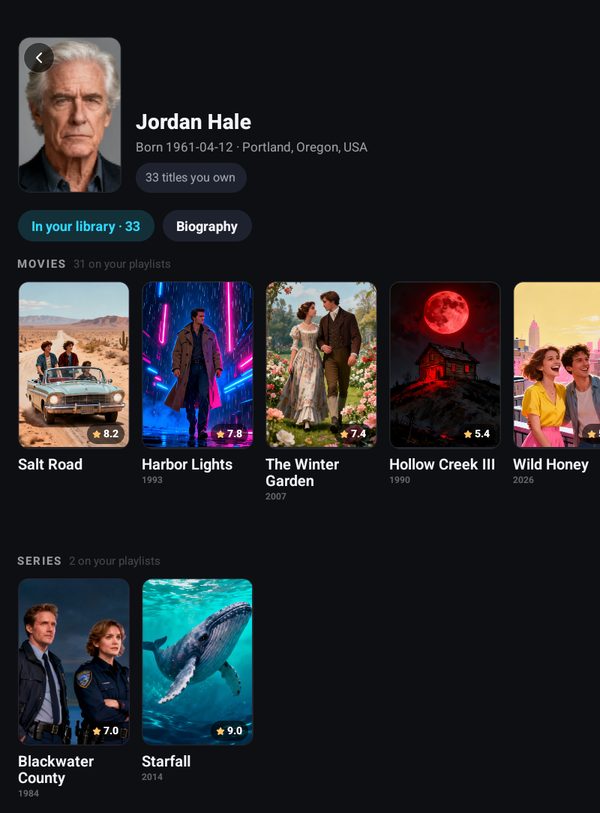
Search for an actor
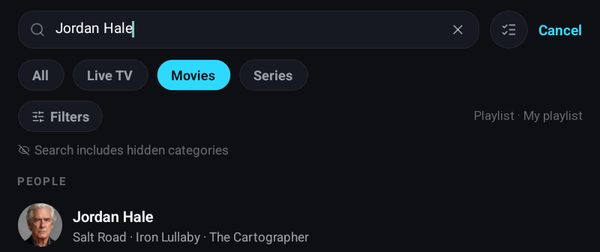
Section titled “Search for an actor”Type an actor’s name in the search and they show up under People, with what they are known for. Tap them for the same page. It works in every app language, also when you type the name in Latin letters and TMDB lists it in another script.
Clean names
Section titled “Clean names”Providers often put tags such as |FR|, |EN| or |VOST| into the names of films and series. With TMDB connected, a film or series the app is sure about shows its TMDB name instead, in the language of the app, on its tile and its page.
- The language of the copy stays as a label on the poster.
- The provider’s name stays on the title page, under the title, so you can still tell copies apart.
- A title you renamed keeps your name.
- A title the app is not sure about keeps the provider’s name; it still gets the poster and rating.
- Titles from TMDB, in Settings → Playlists or in the account panel, turns it off. It is on unless you change it, and follows your account to your other devices.
Without TMDB the app still takes the most common tags out of names by itself.
Variants of a title
Section titled “Variants of a title”The Variants button on a title’s page lists the other copies of the same film in your playlist: another language, another quality, a dub. Without TMDB it mostly matches them by name. With TMDB it also finds the copies your provider filed under a different name, a translated title for example, because they point to the same film on TMDB. More in Variants of a title.
Genres
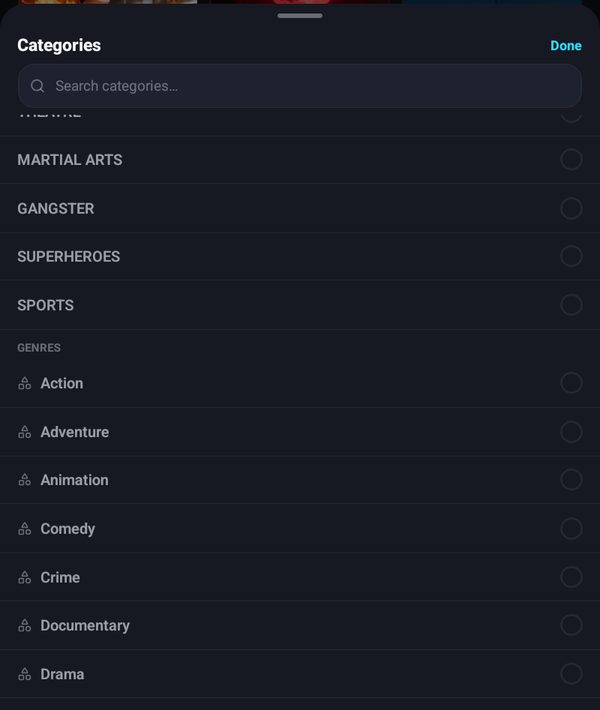
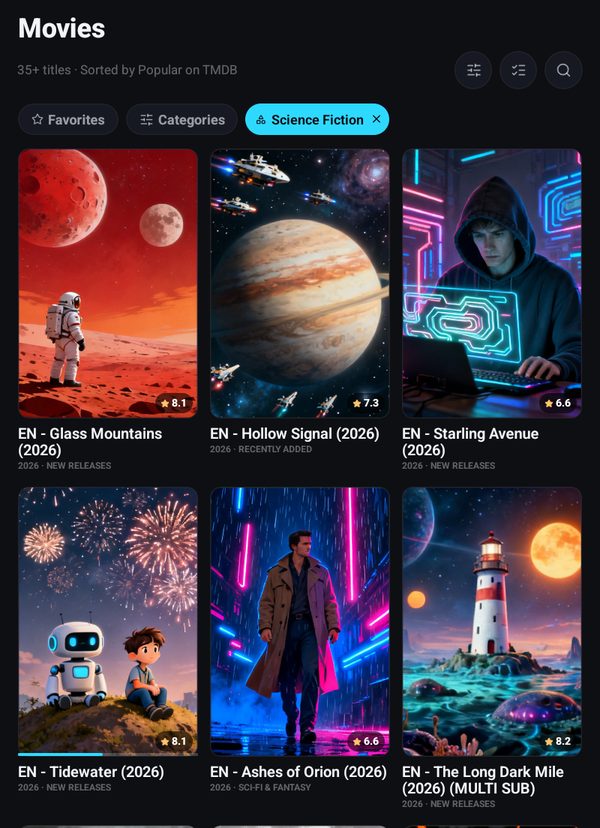
Section titled “Genres”In Movies or Series, open Categories. Under your provider’s categories there is a Genres section. Pick one and you get the titles from your playlist in that genre, most popular on TMDB first, and you can still sort and filter them like a category.
Series
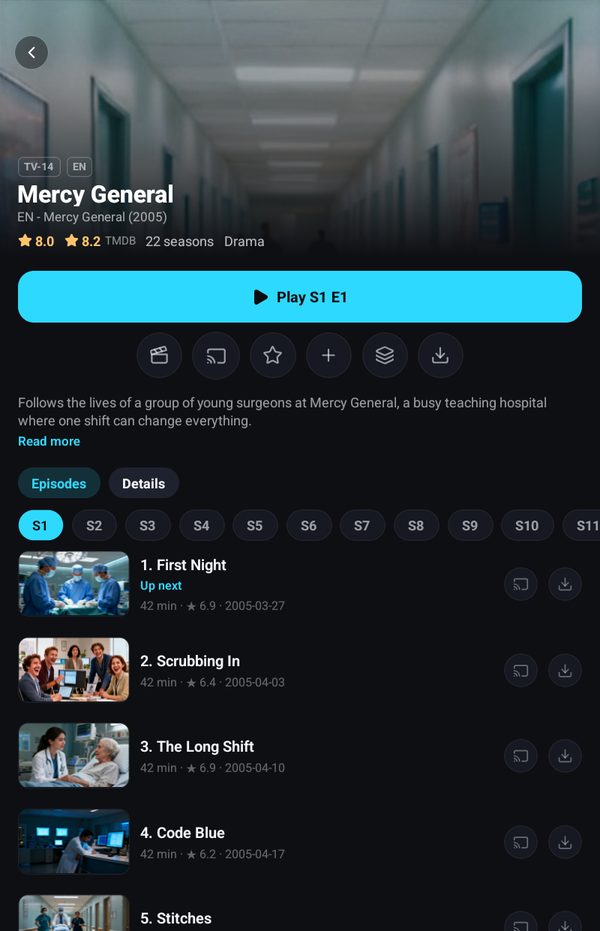
Section titled “Series”A series card gets the same treatment: plot in your language, age rating, the TMDB rating next to the provider’s, cast and trailers, and the guest cast of each episode. Seasons and episodes themselves come from your provider. An episode your provider sends no picture for shows TMDB’s still of it, on the series page and on the Up next card.
Real episode names
Section titled “Real episode names”Some providers list episodes only as Episode 1, Episode 2 and so on. With TMDB connected, those episodes show their real names from TMDB, next to the pictures TMDB gives them. An episode your provider already named keeps its name.
Ratings, watchlist and more like this
Section titled “Ratings, watchlist and more like this”- The TMDB rating on film and series cards, next to the provider’s own.
- Rate this, from 1 to 10, with half stars on a phone, and Watchlist and Favorite under them, on every title TMDB knows once you sign in. They are synced to your TMDB account.
- Your TMDB watchlist and Popular on TMDB, what is trending this week that your playlist has, as rows on the home screen. On a television, Windows and the Mac the watchlist is also TMDB watchlist in the column of Movies and Series, with every title of it your playlist has.
- More like this uses TMDB’s recommendations, matched against what you actually have.
- More from this collection on a film that belongs to a series of films: every released part you have, in release order.
- The plot and genres come from TMDB in the language of the app, whatever language your provider wrote them in.
Titles are matched to your playlist by their TMDB number when your provider supplies it, and by name otherwise, so a film filed under a slightly different name is still found.
Together with Trakt or SIMKL
Section titled “Together with Trakt or SIMKL”If you also connect Trakt or SIMKL, Settings → Integrations lets you choose which service comes first for title details and which one keeps your watchlist and shows your rating, see Integrations. Out of the box, details come from TMDB and the watchlist and ratings live in Trakt. A rating you give goes to every service you are signed in to. Trakt also adds the IMDb, Rotten Tomatoes and Metacritic scores to the rating line.
Why your own key and not ours
Section titled “Why your own key and not ours”TMDB’s terms count a paid application as commercial use, which their basic licence does not cover. So no TMDB key of ours ships in the app. Yours is free, stays yours and can be revoked from the same Settings → API page at any time.
The TMDB logo in the app is the required attribution, not decoration.
How it is used
Section titled “How it is used”TMDB is never queried in bulk. It is asked about a title when you open it, and about a poster when a tile needs one. Answers are kept on the device for up to six months, and a title TMDB does not know is asked about again after seven days.
Matching a provider’s title to a TMDB entry uses a deliberately high threshold plus the year, so a film called Dune Drifter does not turn into Dune. When the app cannot be sure, it leaves the title alone rather than attaching the wrong film’s cast to it.
If it stops working
Section titled “If it stops working”- “TMDB did not accept that API key.” Check that you copied the API Key and not the long API Read Access Token, and that nothing is missing at either end.
- TMDB says the key or the sign-in was rejected later on, usually because the key was regenerated or the password changed. The app stops asking at that point rather than hammering TMDB, and Settings → Integrations asks you to reconnect.
- A title shows the wrong film’s details. Clear TMDB cache on the TMDB screen forgets every match, and titles are looked up again when you open them.
