The settings map
The two shells group settings differently. Both hold the same things.
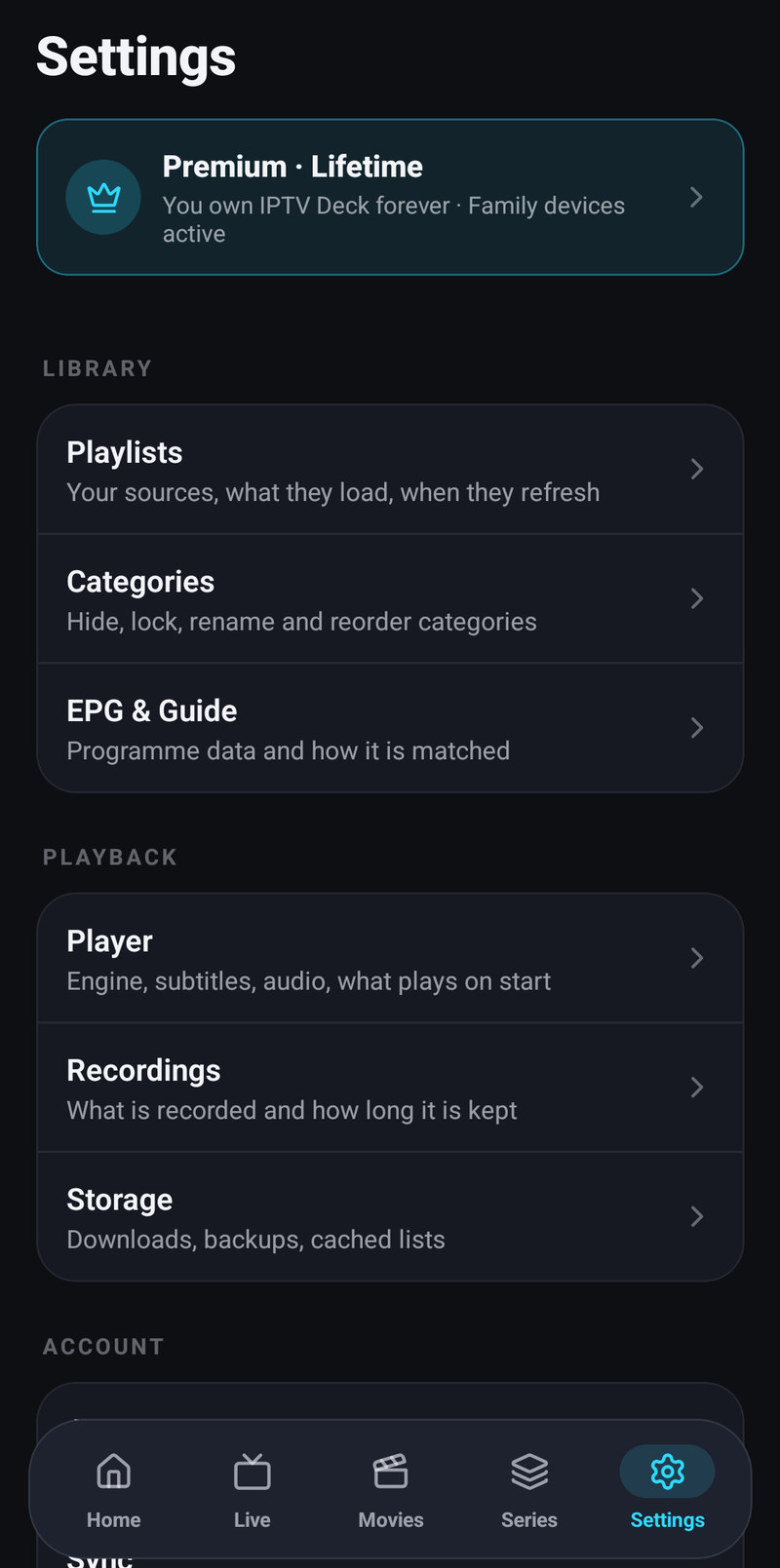
On a phone
Section titled “On a phone”| Group | Rows |
|---|---|
| Library | Playlists · Categories · EPG & Guide · Sports |
| Playback | Player · Recordings · Storage |
| Account | Account · Sync · Encryption · Devices · Profiles & PIN |
| Saved & scheduled | Reminders · Downloads · Recordings |
| Services | Integrations |
| System | Appearance · Help · About & legal |
The longer screens are split into sections, each with its own heading. What you act on comes first, such as your playlists or your guide sources with Update all under them, and the rules for how they behave come after, under Settings.
On a television
Section titled “On a television”| Group | Rows |
|---|---|
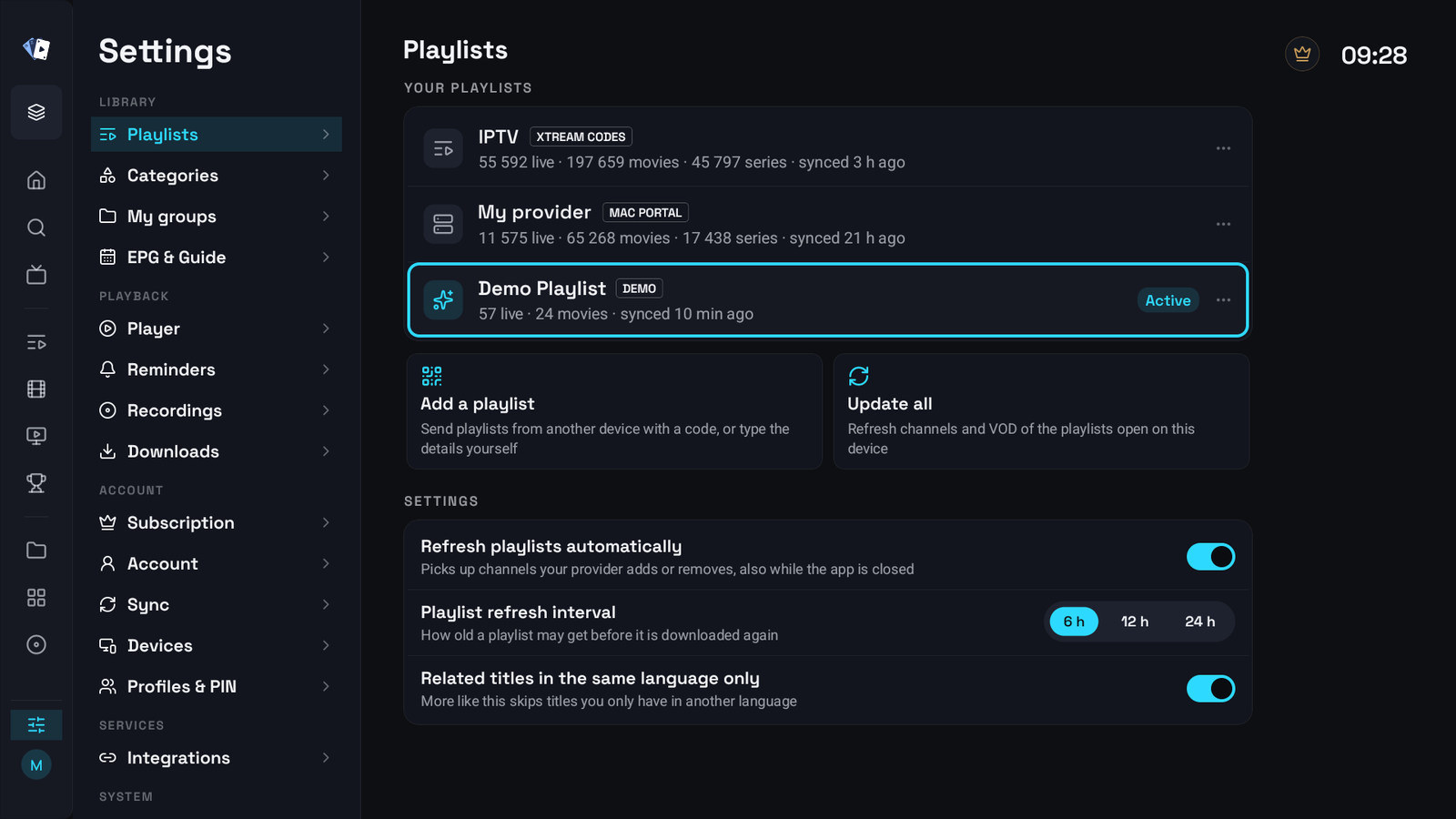
| Library | Playlists · Categories · My groups · EPG & Guide · Sports |
| Playback | Player · Reminders · Recordings · Downloads |
| Account | Subscription · Account · Sync · Devices · Profiles & PIN |
| Services | Integrations |
| System | General · Appearance · Home · Help · Terms & Privacy · Licenses · About |
Settings opens from the button at the bottom of the nav rail, next to your account. The sections are listed on the left and the chosen one opens on the right; OK on a section opens it. Windows and the Mac use this layout too.
Reminders, Recordings and Downloads appear only where the device can do them.
In a Kids profile Settings holds only its look, its Home rows, its audio and subtitle languages, Switch profile and About, see Profiles.
General
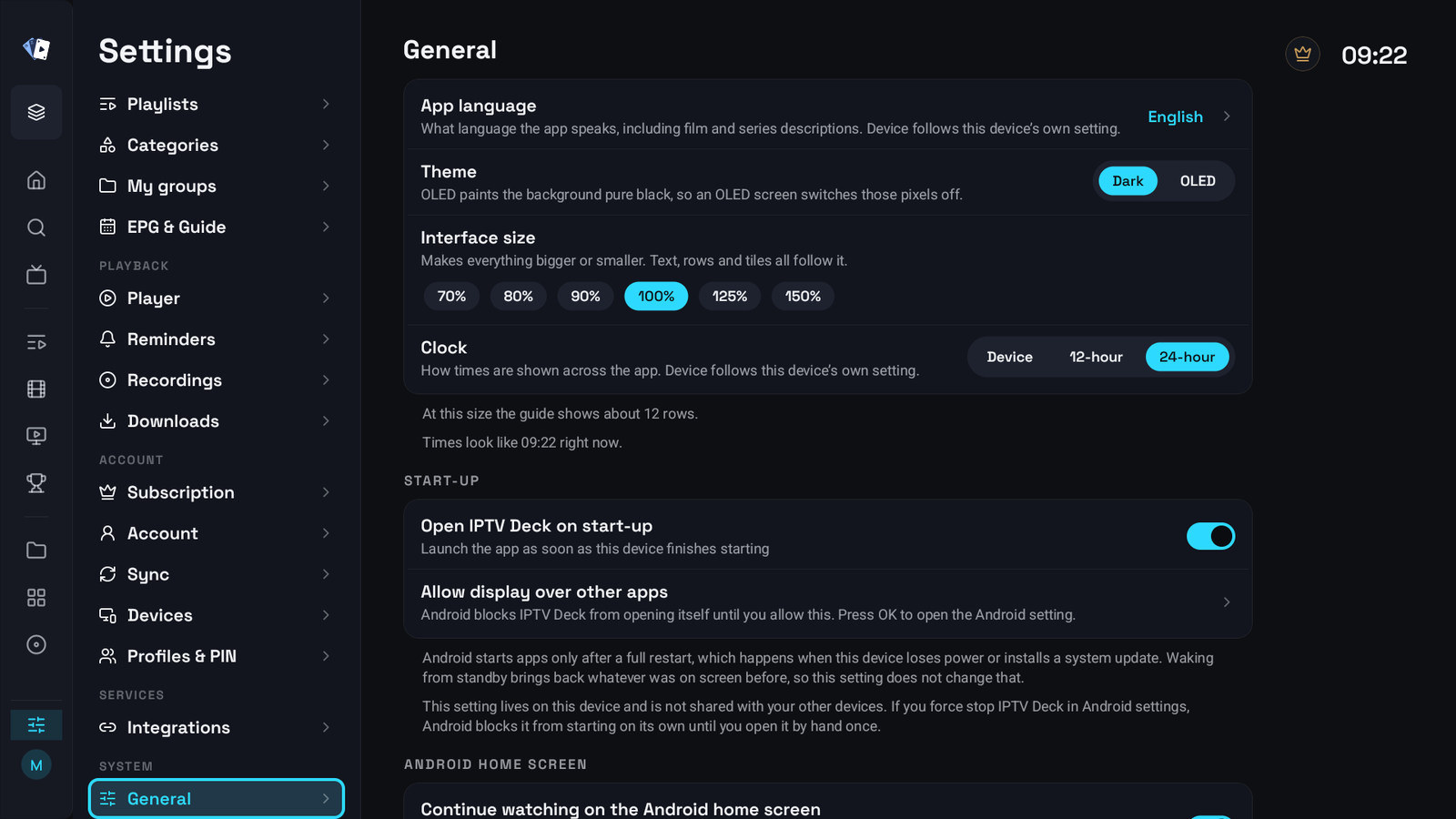
Section titled “General”General holds, from the top: App language, Theme (Dark or OLED), Interface size from 70% to 150%, List size, Menu size, Open a category when it is highlighted, Hide categories while browsing (not on Windows and the Mac), Fold the groups of Settings, Side menu, Category column, Channel column in TV Guide, Clock (Device, 12-hour or 24-hour) and Channel logo background (Tile or None, see Channel logos without the tile). Under them, where they apply, are the groups Layout on a tablet, Start-up and Android home screen on Android TV.
Interface size makes the whole app bigger or smaller. List size makes only the channel lists and the category lists bigger, and Menu size only the side menu, both from 100% to 150%, for when those are hard to read from the sofa but everything else is fine. With a large interface size they grow only as far as the screen has room for, and a note under the group says how far.
Open a category when it is highlighted shows a category in TV Channels, Movies and Series as soon as you move onto it, without pressing OK. Off by default.
Hide categories while browsing slides the category column of TV Channels, the TV Guide, Movies, Series and My Groups away when you move into the list, so the list gets the whole width. Left brings it back. On by default.
Fold the groups of Settings opens Settings with Library, Playback, Account and the other groups closed. OK on a group opens it. Off by default.
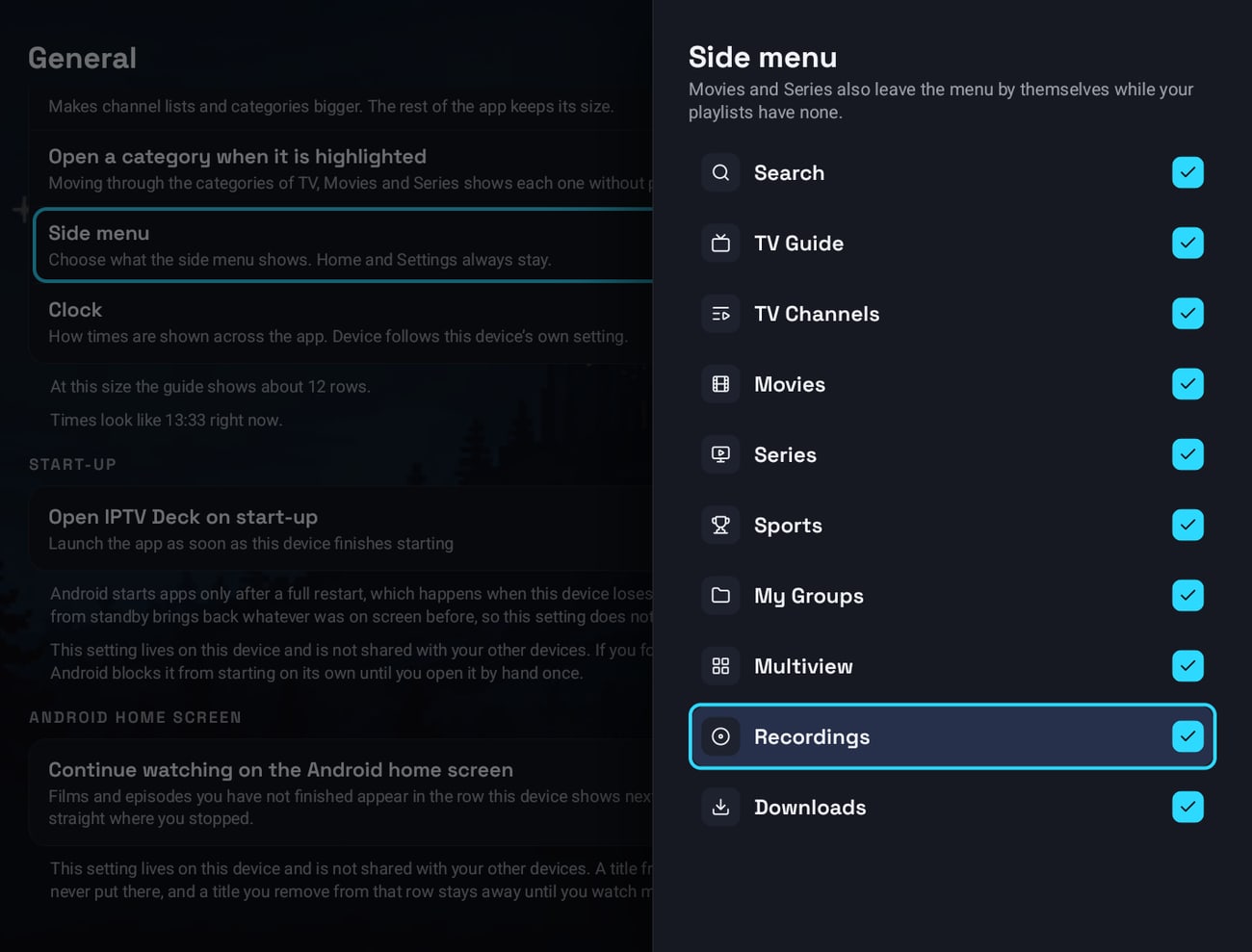
Side menu chooses what the side menu shows: untick the items you do not use. Home and Settings always stay. Sports channels is the one item that is off until you tick it: it opens the list of sports channels in one step. Movies and Series also leave the menu by themselves while your playlists have no films or series. This setting belongs to the device.
Category column and Channel column in TV Guide, each Normal, Wide or Extra wide, give long category and channel names more room. A wider guide column shows less of the timeline at once. A name that still does not fit scrolls while its row is highlighted.
All of them are described on Look and layout.
Your plan in the top bar
Section titled “Your plan in the top bar”The top bar shows your plan: a gold crown when you have Premium or Lifetime, TRIAL · N DAYS LEFT during the trial, and TRIAL ENDED after it. Selecting it opens Subscription when you have a plan, and the plans when you do not. Next to it are the clock and, with more than one profile, the profile you are in. The top bar steps out of the way on the guide and when you scroll Home down.
Appearance
Section titled “Appearance”On a phone, Settings → Appearance holds the language, Theme, Clock, the channel logo background, Bottom tabs (which of Live, Movies, Series and Sports sit along the bottom, see Choosing the bottom tabs), the theme pictures and colours, the rows of the home screen and the Sports options for Home, and on a tablet the Layout switch. On a television and a computer the language, Theme and the clock are in System → General, the theme pictures and colours in System → Appearance, and the Home rows in System → Home.
The first theme, Plain, has no picture. The others come in the groups Calm, Far away, Daylight, Moody, Pixel worlds and Little ones. The look belongs to the profile you are in and follows it to your other devices. Everything about it, the colours, picture strength, panel opacity, the sizes and who keeps what, is on Look and layout.
Changing the app language reloads the interface. In a right-to-left language, Arabic and Urdu, the whole layout mirrors, which is why it needs a reload rather than a re-render; that only ever happens when you pick the language on this device, never because another device changed it.
Which settings stay on the device
Section titled “Which settings stay on the device”Roughly: anything about this screen, this decoder or this disk.
Player engine, buffer size, Timeshift, hardware decoding, skip steps, subtitle size and colour, brightness, saved zoom and aspect, how long the guide is kept, the download and recording folders, recording padding, the tablet layout, the interface, list and menu size, the column widths, the rows on Home and their order for each profile, the bottom tabs of a phone, and the profile this device opens in. Which playlists are open follows each profile to every device, see Which playlists are open.
They stay on the device, but they are not lost with it: a copy of them is kept in your account, one per device, and comes back when you reinstall the app on that device and sign in. You can also copy them from one device to another, see Copying settings from another device.
Everything else follows your account, unless you switch it off under What gets synced. The full split is on Your account and sync.
Type a question in your own words, in any language, and Joker, the help assistant, writes a short answer in that language from this manual, with the parts of the manual it comes from: on a phone they open in the browser, on a television a code opens them on your phone. Ask a follow-up and Joker keeps the earlier questions in mind. When the manual has no clear answer you get a few pages that may help. Joker starts with a few suggested questions, takes a thumbs up or down on each answer, and Talk to a person sends the chat to our support team, who reply by email (see Talk to a person). When a setting of this device explains or fixes what you ask about, Joker shows it under the answer with Apply, and Undo after that: nothing changes until you press it. Ask it to hide or show categories or channels whose names start with a text, or to start a new profile, and it shows what it found with Apply, or Open for the profile editor (see Asking Joker). Joker is also on every page of this manual, behind the round button in the corner (see Asking Joker), and on every page of the account panel.
Search the manual finds pages of this manual by the words you type. It is a plain text search and works without an account.
About & legal
Section titled “About & legal”On a phone, Settings → About & legal holds Rate IPTV Deck (in the Google Play and App Store apps), Terms of Service, Privacy Policy, Open source licenses, the sports data credit, Community, Report a bug and Contact support. At the bottom are the version and the active update id, with Check for updates under them.
On a television, a computer and LG and Samsung TVs these are three entries under System: About with the version, the update check and Report a bug; Terms & Privacy with QR codes for the terms, the privacy policy and rating the app, and the support address; and Licenses.
Report a bug opens an email with the version, the platform and the update id filled in, see Reporting a problem. The update id is how you tell somebody exactly what you are running, see Updates.
