Remote and keyboard keys
On a television nearly everything hangs off two keys. If you are hunting for an action, hold OK first.
Everywhere in the app
Section titled “Everywhere in the app”| Key | What it does |
|---|---|
| Arrows | Move |
| OK | Open or play what is focused |
| Hold OK, or INFO | A side sheet with the options for what is focused: favourite, group, watchlist, then rename, versions, record, remind |
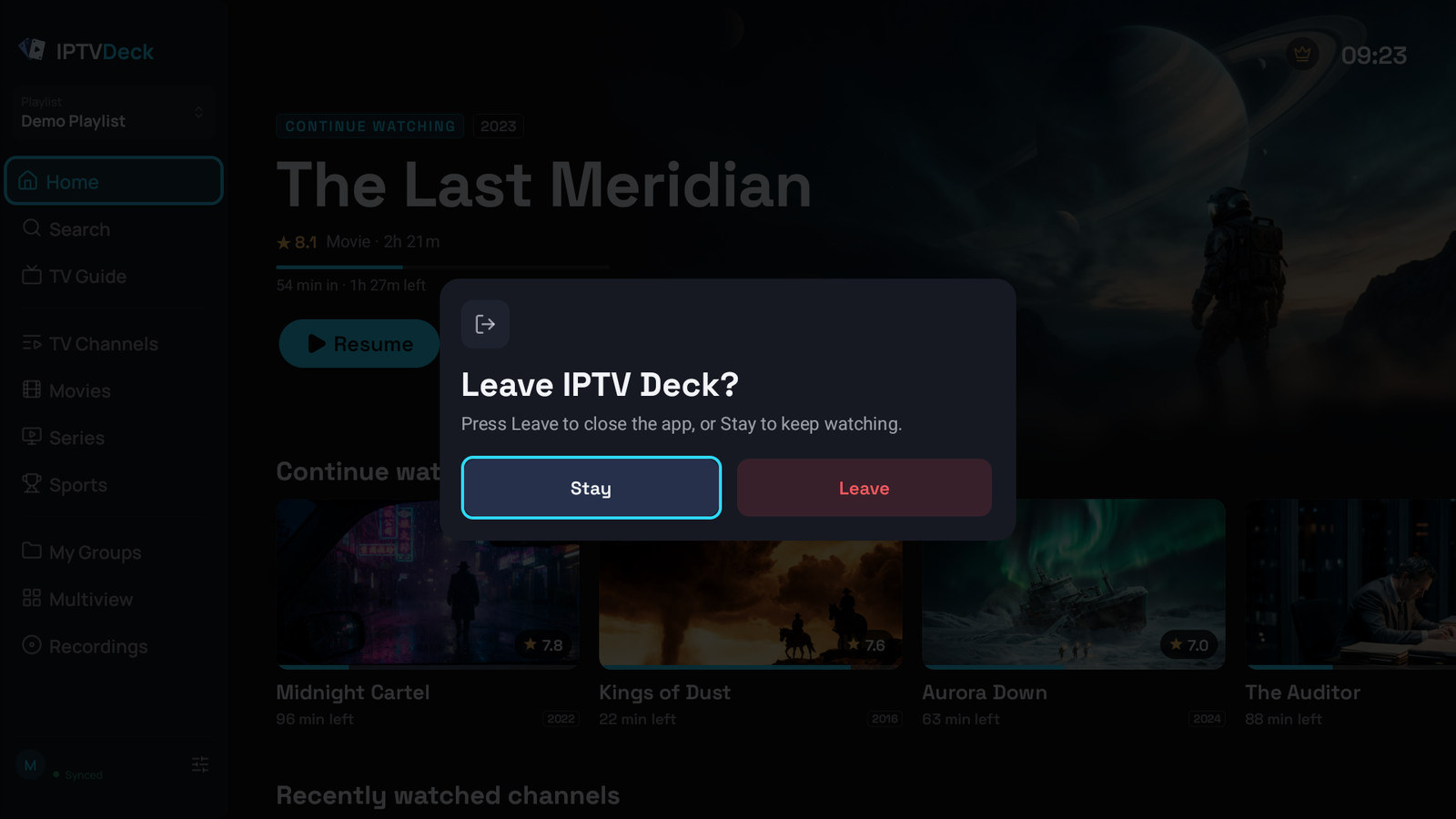
| Back | One level up. From a screen it goes to the side menu, and from the side menu to Home. Only on Home does it ask whether to leave the app |
| Left from the first column | The side menu |
A row of key hints, ← ↑ ↓ → Move · OK Play · Hold OK · INFO Options · Back One level up, shows for a few seconds each time you enter a screen. In the TV Guide with a channel playing, some TVs add Hold Back Playing channel. In a sheet, Back closes it; on a computer a click outside the sheet does the same.
In the player
Section titled “In the player”| Key | What it does |
|---|---|
| OK | Show the controls |
| Hold OK | The channel list (live) |
| Up / Down | Next and previous channel (live), while the controls are closed. Hold to keep zapping. With Up / Down on a live channel set to Show the controls, they show the controls instead |
| OK, then Down | The channels you watched last, under the controls (live). OK on one switches to it, Up or Back closes them. See Recently watched channels |
| Up / Down with the controls open | Move between the controls and the recent channels. They do not change the channel |
| Left / Right | Seek by your skip step in films and episodes. On live they show what is on, and skip with Timeshift on. On Android TV, Fire TV and LG and Samsung TVs you can give them another job under Remote buttons |
| Hold Left / Right | Keep seeking. On live without Timeshift, switch to another version of this channel |
| Channel + / − | Next and previous channel (live). Hold to run through the channels until you let go |
| Rewind / Fast forward | 30 seconds back or ahead, where you can seek |
| Play / Pause, Play, Pause | Exactly that |
| Digits | Type a channel number and it jumps there |
| INFO or Menu | Options |
| Guide | The TV guide over the channel you watch (live). Options, on a film |
| Subtitles | The subtitles |
| Record | Record the programme, or stop recording (live) |
| Bookmark | Add the channel to your favourites, or take it off (live) |
| Next / Previous | The next or previous episode |
| Back | Hide the controls if they are up, then close the player |
Guide, Subtitles, Record, Bookmark and Next / Previous work where your remote has them. On Apple TV the Menu button is Back and leaves a live channel at once, and the channel buttons of a remote that has them change the channel.
Colour keys
Section titled “Colour keys”Only remotes of Android TV, Fire TV and LG and Samsung TVs have them:
- Yellow, switch between the last two live channels you watched. Films never enter that history. In multiview’s picture-in-picture layout it swaps the big and the small picture.
- Blue, switch to another version of the channel that is playing.
- Green, switch the player engine, Native to VLC and back, on Android TV and Fire TV.
Chromecast with Google TV, Fire TV Sticks and NVIDIA Shield remotes mostly have no colour keys at all; the same action is in the player’s Options panel: Last channel, Versions in the row of controls, Player engine.
Remote buttons
Section titled “Remote buttons”On Android TV, Fire TV and LG and Samsung TVs you can choose what the buttons of your remote do anywhere in the app, in the player, the channel list and the guide.
- Open Settings → Player → Remote buttons.
- Press OK on an action. They are grouped under Anywhere, Live channel, Films and episodes and Channel list and guide.
- Press the button you want for it, or hold it to set what holding that button does. Back cancels.
- If the button already does something else, the app asks whether to Replace it.
On an action you can also Remove its buttons or put it Back to its default, and Back to default buttons at the bottom resets them all. Each TV keeps its own buttons, the hints in the player name the buttons you chose, and the account panel can put them back to the defaults.
The actions you can give a button in the player are: Play or pause, Play, Pause, Next channel, Previous channel, Last channel, Recent channels, Next version of the channel, Player engine, Mute, Forward 30 seconds, Back 30 seconds, Skip ahead with Timeshift, Skip back with Timeshift, TV Guide, Options, Audio, Subtitles, Record or stop recording, Add to favorites or remove, Next episode and Previous episode. In the channel list and the guide: Page up and Page down.
Open playlists from any screen
Section titled “Open playlists from any screen”Under Anywhere sits Open playlists. Give it a button and that button opens the same playlist switcher as the playlist card at the top of the side menu, on any screen and while a channel plays. It has no button until you give it one.
Left and Right on a live channel
Section titled “Left and Right on a live channel”Under Live channel, Left and Right can do something else, pressed or held, for example Last channel on Right. Until you change them they skip back and ahead with Timeshift (Skip back with Timeshift, Skip ahead with Timeshift). With the controls open they still move between the buttons.
Recent channels in one press
Section titled “Recent channels in one press”Give a button Recent channels under Live channel and it opens the controls with the recently watched channels already showing.
Scrolling a page at a time
Section titled “Scrolling a page at a time”In TV Channels and the TV Guide, and in the channel list and the guide over the picture, these buttons move one screen of channels at a time:
| Key | What it does |
|---|---|
| Channel + / Channel − | One page up or down. Hold to keep going |
| Page Up / Page Down | One page up or down |
| Rewind / Fast forward | One page up or down |
This works on Android TV, Fire TV, LG TVs, Windows and the Mac. On Android TV, Fire TV and LG and Samsung TVs you can give these jobs to other buttons under Channel list and guide in Remote buttons.
On Windows and macOS
Section titled “On Windows and macOS”The television layout, driven by a pointer or the keyboard:
- Click anywhere OK would act. A right-click does what holding OK does: the options of what is under the pointer.
- Move the mouse over the player to reveal the controls. A slight touch of the mouse does not, in the player or in a multiview window.
- Double-click the picture to go full screen, and again to leave it. In full screen the controls have a × that closes the player.
- Drag a list sideways to scroll it; a drag that actually scrolled does not also click.
| Key | What it does |
|---|---|
| Arrow keys and Enter | Exactly like a remote. In a film, Left and Right seek |
| Space | Play or pause |
| Escape | Back |
| Page Up / Page Down | Next and previous channel in the player; a page at a time in TV Channels and the TV Guide. Hold to keep going |
| M | Mute and unmute the player |
| Backspace or X | Close the player, leaving full screen first |
| F11 | Full screen, also under Options → Full screen |
| Digits | Type a channel number |
On a tablet in the television layout
Section titled “On a tablet in the television layout”A tablet running the television layout hides the phone’s navigation bar, so pages opened on top of the main screens, such as a title page, a group or Add playlist, get a visible back button in the corner. The screens of the side menu have none. There is also a back swipe from the left edge on iPad. Tapping a tile never moves the focus ring the way a remote does. That is deliberate, because a finger has no focus.
