Your account and sync
An account is free, and it carries three things: your trial and subscription, your data, and the devices you are signed in on.
On Android, Android TV, Fire TV, Apple TV and LG and Samsung TVs you do not need one to try a playlist. An iPhone, an iPad, Windows and the Mac ask you to sign in first, and Windows and the Mac also ask you to confirm your email address. Without an account nothing syncs, and the trial cannot follow you to a second device.
Signing in
Section titled “Signing in”Settings → Account → Sign in, or the first screen of the app. The ways to sign in depend on the device:
| Device | Apple | Email and password | From another device | |
|---|---|---|---|---|
| Android phone or tablet | yes, with Google Play | yes, in the browser | yes | yes |
| iPhone and iPad | yes | yes | yes | yes |
| Android TV | yes, with Google Play | yes, in the browser | yes | yes |
| Fire TV | no | yes, in the browser | yes | yes |
| Apple TV | no | no | yes | yes |
| Windows and Mac | yes, except the Mac App Store app | where offered | yes | yes |
| LG and Samsung TVs | no | no | yes | yes |
Sign in from another device is the easy way on a television: the TV shows Sign in to IPTV Deck with a QR code and an 8-character code. Scan the QR code with a phone that is already signed in, or type the code on it under Settings → Devices → Connect a device, and approve. The TV says Signed in — your playlists are syncing. Step by step: Moving to another device.
A new email account needs a password of at least 6 characters, and a verification email is sent. Forgot password? sends a reset link.
When sign-in fails
Section titled “When sign-in fails”| Message | What to do |
|---|---|
| Wrong email or password | Check both, or use Forgot password? |
| An account with this email already exists — sign in instead | You created it before, maybe with Google or Apple. Sign in the way you did then |
| Too many attempts — wait a moment and try again | Wait a minute |
| No connection — check your network and try again | The device is offline |
| this TV may have no browser — scan the code with your phone instead | Apple sign-in on a TV needs a browser. Use Sign in from another device |
| Apple TV cannot sign in with Apple — sign in with email, or pair from your phone | Apple TV has no Apple sign-in for apps like this one. Pair it from your phone |
If you signed up with Apple on an iPhone and want to use a TV that has no Apple sign-in, pair the TV from the phone: it joins the same account without any password.
How syncing works
Section titled “How syncing works”Not a manual refresh and not a poll: every signed-in device listens, and a change on one appears on the others within a second or two. Merging is field by field, so two devices can edit at the same time without either losing anything, a channel added to a group on the phone and one added on the television both survive.
Playback position is included, with a slower cadence, so resuming on another device lands on the right second.
What syncs and what does not
Section titled “What syncs and what does not”| Follows your account | Stays on this device |
|---|---|
| Playlists, their names and addresses, which profiles see them, and which playlists each profile has open | Which playlists this device opens before a profile picks any |
| Favourites, watchlist, continue watching, recently watched | Player engine, buffer size, Timeshift, hardware decoding, deinterlacing, stereo or surround, volume boost |
| Your groups and their order, hidden and renamed channels and categories, Category order | Subtitle size, colour, background and position, brightness, zoom and aspect |
| Profiles, their PINs, locked categories, playlist access, and for each profile its pinned and hidden categories, genres and channels, its look, its trailers and where Search looks | Interface size, list size, menu size, the side menu, the category column, the tablet layout |
| Theme, app language, clock and the clock while watching | The start screen and the rows on Home of each profile, and the Sports options for Home |
| Default subtitle and audio language and subtitle mode, for each profile, and the tracks you picked for a title | Remote buttons, what Up and Down do on a live channel, what Back from the player returns to, how long the player info stays |
| Guide sources, guide time offsets, guide and playlist refresh rules, Show playlist updates, Hide new categories | How long the guide is kept, recording Start early and Stop late, download and recording folders |
| Reminders | The profile this device opens in, Title data from and Watchlist and ratings in |
| Multiview windows and saved layouts | Auto frame rate, the Android TV home screen row, Sports alerts on this device |
| Autoplay next, Help improve Up next timing, guide preview sound and behaviour, related titles in the same language only | Recent searches, and each profile’s sort and filters in Movies, Series and Live |
| The teams and competitions you follow in Sports, and the sports and leagues each profile pins or hides | Which categories this device downloads |
| Keep my passwords in my account | The Use switch of each integration on this device |
The right-hand column is deliberate, not an oversight. A decoder that misbehaves on one box has nothing to do with your phone, and a folder on a USB stick means nothing anywhere else. The playlists a profile has open follow that profile, not the device: see Several playlists at once.
Device-only things can still be sent on purpose, see Moving to another device, and the account panel changes them for one device under Device settings.
Device settings come back after a reinstall
Section titled “Device settings come back after a reinstall”Most settings in the right-hand column are also kept in your account, one copy per device. They never reach your other devices, but when you reinstall the app on the same device and sign in, they come back. A few stay only on the device and do not come back: brightness, the download, recording and Timeshift folders, recent searches and the sort and filters.
Choosing what syncs
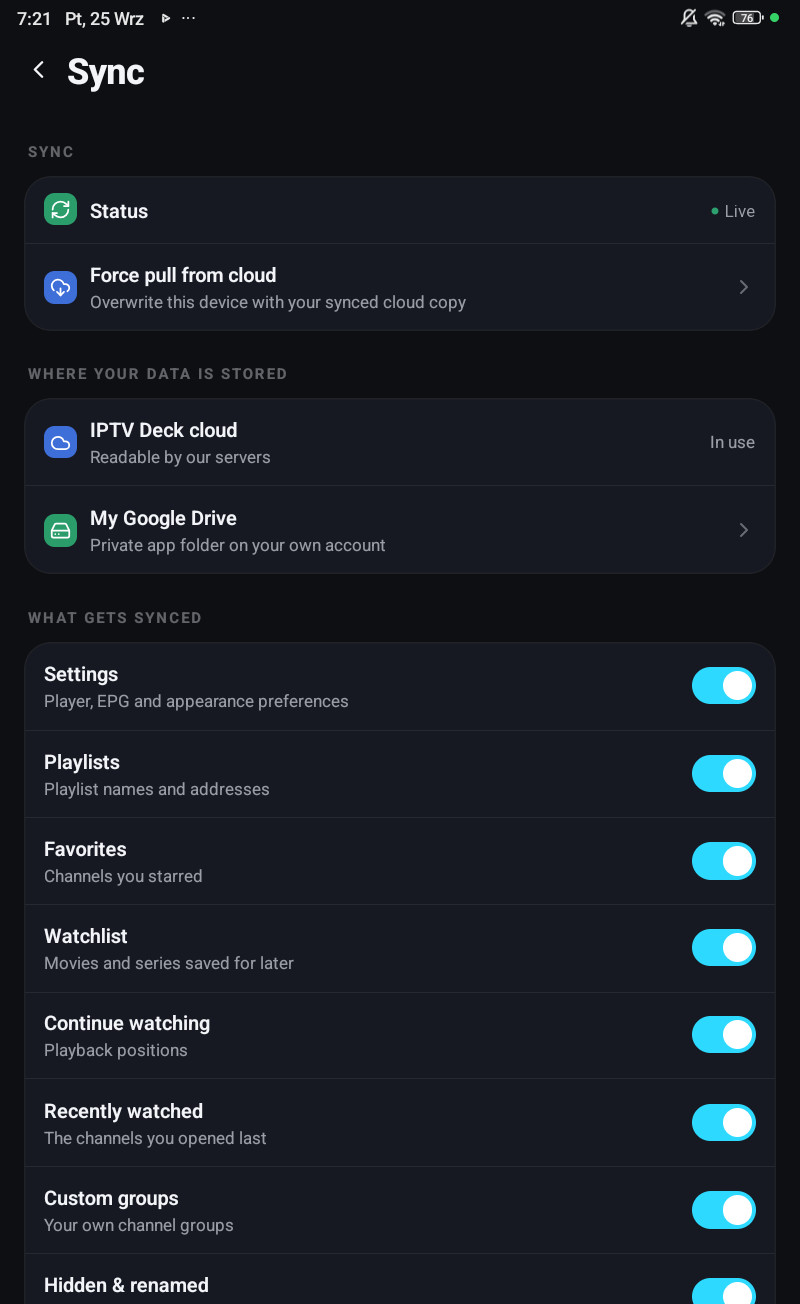
Section titled “Choosing what syncs”Settings → Sync → What gets synced has a switch for each kind of data, all on to start with:
| Switch | What it covers |
|---|---|
| Settings | Player, guide and appearance preferences |
| Playlists | Playlist names and addresses |
| Favorites | Channels you starred |
| Watchlist | Films and series saved for later |
| Continue watching | Playback positions |
| Recently watched | The channels you opened last |
| Custom groups | Your own channel groups |
| Hidden & renamed | Hidden channels and categories |
| Reminders | Programme reminders on all your devices |
Turning one off asks first, Stop syncing …?. The copy on each device is never touched. The switches belong to the whole account, so turning one off on one device turns it off for all of them. The choice is saved even when you are signed out, and applies as soon as you sign in.
The same list is under Settings → Sync on a television and a computer, and under Passwords & privacy → What syncs in the account panel.
Your account
Section titled “Your account”On a phone or tablet
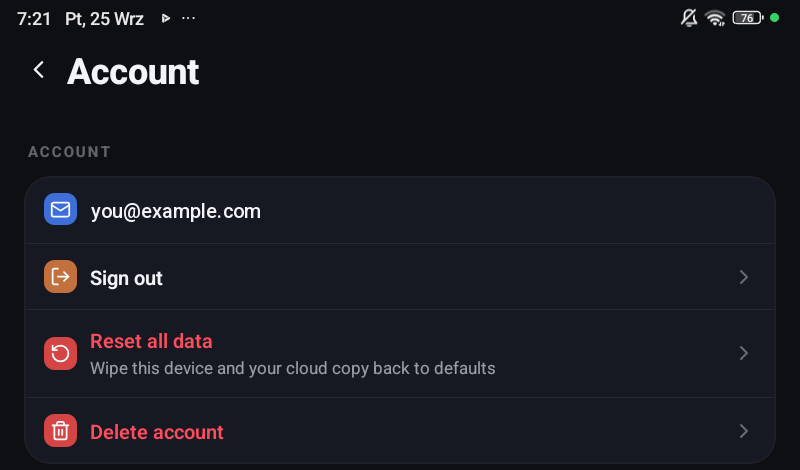
Section titled “On a phone or tablet”Settings → Account shows the email you are signed in with and:
| What it does | |
|---|---|
| Sign out | Removes your playlists and history from this device, after a last sync. They come back when you sign in again |
| Reset all data | Wipes this device and your cloud copy back to defaults |
| Delete account | Deletes the account and everything synced to the cloud |
On a television, Windows, the Mac and LG and Samsung TVs
Section titled “On a television, Windows, the Mac and LG and Samsung TVs”Settings → Account shows who is signed in, the Keep my passwords in my account switch and Sign out, which works as on a phone, see below. There is no Reset all data or Delete account there: use a phone, or Account in the account panel.
Signing out
Section titled “Signing out”Your playlists and history belong to your account, so signing out takes them off the device. Signing in again brings them back.
- Sign out first sends what changed on this device to your account, and saves where you stopped in what is playing.
- Sign out and clear this device? says what will go: Playlists, history, Continue watching,
favorites, profiles, settings and saved sign-ins will be removed from this device. Sign in again
to bring them all back. Under it, only when it applies:
- Some changes made here have not reached your account yet. They will be lost., when the last sync did not get through, for example without internet,
- a reminder that you will need your recovery key or another signed-in device, when your account is encrypted,
- Passwords and service sign-ins are not kept in your account, so you will have to enter them again., when Keep my passwords in my account is off,
- Downloads and recordings are not in your account and cannot be brought back., when the device has some.
- Choose Sign out. With downloads or recordings on the device, a phone also offers Sign out and delete downloads, and a television, a computer and LG and Samsung TVs Also delete downloads and recordings, off unless you turn it on.
While it works the button says Signing out…, usually for a few seconds. A playlist that was still updating stops.
What happens then:
- Removed from the device: playlists with their channels, films and series, favourites, watch history, Continue watching, groups, hidden channels, profiles with their PINs, settings, reminders, the passwords of your playlists and the sign-ins of TMDB, Trakt, SIMKL, OpenSubtitles, Gemini and your media servers. Downloads still in progress, paused or failed, and scheduled and running recordings, go too.
- Kept, unless you chose to delete them: finished downloads and recordings. They keep playing on the device.
- Kept always: the device’s own trial or purchase. Premium from your account no longer applies on it.
- The device leaves your device list and its place is free for another device at once. Signing out is not a removal: it does not start the 24-hour wait and does not count towards the 10 removals a day of Devices and slots.
- Your other devices and your account keep everything. Signing out disconnects nothing there.
Signing in again, with the same or another account, works as on a new device: everything of that account comes back from it. Passwords and service sign-ins come back by themselves only when they are kept in your account; otherwise type them again. An encrypted account asks for its recovery key or another signed-in device.
The sign-in screens say You stay signed in on this device until you sign out.: closing the app or restarting the device does not sign you out.
Clearing your watch history
Section titled “Clearing your watch history”Recently watched and Continue watching can each be emptied in one go, for the profile you are in. Your other devices follow.
| Where | How |
|---|---|
| Phone and tablet | Settings → Watch history, which shows how many items each list has. Also Clear on the Recently watched screen, and holding a card in either row on Home |
| Android TV, Fire TV, Apple TV, Windows, the Mac, LG and Samsung TVs | Settings → Player → Watch history. Also hold OK on a card of either row on Home |
| Account panel | Clear all in Library |
- Clear Recently watched removes the channels, films and series from that list. Continue watching keeps where you stopped.
- Clear Continue watching removes the films, series and catch-up programmes the profile has not finished. Watched marks stay.
Both ask first. A single card goes with Remove in the same place.
Reset all data
Section titled “Reset all data”Reset all data? wipes your playlists, favourites, groups, hidden channels, history and settings on this device and clears your synced copy in the cloud. Your account stays. It also cancels reminders, disconnects every integration and empties the passwords kept in your account. It cannot be undone, and every other device follows.
The app restarts by itself. Where it cannot, it says Everything on this device was reset: close IPTV Deck and open it again to finish.
Deleting your account
Section titled “Deleting your account”Delete account? permanently deletes your account and everything synced to the cloud: playlists, favourites, watch history and settings, and a copy in your own Google Drive if you used one. An account made with Google or Apple asks you to sign in with it again first.
- It does not cancel a subscription: cancel that in the store first, see Cancelling.
- What is already on the device stays until you remove the app.
- On a device that cannot confirm an Apple sign-in, the app says … cannot confirm an Apple sign-in — delete your account from your phone instead.
The account panel can delete the account too, and every device signs out.
Settings → Sync on a phone:
| What it does | |
|---|---|
| Status | Live, Syncing…, Signed out, or what went wrong |
| Force pull from cloud | Overwrites this device’s playlists, groups and settings with your synced copy where they differ, after asking. Playback history is left alone. For when two devices drifted apart |
| Where your data is stored | The IPTV Deck cloud, or your own Google Drive, see below |
| What gets synced | The switches above |
On a television, a computer and LG and Samsung TVs the status reads Up to date, Syncing…, Not signed in, Locked — unlock needed on this TV or the error, with when it last synced. Sync now pulls your playlists, favourites and history from your account straight away, without asking first. Unlock sync appears when your data is encrypted and this device does not have the key yet.
| Message after a pull | Meaning |
|---|---|
| This device now matches your cloud copy / Synced with your account | Done |
| Unlock sync on this device to read this data | Encryption is on and this device has no key, see Encryption |
| Could not sync — check your connection and try again / Could not reach your account | Offline, or our service did not answer |
Your own storage instead
Section titled “Your own storage instead”On an Android phone or tablet with Google Play, sync can point at your own Google Drive instead of our cloud: Settings → Sync → Where your data is stored → My Google Drive. The data goes to a private app folder on your Drive that the Drive app does not show. Your account, trial and subscription stay with IPTV Deck.
- It asks you to turn on end-to-end encryption first, because readable data on your Drive would be worse than keeping it with us.
- The account panel cannot open data kept on your Drive.
The catalogue never leaves the device in any case: channels, films and the guide are stored on the device itself, and only your small user data is ever uploaded.
A backup file you keep yourself is a separate thing: Settings → Storage → Back up data. It is encrypted only when end-to-end encryption is on; otherwise the app warns This backup is not encrypted and offers Turn on encryption or Save anyway.
Encryption
Section titled “Encryption”Everything above is uploaded encrypted on the device when end-to-end encryption is on, which is its own topic: Encryption and the recovery code.
