
The player
One player for live channels, films, episodes, recordings and downloads. What it offers changes with what is playing, not with the platform.
On a phone
Section titled “On a phone”Tap the picture once to show the controls, again to hide them. They also hide by themselves after the time set in Settings → Player → Player info stays for, 5 seconds unless you changed it.
Back, the button with an arrow at the top left, closes the player and takes you back to where you started the film or channel. It is bigger on a tablet. The system Back of the phone does the same.
| Gesture | What it does |
|---|---|
| Drag the bar | Seek. A burst of taps sends one seek, not a queue of them |
| Double tap left / right | Back or forward by your skip step, 10 seconds unless you changed Skip back or Skip forward in Settings → Player. Films, episodes, catch-up and live with Timeshift on |
| Swipe up and down, left of the picture | Brightness |
| Swipe up and down, right of the picture | Volume |
| Swipe up or down, middle of the picture | The next or previous channel, live only |
| Hold the picture | Another version of this channel, live only: hold on the left half for the previous one, on the right half for the next |
| Pinch | Zoom the picture. Pinch in past the edge to see the whole picture again |
The three swipes need Swipe gestures on, in Settings → Player, which it is by default. Turn it off if you change the brightness or the channel by accident; the brightness is then left to the phone.
In the middle are the transport buttons. For a film or an episode: skip back, play or pause, skip ahead; hold a skip button to keep going, and it jumps once when you let go. For a live channel: previous channel, pause, next channel, and with the Timeshift on, the skip buttons too.
The bottom bar carries what applies to what is playing:
| Left side | Right side |
|---|---|
| Favourite | Playback speed, for films: 0.5x to 2x, see below |
| The channel list | Match centre or Other live, in sports mode |
| Versions of this channel | Picture: Fit, Fill, Stretch, 16:9, 4:3 or 21:9 |
| The guide | Mute |
| Record | Subtitles and audio |
| Episodes, for a series | Lock the touch screen |
| Picture-in-picture | Player settings |
| Play on another screen | |
| AirPlay, on an iPhone or iPad | |
| Restart channel, or GO LIVE when you are behind |
Player settings, the gear, holds the rest: Watch in multiview, Sports mode, Add to…, Play from start, Sleep timer, Stream host, Player engine, Stream info, then Quality when the stream comes in several qualities (see Picture quality) and, on Android, Volume boost.
While the controls are hidden, a small note in the top right corner of the picture says when live subtitles are on, and Recording now when the channel is being recorded. With the controls open the same notes sit in the top bar.
Restart channel and Go live
Section titled “Restart channel and Go live”When a live channel stutters or freezes, Restart channel (the circular arrow) opens it again from your provider in one tap. It is there on a live channel while you are at the live edge; after a pause or a step back it gives its place to GO LIVE, which jumps back to the edge. Neither shows while the channel is being recorded or cast. In a catch-up programme GO LIVE takes you to the channel as it is now.
Locking the screen
Section titled “Locking the screen”- Tap the lock in the bottom bar. The controls go away and touches no longer seek, swipe, zoom or change anything.
- Touch the screen and a Controls locked · tap to unlock note shows for a few seconds, so it does not cover the subtitles.
- Tap the note to unlock.
Turning and picture-in-picture
Section titled “Turning and picture-in-picture”Turning the phone sideways while a channel plays opens the full screen, if Rotate to full screen is on in Settings → Player. It only opens it, turning back to portrait never closes it.
The full screen is sideways unless Player turns with the phone is on in the same place. Then films and channels open the way you hold the phone and turn with it, back to upright too, without closing. See Player settings.
The picture-in-picture button shrinks the picture into a corner so you can use the rest of the phone. On an iPhone or iPad it also happens on its own when you leave the app; on Android you press the button first. Background audio keeps the sound going with the screen off.
On an iPhone or iPad the AirPlay button is always there. When a stream cannot be sent it is dimmed, and tapping it says why: a Chromecast session is running, the VLC engine is in use, the stream is in a format Apple devices do not take, or the subtitles come from a file. While something plays over AirPlay, the player names the device it plays on.
On a television
Section titled “On a television”OK shows the controls. They hide again after the time set in Settings → Player → Player info stays for, 5 seconds unless you changed it.
| Key | What it does |
|---|---|
| OK | Show the controls, then act on what is focused |
| Hold OK | The channel list, on live |
| Up / Down | Next and previous channel, live only, while the controls are closed. Hold to keep zapping. With Up / Down on a live channel set to Show the controls, they show the controls instead. With the controls open they do not change the channel: Down opens Recently watched channels |
| Channel + / − | Next and previous channel. Hold to run through the channels until you let go |
| Left / Right | Seek by your skip step in films, episodes and, with Timeshift on, live. Without it they only show the bar |
| Hold Left / Right | Keep seeking. On live without Timeshift, another version of this channel |
| Rewind / Fast forward | 30 seconds back or ahead, where you can seek |
| Back | Hide the controls if they are up, then close the player |
On Apple TV the Menu button is Back: it leaves a live channel at once. Every remote key is in Remote and keyboard keys.
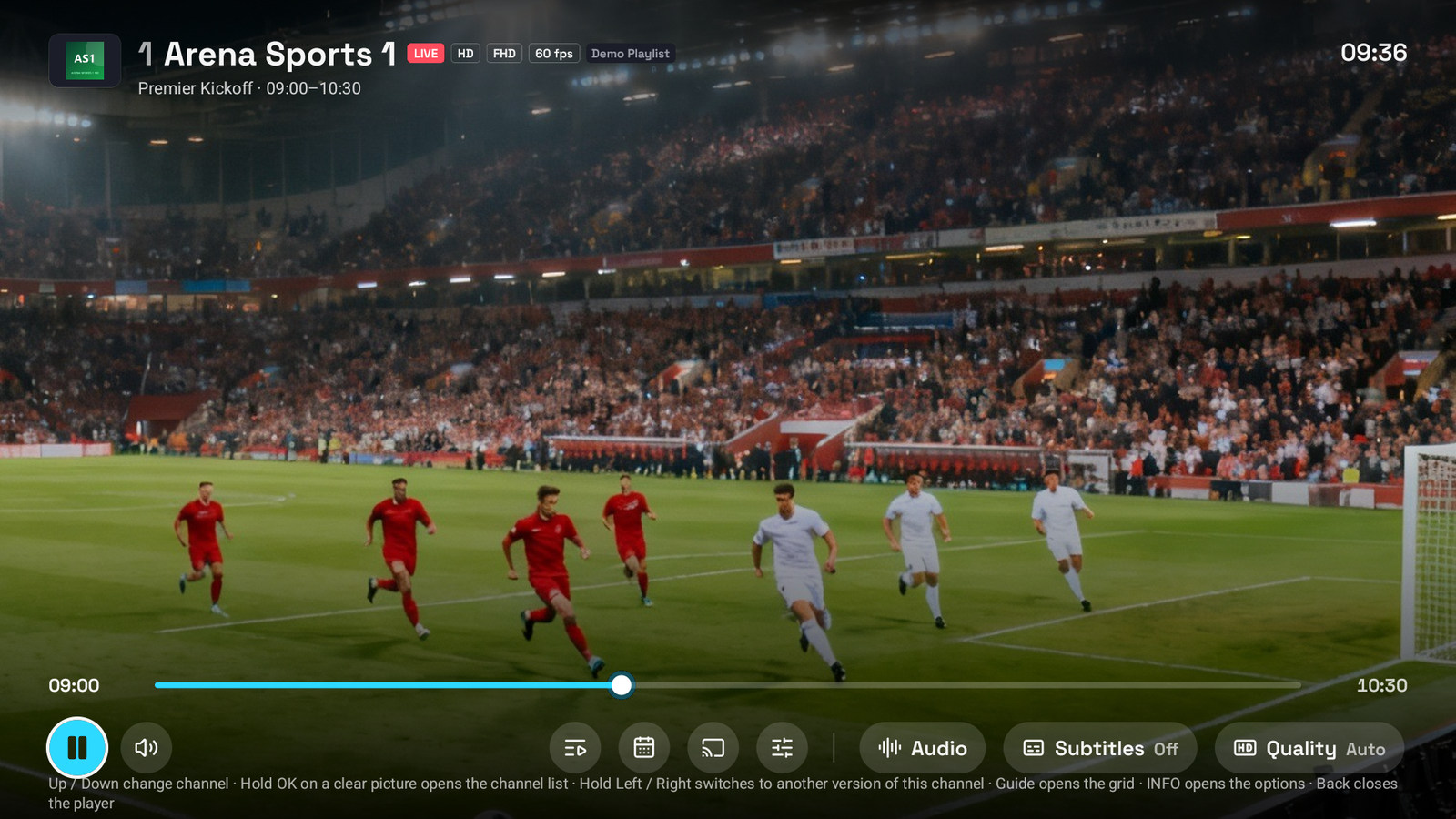
The row has two halves. On the left, Play/Pause and Mute, with previous and next episode for a series. On the right, what applies: Go live when you are behind or Restart channel when you are not, Channels, Guide, Catch-up, Record on a live channel the device can record (press it again to stop), Versions with how many there are, Match centre or Matches in sports mode, Episodes for a series, Play on another screen and Options, and after them Audio, Subtitles and Quality, each showing what is selected. On a computer the row also has the skip buttons and previous and next channel, for the mouse; on a tablet in the television layout, previous and next channel.
Options opens a side sheet with everything else: Catch-up, Play from start, Record or Stop recording, Last channel, Search channels, Watch in multiview, Sports mode, Sport on this channel, Sleep timer, Playback speed for films, Zoom, Volume boost on Android, Player engine, Stream host, Stream info, and on a computer Picture in picture, which plays the picture in a small window over other apps, and Full screen (F11). Favourite and Add to group are on top of it.
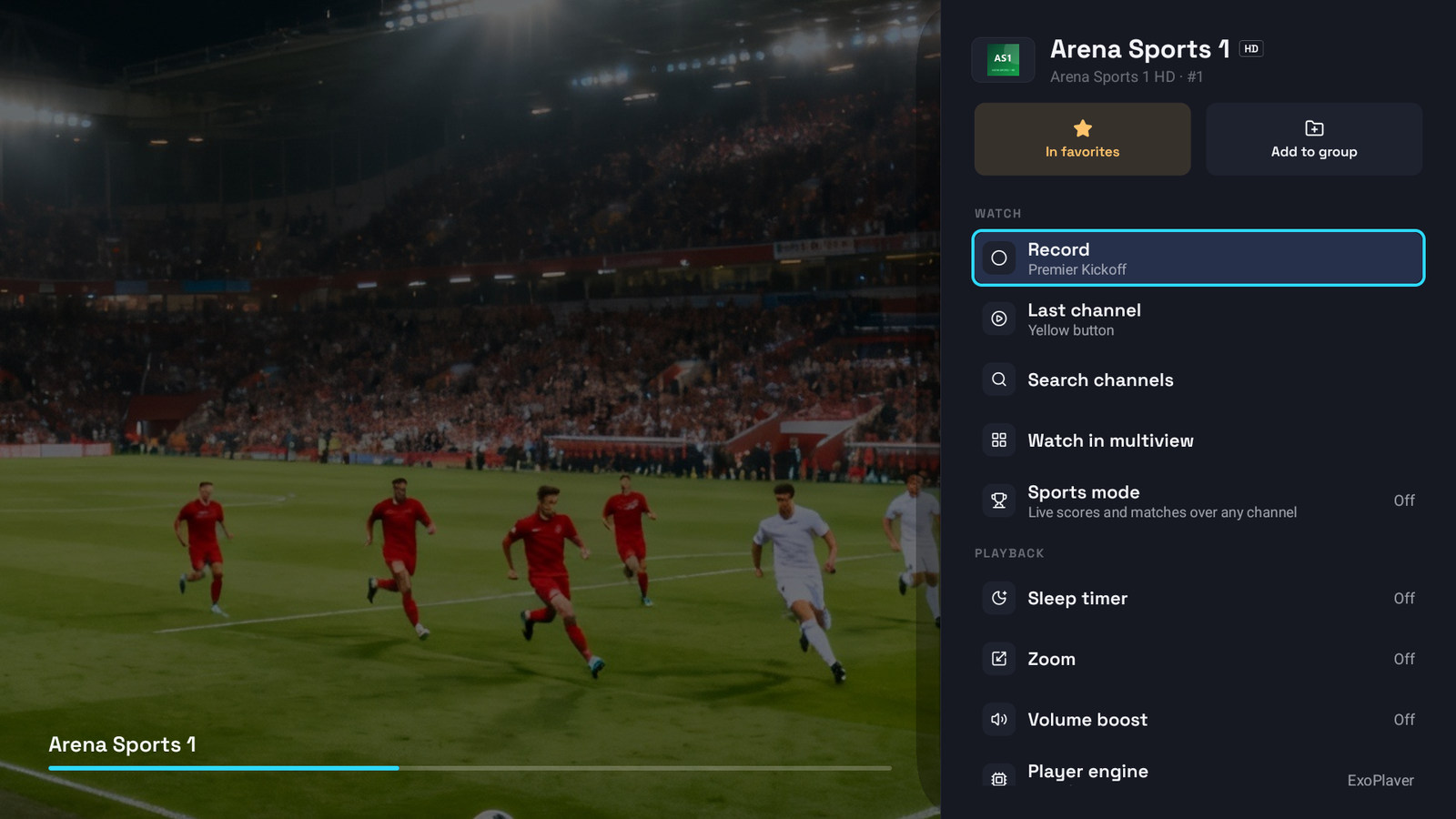
Back from a live channel returns to where you started it. To land in the TV Guide instead, with the channel still playing in the preview, set Settings → Player → Back from the player returns to to TV Guide.
A few more things the television player does:
- When the end credits of an episode start, nothing covers the picture or the subtitles. Press OK and the Up next card sits above the bar, where you can play the next episode or Rate this. For the last seconds a panel counts down to the next episode, with Play now, Rate this and Stay here.
- At the end of a film the same place holds the Finish the film card: press OK to bring up the controls, then OK on the card marks the film as watched and opens its page, and Rate this next to it rates the film. Nothing stays in the corner of the picture through the credits.
- On a live channel, what the current programme is about shows under its name when your guide has a description: when you press OK, and each time you change the channel.
- While a channel is being recorded, the header shows a red Recording now.
- While live subtitles are on, the top corner of the picture says Live subtitles in the language, and the header of the controls shows it too.
- Clock while watching, in Settings → Player, keeps a small clock in the corner of the picture while the controls are hidden.
- Show FPS counter, in the same place, puts a frame-rate readout in the top-right corner.
- Player controls background, in the same place, sets what sits behind the channel info and the controls: Clear (the default), Darker shade, Dimmed picture or Dark panels. See Player settings.
- A row of key hints shows for a few seconds each time you enter a screen.
Recently watched channels
Section titled “Recently watched channels”On Android TV, Fire TV, Apple TV, Windows, the Mac and LG and Samsung TVs the player keeps a strip of the channels you watched last:
- While a live channel plays, press OK to bring up the controls.
- Press Down. The channels you watched last slide in under the controls, each with what is on now and next, or No guide data for a channel without a guide.
- Move to one and press OK to switch to it.
Up or Back closes the strip again. To open it in one press, give a remote button Recent channels in Settings → Player → Remote buttons, see Remote and keyboard keys.
While the controls are open, Up and Down no longer change the channel. They still do on a clear picture, with the controls closed.
Picture quality
Section titled “Picture quality”Many channels and films come in several qualities, for example 2160p, 1080p and 720p. On Auto the player picks one by itself and moves up to a sharper picture when the connection allows. To pick one yourself:
- Television, Windows and the Mac: choose Quality in the player’s row of buttons. The Quality group at the top lists Auto and each quality of the stream, highest first. The pill shows Auto or the quality you picked.
- Phone and tablet: open Player settings, the gear, and pick a quality under Quality, next to Auto.
The line under the selected choice says what plays now: the resolution, the video codec, the frame rate and the bitrate. When two qualities have the same height, their bitrate is in the name, such as 1080p · 5.9 Mbps.
Where you can pick a quality:
| Device | What Quality offers |
|---|---|
| Android phones and tablets, Android TV, Fire TV | The qualities of the stream, with the built-in player (ExoPlayer). Only Auto on VLC |
| iPhone, iPad, Apple TV | The qualities of the stream, with the built-in player and AetherEngine. Only Auto on VLC |
| Windows, the Mac and Linux | The qualities of a live channel. Films on Windows and the Mac only Auto |
| LG and Samsung TVs | Only Auto |
When a stream has one quality, or the engine cannot list them, only Auto is there. The choice lasts for that channel or film: the next one starts on Auto again, and nothing is saved or synced. On the iPhone, iPad and Apple TV the quality you pick is the highest the player uses; on a slow connection it can still go lower.
The quality label at the top of the player and in Stream info shows what plays now, also when Auto moves up. When the channel’s name promises another quality, such as 4K on a channel that plays 1080p, the label turns red and stands next to the one from the name.
Aspect ratio and zoom
Section titled “Aspect ratio and zoom”When the picture is zoomed, squeezed or does not fill the screen:
- Television, Windows and the Mac: choose Quality in the player’s row of buttons. Under Picture, Aspect ratio offers Fit, Fill, Stretch, 16:9, 4:3 and 21:9, and Zoom enlarges the picture in steps.
- Phone and tablet: the same choices are behind the picture button in the bottom bar, and a pinch zooms.
With Remember zoom & aspect ratio on, in Settings → Player, the choice is kept separately for live channels, films and series on that device.
Playback speed
Section titled “Playback speed”Films and episodes can play from 0.5x to 2x: the speed button in the bottom bar on a phone, and Options → Playback speed on a television, Windows and the Mac.
The speed you pick stays while that film plays, and carries on to the next episode of the same series. Another film or series starts at normal speed.
When a stream will not play
Section titled “When a stream will not play”The player shows what went wrong and what you can do next, in this order:
| Phone | Television | What it does |
|---|---|---|
| Retry, or Retry now | Try again, or Try again now | Opens the stream again. While the app is already counting down to its own retry, the button says now and skips the wait |
| Play next episode | Play next episode | For a series, when there is a next one |
| Try name | Try name | Another copy of the episode from your other series, or another version of the channel |
| Pick another channel | Opens the channel list, on live | |
| Back | Back | Leaves the player, back to where you started it |
On Windows and the Mac, Back on that screen also leaves full screen first, so Back is there on the page you land on. What each message means is in A channel or film will not play.
Stream info
Section titled “Stream info”Stream info reads out what is actually playing: the video, the resolution, the frame rate, the bitrate and the audio, and on a television the engine too. It is in Options on a television and in Player settings on a phone.
Video names the codec of the picture, such as H.264 or HEVC/H.265, also when VLC plays. Audio gives the language of the sound, and when the channel does not say its language, the audio codec, such as AAC. A dash means the player did not report it. Resolution follows the picture that plays now, also when Auto moves to another quality.
Frame rate is worth a note. For a film the app reads the rate the provider states. Live channels
state nothing, so there you get ~N fps, measured from the frames actually drawn. A stated rate
always wins over a measured one when there is one.
The engine line
Section titled “The engine line”On a phone a small label in the top bar names the engine that plays: Native, VLC or AetherEngine. On a television a VLC or AetherEngine label shows in the header only when one of them plays, and switching engine shows Player · VLC or Player · Native for a moment.
There are up to three engines:
- Native. The player built into the device. Lowest power, first choice everywhere.
- VLC, a second engine for streams the native one cannot open or decode, on Android, Android TV, Fire TV, iPhone, iPad and Apple TV.
- AetherEngine, on an iPhone, iPad or Apple TV with iOS or tvOS 18 or newer. On Auto it comes before VLC.
Windows, the Mac and LG and Samsung TVs have one engine and nothing to pick.
Settings → Player → Player engine offers Auto, Native and VLC, and AetherEngine where it exists; Engine for live channels offers the same for channels. Auto starts Native and switches only when needed; a fixed choice never falls back, which is what you want when you already know one of them works and you are tired of the switch.
Switching the engine while it plays
Section titled “Switching the engine while it plays”Player settings → Player engine on a phone and tablet, and Options → Player engine on a television, switch the engine for what is playing now. On an iPhone, iPad or Apple TV with AetherEngine it offers all three: the built-in player (Native on the iPhone and iPad, AVPlayer on Apple TV), AetherEngine and VLC, so you can move a film or channel to VLC without going to Settings. On a phone each tap moves to the next one. AetherEngine is left out for a stream it cannot open. A switch here does not change Settings → Player → Player engine.
See Player settings for the rest.
