Updates
There are two kinds of update, and which one you get depends on what changed.
| What it carries | How it arrives | |
|---|---|---|
| Over the air | Changes to the app’s own code | Downloaded inside the app, on Android, Android TV, Fire TV, iPhone, iPad and Apple TV |
| A new build | Anything touching the native side, and every change on Windows, the Mac and LG and Samsung TVs | From the store, from our download page, or on Fire TV installed by the app itself |
On phones, tablets and Android, Fire and Apple TVs most releases are over the air, which is why the app can improve without you visiting a store.
How each platform updates
Section titled “How each platform updates”| Platform | Over the air | A new build |
|---|---|---|
| Android phone, tablet, Android TV | yes | Google Play, on its own. The app also tells you and offers Open Google Play |
| Android installed from a file | yes | Install update in the app, like Fire TV |
| Fire TV | yes | Install update in the app, from version 1.8.2 on. Before that, and as a fallback, the same Downloader code, 7083371, which always points at the current file |
| iPhone and iPad | yes, from the next start | The App Store. The app also offers Open App Store |
| Apple TV | yes, from the next start | The App Store, on its own |
| Windows | no | The app checks and offers the new version: Update now downloads it and restarts the app |
| Mac | no | The Mac App Store only |
| LG and Samsung TVs | no | The app tells you a new version exists: install it from the LG Content Store or Samsung’s app store, or the same place you got it before. Open update page or Got it |
The app looks for an update when it starts, and again when you come back to it after a few hours, so a computer left running in the background or a TV that stays on learns about a new version without a restart.
Checking by hand
Section titled “Checking by hand”| Device | Where |
|---|---|
| Phone and tablet | Check for updates under the version, at the bottom of Settings → About & legal |
| Television, Windows, the Mac, LG and Samsung TVs | Settings → About, the row under the version |
It reads Checking…, then Up to date, Update available, Downloading update…, Restart to update or Update check failed.
On builds that came from a store, this checks the store first and the over-the-air channel second, so it can tell you “there is a newer version in Play” rather than quietly offering you something smaller.
The banner and the update card
Section titled “The banner and the update card”An available update shows as a banner at the top for a few seconds, rather than a dialog in the way. On a phone, swipe it up to keep that update quiet for three days; a check by hand still shows it. On a television the banner says Open Settings to update.
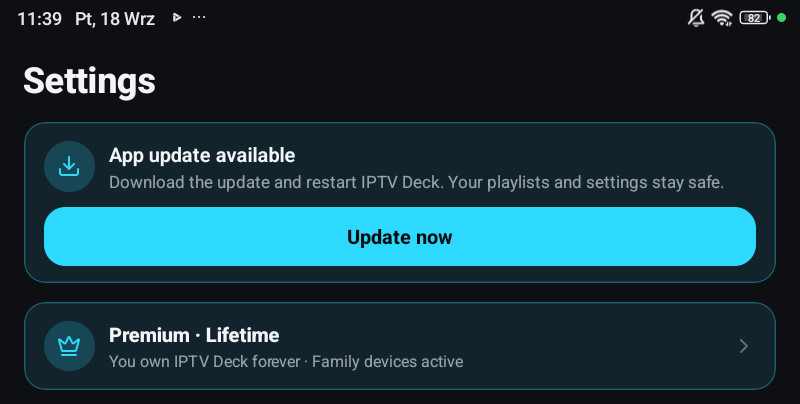
The update itself waits at the top of Settings, with Version … is available and a button that fits it:
| Button | What happens |
|---|---|
| Update now | Downloads the update and restarts the app. On an iPhone, iPad and Apple TV it starts with the next launch |
| Open Google Play / Open App Store | Opens the store page of the app |
| Install update | Fire TV and Android installed from a file: downloads the new build and opens the installer |
| Open update page / Got it | LG and Samsung TVs: where to get the new version |
Update now waits while a recording runs: Finish the current recording, then choose Update now again.
When your version is no longer supported
Section titled “When your version is no longer supported”Now and then an old version of the app stops working with our services. The app then does not open as usual but shows Update IPTV Deck to continue with This version of IPTV Deck is no longer supported. and one button that takes you to the update:
| Device | What it says and does |
|---|---|
| Android, Android TV, iPhone, iPad and Apple TV, when an over-the-air update fixes it | Update now downloads it and restarts the app |
| Android phone, tablet and Android TV from Google Play | Open Google Play, to install the update there |
| iPhone and iPad | Open App Store |
| Apple TV | Open the App Store on this device and update IPTV Deck. There is no button |
| Fire TV and Android installed from a file | Install update downloads the new version and opens the installer. Where it cannot, it shows the Downloader code |
| Windows | Update now when the new version can install itself, otherwise Open update page, our download page |
| Mac | Open App Store |
| LG and Samsung TVs | Open update page, or install the new version from the LG Content Store or Samsung Apps, or the same place you got it before |
Your playlists and settings stay safe. If the button cannot open the update, the app says what to do instead, and Try again checks again. On a television there is also Exit app where the TV allows it.
Knowing exactly what you are running
Section titled “Knowing exactly what you are running”The version and the update are at the bottom of Settings → About & legal on a phone (Version … · update …, with the last six characters of the update id and its date), and in Settings → About on a television and a computer. That id is the only unambiguous way to say what is on a device, because two devices on the same version number can be on different over-the-air updates. Windows and the Mac say embedded bundle, because they have no over-the-air updates.
Quote it in a bug report.
Nothing happens when you press Update now
Section titled “Nothing happens when you press Update now”- On a metered connection, the download may be waiting. Try it on Wi-Fi.
- If an update fails to start once, the app will not offer that same one again on that device. The next release fixes it, and there is no way to force the failed one.
- On an iPhone, iPad or Apple TV the update is applied the next time the app starts: close it fully and open it again.
- On Fire TV, Install update needs the Fire TV’s permission the first time: allow IPTV Deck under Install unknown apps, then choose Install update again. A version older than 1.8.2 shows the Downloader code instead of downloading anything.
An update that changed nothing
Section titled “An update that changed nothing”An update the app has already downloaded is put in place the next time IPTV Deck really starts. Update now restarts it for you, but pressing Home on a TV remote, or switching to another app, only sends IPTV Deck to the background, and a TV box can keep it there for days. Until it really starts again, you are still on the old version.
Close the app fully and open it again:
| Device | How |
|---|---|
| Fire TV | Settings → Applications → Manage Installed Applications → IPTV Deck → Force stop |
| Android TV and Google TV | In the TV’s Settings → Apps, open IPTV Deck and choose Force stop |
| Android phone and tablet | Swipe IPTV Deck away in the list of recent apps |
| iPhone and iPad | Swipe IPTV Deck up in the app switcher |
| Apple TV | Press the TV button twice and swipe IPTV Deck up |
Then check the version and the update id at the bottom of About, as above. A Fire TV on a
version older than 1.8.2 has to install the current build once with Downloader, code 7083371,
before it updates by itself.
When a new version reaches each device
Section titled “When a new version reaches each device”A new build has to pass review at Google Play, the App Store and the TV makers’ stores before it reaches anyone there, and that takes from a day to about a week. Each store reviews it on its own, and Apple reviews the iPhone and iPad app and the Apple TV app separately, so a phone and an Apple TV on the same account can be a version apart for a few days. Fire TV and Windows do not go through a store, so they usually have a new version first.
Over-the-air updates need no review and reach every device of a platform at about the same time.
Testing new versions early
Section titled “Testing new versions early”You can try a new version before it clears the stores:
- Android phones, tablets and TVs: Google Play’s internal test. Write to us with the email address of the Google account you use in Google Play; only a Google account can be added. Once you are added, open the test link we send you while signed in with that account and accept it, and the test version comes from Google Play as an ordinary update, without reinstalling. To get it on a TV, sign in to Google Play on the TV with the same Google account, or choose the TV under Install on more devices on the app’s page in Google Play in a browser.
- iPhone, iPad and Apple TV: TestFlight. Write to us the same way.
- Fire TV and Windows have nothing to join: they get a new version as soon as it is out.
A test version can have rough edges, and it is the same app with the same account and data. On Android, once the release reaches Google Play, your device moves to it by itself. Each release post on r/iptvdeck says how to join for that version, and our address is on Reporting a problem.
What changed in each version
Section titled “What changed in each version”Every version’s notes are on Release notes, and the app shows them once after it updates, as What’s new in that version.
