Release notes
The app shows these once after each update, under Settings → About & legal. This is the whole list, newest first. Version 1.8.8 is current.
How an update reaches your device — and how to tell which one you are running — is on Updates.
- A recording that is still recording can now be watched from its beginning on Android phones and tablets, Android TV, Fire TV, iPhone, iPad, Apple TV, Windows and the Mac: open it in Recordings, skip through what is already recorded and use Go live to catch up, then Go live again to switch to the channel. It plays from the device, so it works even when your provider allows only one stream.
- When a channel or film will not start because your provider allows one stream and another of your devices is using it, such as a TV left playing at home, the player now names that device and offers to stop it there and play here. The other device can be a TV, a Fire TV, an Apple TV or a computer signed in to the same account.
- Live TV now groups your channels into genres such as Sports, Kids, News, Movies & Series, Music, Radio and Religion, with the number of channels in each, above the categories of your playlist, on phones, tablets, TVs and computers. Hold a category to move it to another genre, or do it in the account panel, and turn the genres off in Settings if you do not want them.
- Repeating recordings: Record every episode on a programme in the guide or the player records each airing of that show on its channel, and Repeat in Record by time records a channel every day, on weekdays or every week, on phones, tablets, TVs and computers or from the account panel. Find them under Repeating recordings in Recordings to pause or remove them or keep only the newest, also from the account panel and for the ones sent to your recording computer; a rerun of an episode already recorded is skipped when the guide numbers or describes the episode, and New episodes only leaves out the airings the guide marks as repeats. On the phone, Record every episode is also in the menu of a channel.
- IPTV Deck can now run without a screen, in Docker on a NAS or a home server, and record for every device of your account the way a computer that records for other devices does. Sign it in with the code it shows, from your phone under Settings → Devices → Connect a device or from Devices in the account panel.
- Films and episodes played with VLC start much sooner, and a 10 s skip back or forward plays on almost at once, on the iPhone, iPad, Apple TV, Android and Android TV. Before, each start and each skip waited on a long load, the longer the sharper the picture.
- Under the recently watched channels in the player, Down now brings two more rows: the next channels of the category you are watching, and then your favourite channels, on Android TV, Fire TV, Apple TV, LG and Samsung TVs and computers. Up goes back a row.
- In multiview with one big window and three small ones, Left and Right on the big window now bring the channels of the small windows into it one after another, and OK on a small window moves its channel up to the big one, on Android TV, Fire TV, Apple TV and computers. OK on the big window still opens it full screen.
- In multiview, Versions in a window’s options (hold OK on a TV, hold the window on the phone) now also lists your other channels showing the same live match, as Sports knows them, on phones, tablets, Android TV, Fire TV, Apple TV and computers. Picking one that is already in another window swaps the two windows.
- Each multiview window now has its own sound, on phones, tablets, Android TV, Fire TV, Apple TV and computers: under Sound in a window’s options (hold OK on a TV, the speaker on the phone) choose Always on to hear it together with the highlighted window or Muted to keep it silent, and make it louder or quieter. Mute in the Windows column, the speaker at the bottom on the phone or M on a computer silences every window, and on a computer the mouse wheel over a window sets its volume.
- Multiview on the phone now turns with the phone when Player turns with the phone is on, and on an upright screen, such as a folded Galaxy Z Fold, the windows stack one above the other and fill it. The bar at the bottom hides after a few seconds and comes back when you tap a window.
- A multiview window can now be stretched to its shape as well as fitted or filled, on phones, tablets, Android TV, Fire TV, Apple TV and computers: tap the button in the corner of a window on the phone, or choose Aspect ratio in its options on a TV.
- On Android, Android TV and Fire TV, a live channel whose picture freezes while the sound goes on now reconnects by itself after about ten seconds, with the built-in player and with VLC. Before, the picture could stay frozen for hours, until you changed the channel.
- On iPhone, iPad and Apple TV, a 4K channel that plays only in VLC now opens straight in VLC when you come back to it, instead of a few seconds of sound over a black screen every time. On Apple TV with Auto frame rate on, playback pauses while the TV changes its mode, and a channel or film you come back to switches the TV before its picture appears. On live channels that do not state their frame rate, Stream info on iPhone, iPad and Apple TV now shows the real frame rate instead of a few frames a second, and Auto frame rate switches the TV for them too.
- Live TV from your Plex server: channels of a tuner set up in Plex, such as an HDHomeRun with an antenna, now show in Live TV with the guide from Plex, and play through your server on every device. The tuner is freed as soon as you change the channel or close the player.
- When the network cannot reach the posters the app finds online, films and series now show the cover from your playlist or server instead of a letter, on phones, tablets, TVs and computers.
- On iPhone, iPad and Apple TV, films and episodes you watched or stopped in Plex or on another device now show as watched and in Continue watching, as they already did on Android and computers.
- When several teams or competitions you follow play, the Sports picture at the top of Home and of Sports now moves to the next match by itself every few seconds, on phones, tablets, TVs and computers. On a TV press Right on its last button for the next match and Left on its first button to go back.
- When the free trial has ended on a TV or a computer signed in to an account without a subscription, the screen now shows which account it is and has Sign out, so you can sign in with the account you subscribed on.
- On a TV or a computer that is not signed in, the code on the first screen now signs it in to your account when you scan it with your phone, with your playlists, favourites and history. To send only a playlist without signing in, choose Send only a playlist next to the code.
- On the iPhone Duo, the app now fills the inner screen when you unfold it and turns with the phone, with more posters in a row, as on a tablet.
- On the phone, channels, films and series selected in search results can now be hidden together, and channels get EPG too, without opening their category. With one item selected in search you can also rename it, see its category and open its other versions, and films and series can be renamed in Movies and Series as well.
- The first time you open the app in a day, the match you follow shows on Home sooner, without waiting for the channels of every other match of the day.
- Films and series you have watched now carry a check mark on their tiles in Movies and Series, on phones, tablets, TVs and computers. A series gets it once all its episodes are watched.
- A profile PIN can now guard only the locked categories: turn off Ask for the PIN to open this profile in the profile’s settings on the phone, the TV or in the account panel, and the profile opens without the PIN while locked categories still ask for it.
- On the phone and tablet Home, recently watched channels, favourites and the channels in category rows are now rectangular cards, like films and series, instead of circles.
- A channel your provider names after a game, such as a PPV or event channel, now shows that game from Sports in TV Channels, Live TV and the guide: LIVE with the score and the minute or quarter while it is on, the start time in your clock and the competition before it, and the final score after it. With Hide scores on, the score stays hidden.
- The alert before a match of a team you follow can now be snoozed instead of only dismissed: choose In 5 min or At kick-off on the alert on the TV, Apple TV and the computer, on the Android TV alert shown over other apps, or on the phone notification, and it comes back at that time on the same device.
- With VLC, quick taps on the skip back and forward buttons now add up: three taps on 10 s move a film or episode 30 s, where before the film moved only 10 s, and the film loads only once, at the place the taps add up to.
- On Android TV and Fire TV, a finished match opened in Sports now takes the selection into its panel on the right, so you can move through it at once. Before, the selection often stayed on the list behind the panel.
- When a network folder will not take recordings, a recording now goes on in the background on the device and the app says why, instead of switching to VLC, stopping when you leave the player and saying only that the folder is not reachable. Adding a network folder now also checks that the app can make its Downloads and Recordings folders there.
- On Windows and the Mac, MPEG-2 channels now play in their original quality, without being converted first. A channel whose stream arrives damaged, and an MPEG-2 channel in multiview, stays sharp and no longer stops right after the conversion starts. Before, such channels turned blurry and blocky in fast scenes such as football.
- Keep the side menu open on Android TV, Fire TV, Apple TV, LG and Samsung TVs: turn it on in Settings → General, or in the account panel, and the menu stays open with its names beside every screen instead of folding to icons whenever you go into a screen.
- The sleep timer in the player can now close the app instead of pausing, on Android, Android TV, Fire TV, computers, LG and Samsung TVs: choose it under When the sleep timer ends in the sleep timer, or in the account panel, and a recording keeps going. The timer also offers 2 and 3 hours now.
- Full screen when idle on TVs and computers: in Settings → Player → Live & guide, or in the account panel, choose 5, 10 or 15 s, and when you press nothing for that long the channel playing in the TV Guide or TV Channels preview goes full screen and the channel list over the picture closes.
- In Sports → Channels, the channels of your country still come first, and among them 4K channels now lead, then FHD, HD and SD, with channels of unknown quality last. The versions of each channel follow the same order.
- On Android, Android TV and Fire TV, channels, films, recordings and Timeshift from some providers no longer fail with “not available (HTTP 403)” on a home network with IPv6 while the same playlist plays on your other devices.
- Updating a MAC portal playlist with a very large list of films and series no longer stops halfway when the connection drops for a few seconds; the update waits for the connection and carries on.
- When you add a playlist, the progress no longer says it is clearing a previous copy that was never there: it says what it saves, and Preparing the lists for the last step before your channels, films and series show.
- A genre in Movies and Series now finds every title of that genre in your playlist by itself, under every sort, filter and search, on phones, tablets, TVs and computers. The list fills in while you browse, and Keep looking is gone: before, you had to press it again and again to see them all.
- On Windows and the Mac, dragging a multiview window onto another one in full screen now just swaps their channels. Before, the moved channel often opened full screen and covered the small picture, or in one big and three small went straight back.
- On Android phones and tablets, leaving the app while a channel or film plays full screen now keeps it playing in a small picture-in-picture window, like YouTube. Closing that window stops playback. Background audio still plays the sound when the screen is turned off, for radio, and when picture-in-picture is turned off for the app in the system settings.
- On Windows and the Mac, pointing the mouse at a button under the picture in the player now shows its name above it, as the keyboard does.
- In the player on TVs and computers, the cup button now always shows just the cup, also during a match: the score stays on the score cards over the picture and in the match centre the cup opens.
- On Windows and the Mac, F11 now puts the picture in full screen in one press: multiview fills the screen with its windows and a channel playing in the TV Guide or TV Channels preview opens full screen. F11 or Esc goes back to where you were.
- Premium now covers four devices of any kind, in any mix of phones, tablets, TVs and computers, instead of two phones and two TVs. Family devices adds four more of any kind.
- Joker, the help assistant, now looks at your settings when it answers and can change one for you: ask it, for example, why the guide is empty or to make the subtitles bigger, then press Apply under its answer, and Undo to put it back. It can also hide or show categories and channels by how their names start, for example every category starting with “AR |”, after showing you what it found, and start a new profile for you to finish. It works in the app and in the account panel, where it can change the settings of each of your devices.
- Pick the picture quality of a channel or film yourself: when the stream comes in several qualities, Quality in the player lists them next to Auto, on Android, Android TV and Fire TV with the built-in player, on the iPhone, iPad and Apple TV with the built-in player and AetherEngine, and for channels on Windows, the Mac and Linux. The quality shown at the top of the player and in Stream info now follows what plays, also when Auto moves up to a sharper picture, and it turns red when the channel’s name promises another quality, such as 4K on a channel that plays 1080p.
- Give several channels one guide together, for example every version of the same channel: select them in Live TV or a group on the phone and press EPG, on the TV select them in Settings → Categories and choose Reassign EPG, or tick them in a category in the account panel. The panel can also add ticked channels to favourites or a group, pin, hide or show them, and a narrower browser window opens a channel’s details beside the list.
- Sound output in Settings → Player on Android, Android TV, Fire TV and computers: choose Stereo when your TV or soundbar stays silent, crackles or stutters on channels with Dolby or other surround sound, and the app turns that sound into two channels first.
- Name your devices: in Settings → Devices on any device, or in the account panel, give a phone, TV or computer a name such as Work PC or Bedroom TV, and every device on your account shows it. Computers now take their computer name and Android devices the name from their Android settings until you choose one.
- Multiview has a new layout with one big window on top and three small ones below it: pick 1+3 under Windows on the TV and the computer, or One big, three small on the phone and tablet. Saved layouts keep it, and the account panel shows and changes it.
- The player controls of a live channel on Android TV, Fire TV, Apple TV, Samsung TVs and computers now have a Record button next to Guide and Catch-up: press it to record the programme and again to stop. Record stays in Options too.
- On Android, Android TV and Fire TV, the app no longer says you are offline, and sign-in, pairing and sync work again, on a home network whose IPv6 does not work while the rest of the internet does.
- On Android, Android TV and Fire TV, channels and films from some providers no longer fail with “not available (HTTP 403)” on a home network with IPv6 while the same playlist plays on your other devices.
- On Apple TV, the remote moves through film and series pages again (episodes, Details and Related, not only Play) and into the settings beside the Settings list. In 1.8.6 the selection could not leave Play or the list. Down from any Sports tab now reaches Sign in or See Premium, and Up reaches Subscribe on the trial banner in every Settings section.
- On Apple TV, swiping right on the remote’s touch surface now opens the Settings section you are on, with its options, such as those of a category, as pressing right does. Before, a swipe could reach a section in the list but not open it. Swiping left from the first column of Movies or Series now brings back the list of categories instead of jumping to the menu.
- In multiview on the TV, and with the keyboard on Windows and the Mac, the sound now follows the highlighted window, as in TiviMate: move with the arrows and you hear the window you land on. OK on that window, or a second click on it, opens it full screen; hold OK for its options.
- On Apple TV, the Top Shelf now shows your recordings, Continue watching and favourite channels. In 1.8.6 it showed only the app’s picture.
- Auto frame rate on Apple TV: in Settings → Player choose it for films and series or for live TV too, and with Match Content on in the Apple TV settings the TV switches to the frame rate and the SDR, HDR10, HLG or Dolby Vision picture of what plays.
- Recordings on a computer that records for other devices now play on a phone or TV that reaches home through a VPN such as WireGuard or Tailscale. Windows asks once more for permission when the recording server starts.
- The app also looks for an update when you come back to it after a while, so a computer left running in the background or a TV that stays on learns about a new version without being restarted.
- On the phone, Reassign EPG now shows every guide source above the list, on more lines when they do not fit on one, instead of cutting off the last ones at the edge of the screen.
- Posters of films and series from a Plex server no longer turn into letters after your phone or TV switches between your home network and a connection from outside.
- Films from a Plex server now play on a device that can reach the server only through the Plex relay, in lower quality, and the app says how to get full quality. Subtitles inside the film can be picked in the subtitle menu there too, and after a failed film the app looks for a better way to the server at once.
- Films from a Plex server can now be downloaded.
- On Android TV and Fire TV, pressing Right on the last programme of a channel in the TV Guide no longer loses the selection: it stays on that programme.
- Your groups can be put in A–Z order in one go: Sort A–Z when you manage My groups on the phone, in Settings → My groups on the TV and in the Groups tab of the account panel. Every device gets the new order, and you can still move groups afterwards. Inside a group on the phone, choose My order or A–Z for its items.
- Continue watching on phones and tablets now shows up to 24 films and 24 series in its rows instead of stopping at 8.
- Sports For you on the TV and the computer shows the top match right under the tabs and takes less of the screen, so more of the rows below fits.
- On a phone with Sports turned on in Bottom tabs, all six tabs now fit at the bottom of most phones: they sit a little closer together and a long tab name shrinks to fit, instead of the bar scrolling sideways.
- The cards of recently watched channels in the player on the TV and the computer have a smaller logo and two lines each for what is on now and what is next, so most titles show whole instead of ending in “…”; a channel without a guide says No guide data instead of repeating its name.
- In the subtitles menu of the player on the TV, the subtitle size, colour, position and background now sit above the list of subtitles. The languages to translate subtitles into, and those of Generate from audio and Live subtitles, open in their own panel, and after you pick one the selection stays on the subtitles being translated instead of jumping to the top of the menu.
- The app stays responsive while the TV guide updates on playlists with many channels: taps and scrolling no longer freeze for seconds during the update.
- On an NVIDIA SHIELD, a phone or another 64-bit device with the app from our website, its own update now installs the 64-bit version, which stops the app closing by itself after a while with large playlists and guides. If the 32-bit version is installed on such a device, Settings says so and installs the 64-bit one in one step. Fire TV keeps the version made for it.
- In Sports → Channels on the TV, the preview stays at the top while you go down the channels, and OK on a channel in any row plays it there first; a second OK goes full screen. Moving between channels is quicker, each channel shows two lines of what is on now and next, the same appears beside the preview for the channel playing in it, and the edge of the selected channel is no longer cut off when the groups hide.
- Sports For you now opens with the match or race you follow later today, the same one Home shows, instead of no match at the top.
- On Windows and the Mac, restoring a backup file larger than 16 MB no longer fails with “Restore failed — invalid file”.
- When your provider moves your line to a new address, your channels and films play again without adding the playlist anew: the app sends them to the address the playlist has now.
- On Android TV and Google TV, a trailer playing behind the page of a movie or series no longer slows the page down: moving between its buttons stays smooth while it plays.
- On Android TV and Fire TV, pressing OK right after you start a channel from TV Channels now opens the player controls. Before, a quick second press often did nothing.
- On the iPhone, iPad and Apple TV, a 4K channel that comes in several qualities and played only sound over a black picture now switches to another player and shows the picture.
- Stream info in the player now names the video codec when VLC plays, and the audio codec, such as AAC, when a channel does not say the language of its sound.
- The page of a film now shows its director first in the cast row, and the page of a series its creators: open them to see their other films and series in your playlists.
- Copy the settings of one device to another: in Settings → Devices open the other device and choose Copy its settings here, or press Copy from another device on a device’s page in the account panel. The player and buffer, subtitles, look and layout, Home and sports, and remote buttons come over, each group only if you leave it ticked and only what the device you copy to has. Afterwards each device keeps its own.
- On iPhone, iPad and Apple TV, Subtitle size, color, position and background now also change the subtitles that come inside a film or series from your provider, on every player engine. With VLC they are no longer oversized, so Smallest is really small. In picture-in-picture and on AirPlay those subtitles still look the way the system draws them.
- On iPhone, iPad and Apple TV, Player engine in the player’s options now offers VLC next to AetherEngine, so you can switch a film or channel to VLC without going to Settings.
- Adding or updating a large M3U playlist goes faster: reading the channel list takes about 40% less time on a Chromecast with Google TV.
- An extra TV guide you add now gives a programme to many more of your channels when it writes their names differently from your provider, such as DAZN 1 PT, National Geographic (Portugal) or BTV (Benfica TV), and still keeps a channel of one country away from the guide of another.
- The first download of a large TV guide finishes sooner and keeps the app more responsive while it runs: on a Chromecast with Google TV the step that cleans up overlapping schedules takes about 12 s instead of 36 s.
- Changing the channel with one press of Up or Down on the TV starts the next channel about half a second sooner. Holding the button or pressing it several times in a row still waits until you stop.
- The app opens faster on Android TV, Fire TV and Android phones: on a Chromecast with Google TV the first screen shows about 0.7 s sooner.
- The start logo goes away sooner on the TV: the app now checks your account once the first screen is on, which on a Chromecast with Google TV saves about 0.4 s.
- The Favorites row and Continue watching on the Android TV home screen show the channel logos and the posters on Google TV too, or the name when there is no picture. A channel opened from that row now opens in the profile that row belongs to, asks for its PIN first when it has one, and the TV Guide and TV Channels work from its player again.
- Screens on Android TV, Fire TV and Android phones with many buttons and texts, such as Settings, Search and the page of a film or series, show up sooner after you open them.
- Player, EPG & Guide and Sports in Settings on the phone and tablet open at once, without the stutter while the page builds.
- Settings on the TV react faster when you move through the sections and open one.
- On Apple TV, the rows of Home, the channel list in TV Channels, the TV Guide, the list of categories beside them and the grids of Movies and Series move from item to item and scroll faster and more smoothly, and holding Down in Movies and Series no longer skips rows. In the TV Guide, Right and Left also move on from a programme that runs past the edge of the screen. The picture behind the page of a film or series now comes up together with the page instead of a moment later. The picture at the top of Home no longer shows a coloured band along its top edge. Menu from a channel you opened full screen in the TV Guide now always brings the selection back to its programme in the guide.
- On Apple TV, Menu from the player now puts the selection back where you started: the channel you were watching in TV Channels, or Resume on the page of a film or series you watched for the first time. Before, the selection jumped to the categories, or the page had nothing selected and the remote did nothing.
- On Apple TV, a swipe on the remote now moves between the side menu, the categories and the screen the same way a press does, also where it used to stay put.
- With Light colours on a TV or a computer, the name of the playing channel under the preview in TV Channels and the TV Guide is now white on its dark band, so you can read it.
- On Android TV and Fire TV, moving through TV Channels and the category column redraws only the list instead of the whole screen, so the first steps of each move are smoother.
- With the categories hidden while browsing, the list in TV Channels, the TV Guide, Movies, Series and My Groups now starts where the screen title does, closer to the side menu.
- With the categories hidden while browsing, the preview and the programme card of the TV Guide, and the preview and the heading of Sports Channels, now move left together with the grid, so no empty space is left where the categories were.
- With Timeshift on and a provider that allows one connection, moving the TV Guide preview or switching channels quickly no longer turns Timeshift off for that channel for 10 minutes: the app waits a moment for the provider to free the line, and the picture changes without a stutter.
- With Timeshift on, moving the TV Guide preview or switching channels quickly on Android TV and Fire TV no longer makes the preview jump to the other player now and then, with a short stutter.
- With Timeshift on, a channel you open from the Favorites row of the Android TV home screen after pressing Home while it played now shows its picture right away, instead of a black screen for about 25 seconds.
- Opening the TV Guide from the side menu while TV Channels previews a channel now keeps that channel playing in the preview and puts the guide on its row, instead of switching to the row you left the guide on last time.
- When two devices of one account play at the same time, they no longer send each other the watch position every few seconds: it goes out once a minute, which keeps playback and the remote smoother on slower TVs.
- On Android TV and Fire TV, the player controls no longer stutter as they come up after you open a channel full screen, and the picture changes more smoothly when you switch channels or the TV Guide preview moves to the next channel.
- On Android TV and Fire TV, going back to Sports from another tab is quicker, because the match cards keep their team crests instead of loading them again.
- On Android TV and Fire TV boxes such as the NVIDIA Shield and the Fire TV Stick 4K Max, a live channel no longer suddenly shows its picture zoomed into the top-left corner after you move between the TV Guide and full screen.
- Sports Channels on the TV has a list of groups on the left, like the TV Guide: all channels, league and sports networks, and every country of your playlist, your own first. Each channel tile shows what is on now and what comes next, and below the first row the preview moves out of the way so the tiles fill the screen; OK there plays the channel full screen. On the phone the same groups sit above the list, and Sky Sports Main Event now shows up.
- Choose the tabs at the bottom of the screen on the phone and tablet: turn Live, Movies, Series and Sports on or off in Settings → Appearance → Bottom tabs, or in the account panel. Home and Settings always stay, and Sports stays off until you turn it on.
- Sports channels can have its own item in the side menu, right after Sports, so the list of sports channels opens in one step: turn it on in Settings → General → Side menu on the TV, Windows, the Mac and LG and Samsung TVs, or in the account panel. It stays off until you turn it on.
- Another version of a film, such as 4K instead of FHD or another language, now starts where you stopped in the version you watched before, and so does the same episode in another copy of a series. Continue watching keeps one entry for it, and From start still plays from the beginning.
- Open films and episodes in another video player, such as VLC or MX Player: turn on Open films in another player in Settings → Player or in the account panel, and Other player sits next to Play, also in the options of an episode. On Android phones, Android TV and Fire TV the app keeps where you stopped when that player tells it. The iPhone and iPad open VLC or Infuse, and Windows and the Mac open your default video player.
- Recently watched channels in the player on the TV, Windows, the Mac and LG and Samsung TVs: while a channel plays, press OK and then Down, and the channels you watched last slide in under the controls, each with what is on now and next. OK switches to one. You can also give a remote button Recent channels in Settings → Player → Remote buttons to open them in one press. With the controls open, Up and Down no longer change the channel; they still do on a clear picture.
- Open your playlists with one remote button on Android TV, Fire TV and LG and Samsung TVs: in Settings → Player → Remote buttons, give Open playlists under Anywhere a button, and it opens the same playlist switcher as the side menu, on any screen and while a channel plays.
- Left and Right on a live channel can now do something else, pressed or held: in Settings → Player → Remote buttons on Android TV, Fire TV and LG and Samsung TVs, give Right the last channel, for example. Until you change them they still skip back and ahead with Timeshift, and with the controls open they still move between the buttons.
- Choose what sits behind the player controls on the TV, Windows, the Mac and LG and Samsung TVs: clear, a darker shade, a dimmed picture while the controls are open, or dark panels that are easiest to read, as Player controls background in Settings → Player or in the account panel. Clear stays the default, and its shade at the top is now lighter and ends just below the channel info, so more of the picture shows.
- Live scores of US games in Sports, from the NFL, college football, the NBA, the WNBA, the NHL and MLB, no longer stop on an old score, inning or quarter while the game goes on.
- Record a channel by time, also one with no guide: choose Record by time in the options of a channel, pick the day, the start and how long, and it records like a programme from the guide. On the phone and tablet it is on the channel page and in the guide; on the TV, Windows, the Mac and Samsung TVs hold OK on a channel or open it in the TV Guide.
- A computer can now record for every device of your account: turn on Record for other devices in Settings → Recordings on Windows or the Mac. Phones, tablets and TVs then choose it under Record on in their Settings → Recordings, record on it from the guide, the player or Record by time, and play its recordings under Recordings while they are on the same home network, LG TVs too. The computer has to be on when a recording is due.
- The account panel now shows the recordings of each of your devices, scheduled, in progress and recorded with their size, and records from there: press Record at a programme on the Guide page, or Record by time on a channel, and pick the device. A device takes it when IPTV Deck runs there, Android devices also now and then in the background.
- Pause and rewind live channels on iPhone, iPad and Apple TV: turn on Timeshift in Settings → Player or in the account panel, then pause a channel, go back as far as the Timeshift length and return with Go live, all on one connection to your provider. It needs this app update from the App Store, and it stops when you leave the player.
- Pause and rewind live channels on Windows and the Mac: turn on Timeshift in Settings → Player or in the account panel, then pause a channel, go back as far as the Timeshift length and return with Go live, all on one connection to your provider. Choose the length and the folder in Settings → Player. An Xtream channel opens as one continuous stream for it by itself.
- On the phone and tablet, trailers on a movie or series page now play where the picture was, both the ones that start by themselves and the ones you start with the Trailer button, and the page no longer jumps down when one starts or when the description arrives. Buttons over the trailer turn the sound on or off, show it full screen and turned sideways, or close it, and Back closes it too.
- Skip intro now shows on series episodes from your IPTV playlists too, whenever the intro of that episode is known: tap it on the phone, or press OK on the TV, to jump past the opening titles.
- Up next no longer pops up minutes before an episode ends: it comes in the last 45 seconds, or when the credits start where the app knows them, and Finish the film comes later too. Skip or leave the credits of an episode once, and the next episodes of that series show Up next as their credits begin.
- Where the intro and the credits of an episode or a film begin now also comes from IntroDB, a free community database: many more series episodes get Skip intro and Up next right as their credits start.
- Skip intro and Up next at the credits from IntroDB no longer need TMDB or Trakt connected: the app now finds the film or series in IntroDB on its own.
- Where no database knows the credits of a film or an episode, viewers now teach the app: leaving a title during its credits sends where they began, without your account or device, so Up next and Finish the film come at that moment for everyone. Turn it off with Help improve Up next timing in Settings → Player or in the account panel.
- IPTV Deck now runs on Linux: download the AppImage for 64-bit PCs from zssoftware.eu/linux, allow it to run and open it. It is the same app as on Windows, keeps itself up to date and needs nothing else installed on a usual desktop.
- Films on the Mac now play in their full quality, as on Windows: 4K and Dolby Vision in the right colours, Dolby and DTS sound and picture subtitles.
- On Windows and the Mac, live channels whose only sound is Dolby now play with sound. Before, some of them showed the picture in silence, and some with Dolby Digital Plus did not start at all.
- On Windows, the Mac and Linux, a live channel keeps its full picture quality after a short glitch from the provider. Before, the picture could turn blurry and blocky until you changed the channel.
- On Windows, the Mac and Linux, live channels from an Xtream playlist now arrive as one continuous stream, as on Android TV, so they start closer to live. A channel that does not play that way switches to HLS by itself, and Live stream format in the playlist settings still lets you choose.
- On Windows, the Mac and Linux, a live channel whose sound starts a few seconds after its picture, as on a channel that has just come on air, now plays with sound instead of freezing after two seconds.
- On the Mac, a folder for downloads or recordings that you move or rename in Finder is now followed: films and recordings saved there still play, and new ones go to its new place. If you delete the folder, the app tells you to choose another one instead of quietly making an empty folder.
- On Apple TV, the iPhone and the iPad, a recording runs in the background while IPTV Deck is open: it no longer takes over the screen and goes on when you change channel or leave the player, on channels that send a continuous stream.
- Network folders on the iPhone, iPad and Apple TV: recordings and downloads can go to a NAS or a shared folder of a computer on your network and play from there. Add one under Network folders in Settings → Storage on the iPhone and iPad, or Settings → Recordings or Downloads on Apple TV.
- On the iPhone and iPad, downloads to IPTV Deck’s own folder or a network folder keep going when you leave the app or lock the screen, and are there when you come back. Apple TV now also updates your playlists and guide in the background, whenever tvOS lets it.
- Download films and episodes on Apple TV with Download on their page, and watch them in Downloads. They stay in the Apple TV cache, which Apple TV may clear when it runs low on space, or go to a network folder, and they keep downloading when you leave IPTV Deck.
- Choose the screen the app opens on: Home, your favorite channels, the channel list, the TV Guide or the screen you used last, with Start screen in Settings → Home on the TV, Windows, the Mac and LG and Samsung TVs, in Settings → Appearance on the phone and tablet, or in the account panel. Each profile keeps its own, Favorites opens Home while you have no favorite channels, and a channel set to play when the app opens plays over the chosen screen.
- Trailers now play by themselves, muted, on the page of a movie or series on phones, tablets, computers and Android TV, also for profiles that had them turned off before this update. Turn them off again with Play trailers automatically in Settings → Player, in the player setup or in the account panel, and they stay off. A new Fire TV keeps them off until you turn them on.
- A new device, and an existing one the first time after this update, now offers a short player setup after Sports or Regular: Timeshift, low latency live, buffer size, Auto frame rate on Android TV and Fire TV, stereo or surround, subtitles and their size, trailers that play by themselves, each with one line on what it gives and what it costs, and only where the device has it. Skip keeps everything as it is, and Settings → Player changes it later.
- Red joins the accent and background colours, and you can use any colour of your own: pick it or type its code, such as #C62828, in Settings → Appearance on the phone, the tablet, Windows and the Mac, or in the account panel, for the accent, the background and, on TVs and computers, the selection frame. Android TV, Fire TV, Apple TV and LG and Samsung TVs show it as Custom, ready to pick again.
- Themes have new names, a new order and new pictures for several of them in Settings → Appearance, with a football pitch near the top. Each theme card now shows a small app screen in that theme, with its name and colours above it. The theme you picked stays yours.
- On the phone and tablet, the player now has a clear Back button with an arrow at the top left, bigger on tablets, in place of the small X at the top right. It takes you back to where you started the film or channel, and the screen of a stream that would not play now says Back there too, instead of Minimize.
- On the phone and tablet, the picture at the top of a channel page and of a match in Sports now starts below the status bar, so the clock, the Dynamic Island and the camera no longer cover it, and the score and Back sit on the picture instead of next to the clock.
- With TMDB connected, films and series show their TMDB name, in the language of the app, instead of the name from your provider with tags such as |FR|, |EN| or |VOST|. The language stays as a label on the poster, the provider’s name stays on the title page, titles you renamed keep your name, and Titles from TMDB in Settings → Playlists or in the account panel turns it off. Without TMDB, more of these tags now disappear from names too.
- Channel logos can now go without the dark tile behind them on the TV, Windows, the Mac and LG and Samsung TVs too: choose None under Channel logo background in Settings → General, or for that device in the account panel. A channel without a logo then shows its name in the colour of the page.
- Panel opacity now reaches the phone and tablet: the settings cards, the guide, catch-up and the Home tiles let the theme picture show through as much as you choose. It also goes lower, down to 20 percent, on every device and in the account panel, and the low choices now really show the picture, also with a strong picture. On the TV, Windows, the Mac and LG and Samsung TVs, the banners in Settings, Downloads, Recordings and the Multiview column follow it too.
- On the iPhone, iPad and Apple TV, downloads and recordings kept on the device play again after an app update, instead of showing Try again.
- On the iPhone, iPad and Apple TV, films and channels played through VLC no longer make the app freeze for seconds, most of all on older iPads.
- On the iPhone and iPad, a finished download has a Share button: send the film or episode to another device with AirDrop, save it to the Files app, iCloud Drive or a USB drive, or open it in another app.
- New downloads and recordings are saved under their title instead of a string of letters and digits: a film with its year, an episode with its number, a recording with its channel, day and time. Files saved before keep their names.
- A kick-off alert for a match of a team you follow can now be removed in Settings → Reminders, on the TV and the phone: that one match stays quiet on all your devices and you keep following the team. The account panel shows the matches you removed and can bring an alert back.
- Hold OK on a channel in the TV Guide, or right-click it on Windows and the Mac, to rename it, hide it, pick another version of it, make it play when the app opens, move it within its category, favorites or group, pin it to the top of its category or remove it from the group you are looking at, as in TV Channels. The guide shows the change at once. TV Channels can now remove a channel from the group you are looking at too.
- Sort categories A–Z, separately for live channels, movies and series: Category order in Settings → Categories on the phone and tablet, Order there on TVs, Windows and the Mac, or Category order on the Categories page of the account panel. Pinned categories stay on top, and Provider order brings back the order you set.
- Hide categories while browsing now also works in Movies, Series and My Groups on the TV: the categories slide away when you move into the posters and come back with Left or Back. In the TV Guide they run from the top of the screen to the bottom again, with the preview beside them.
- Long Favorites, Watchlist and group lists can now be rearranged on the TV, Windows, the Mac and LG and Samsung TVs: move a channel or a title as in a short list, instead of a message that the list is too long.
- The Premium screen now says what multiview really offers: up to 9 channels at once, and LG and Samsung TVs, which have no multiview, no longer list it.
- Each profile now keeps its own active playlists, on every device of your account: tick two playlists on one profile, switch to another profile and back, and both are still there, and your other devices open the same ones for that profile. A playlist a device does not have is skipped there. Choose them for each profile in the account panel too, under Profiles → Open together.
- Clear your watch history in one go: Settings → Watch history on phones and tablets, or Settings → Player on TVs, Windows and the Mac, empties Recently watched or Continue watching of your profile, and your other devices follow. Holding a card of either row on Home, the Recently watched screen and the Library of the account panel offer the same.
- In Channels in Sports on the TV, nothing plays any more while you move through the channels: OK plays the channel in the frame at the top, and OK again plays it full screen.
- In Channels in Sports, the version you pick for a channel by holding OK, such as the US copy of NBA TV, now stays its version until you pick another one or choose Pick automatically, and syncs with your profile.
- A channel you pick for a match now shows on every device of your profile that has the same playlist, also when you added that playlist on each device yourself. When the picked channel is in a playlist that is not open on a device, the match says so under Pick another channel.
- Link up to three channels to one match in Sports, for a backup stream or another commentary language: tick them under Channel for this match or Pick another channel. The first plays when you open the match, Play first changes the order, and the next one is a single press away from the match centre and from the player.
- On Android TV and Fire TV, Back from a channel or a match you opened in Sports now returns to it instead of the first one in its row, also when the channel would not play.
- On Apple TV, Up and Down in the side menu now always reach the playlist card at the top and your account and Settings at the bottom, so you can switch playlists or tick several of them. On Apple TV with tvOS 18 or older, the remote now also moves through the first screen and between Settings and your account.
- On Apple TV, Right on a section in Settings now opens it at the first press, also just after you come over from the side menu, and a quick Down right after it no longer opens the next section instead.
- On Apple TV, the Menu button now leaves a live channel at once instead of bringing up the channel info again.
- On Apple TV, Back from a channel you opened in Sports → Channels now leaves the selection on that channel; the remote no longer stops answering until you press Menu.
- On Apple TV, a reminder set in the guide now says it shows while IPTV Deck is open, since Apple TV cannot show it with the app closed.
- Buffer size on Apple TV: with VLC picked as the player engine for films or for live channels, choose a smaller or a bigger buffer in Settings → Player, or for that Apple TV in the account panel.
- Record live TV on Samsung TVs: Record in the player and the guide records the channel to the TV or to a USB drive while IPTV Deck stays open, and a scheduled programme starts recording on time when the app is open then. On a channel with catch-up, a programme is saved from your provider’s archive after it airs, the next time IPTV Deck is open, so the TV does not have to be on while it airs, and a programme that already aired can be saved from catch-up too.
- A recording saved from catch-up whose programme is missing from the provider’s archive now says so in plain words, instead of that catch-up is not available.
- Scheduled recordings on Windows and the Mac now start with the window closed: turn on Run in the background in Settings → Recordings. Closing the window then keeps IPTV Deck in the notification area on Windows or in the Dock on the Mac, and it starts when you log in. Its icon on Windows shows what is recording and what comes next, and quits the app.
- Connect SIMKL in Settings → Integrations, with a code like Trakt: what you watch here is marked as watched in your SIMKL account, what you watched elsewhere shows as watched here, and your Plan to Watch list and ratings appear on movie and series pages and on Home. Each profile connects its own account, on every device, and the account panel shows and disconnects it.
- On phones and tablets, a channel or film from a MAC portal that will not start now stops after a few tries and shows the error screen with Try again, instead of loading over and over without a picture.
- On a TV box or a phone short on storage, the movies, series and channels of a playlist now update even when the system clears the download before the app has read it, instead of keeping the old list until the next try.
- On Windows and the Mac, pressing Back on the screen of a stream that would not play now leaves full screen, so Back is there on the page you land on.
- On Windows and the Mac, dragging a row of cards with the mouse to scroll it no longer opens or plays the card under the pointer.
- On Windows and the Mac, the player controls and the channel info go away as soon as the mouse leaves the window, and a light nudge of the mouse no longer brings them back: it takes a clear movement, the same on a big screen as on a small one.
- A MAC portal playlist with a very long list of channels no longer closes the app while it loads on TV boxes and phones with little memory.
- A film from a MAC portal whose provider keeps it on several servers now downloads to the end, instead of failing again and again with a wrong byte range error.
- The match at the top of Home and the Sports row show right away when you open the app instead of after a long wait, and catch up with the latest scores a moment later. Sports For you shows its matches and yesterday’s results right away too, and the match you are on stays selected when they update.
- With a playlist full of sports channels, switching to another playlist no longer keeps the app busy for seconds, most of all on Android TV and Fire TV.
- Moving down the rows of Home on Android TV and Fire TV is smoother: the next rows get ready once the screen has scrolled instead of while it scrolls, a few posters at a time while they are still below the screen.
- With a theme picture, every screen on Android TV and Fire TV moves more smoothly: the picture behind the menus is now drawn in one step instead of several.
- Changing channel and moving through the TV Guide with its preview pause the screen for a shorter moment on Android TV, Fire TV and Android phones.
- Scrolling down and up through Movies and Series on Android TV and Fire TV is smoother: the next row of posters gets ready while you look at the current one, also the first time and deep in a long category.
- The Android app is smaller, and on Android TV and Fire TV it and its posters and channel logos take far less memory, which leaves more of it to the channel you watch on boxes with 2 GB or less, such as the Chromecast with Google TV.
- The TV Guide on Android TV and Fire TV opens faster and moves more smoothly through the channels, also when the first channel preview after starting the app comes up, and a channel that plays through VLC, the first one or any later one, no longer holds up the screen while it starts.
- IPTV Deck opens faster on Android TV, Fire TV and Android phones and tablets.
- On Android TV and Fire TV, changing channel while VLC plays, or switching between VLC and the other player, no longer freezes the screen for a moment.
- On Android TV and Fire TV with trailers set to play by themselves, film and series pages show sooner, the first one after starting the app most of all: the trailer gets ready once the page is on screen, and moving between the buttons of a page no longer stalls while it does.
- On the iPhone, iPad and Apple TV, a channel that AetherEngine cannot open after a dropped connection now goes on to VLC instead of trying to reconnect every few seconds without a picture, and a film AetherEngine cannot open is no longer marked as watched or stopped with an error on its way to VLC.
- Sports For you, the match cards on Home and lists with dates, such as recordings and reminders, move more smoothly on TVs: the date under each match or item is quicker to draw.
- In the match centre on the TV, Windows, the Mac and LG TVs, the tabs sit on the right and switch quickly, the selection stays on the tab you picked until you move into it, and a team’s name opens its page with its matches and results.
- On the TV, Windows, the Mac and LG TVs a team’s page now opens scrolled to its nearest match, where the selection starts, instead of at the top with nothing selected on screen.
- In the match centre, a row of boxes under Follow jumps straight to Events, Players, the table and the teams, without scrolling past every channel, on the TV, Windows, the Mac, LG TVs, the phone and the tablet.
- When you add teams, players or competitions to follow in Sports, picking one now opens its page with its next matches and results first. Follow it there, or straight from the list: hold OK on the TV, Windows, the Mac and LG and Samsung TVs, or tap the star on the phone and tablet. On the phone and tablet a league’s page has the Follow star too.
- A tennis player’s page in Sports now shows their ATP or WTA ranking, their points and how many places they moved since the last ranking, and players in the top 25 have their ranking before their name in match lists.
- A finished match in Sports no longer shows a channel under its card or row. When the catch-up of its channel still has the match, it says Watch from start instead and plays the match from the kick-off; without one, it opens the match centre, on every device.
- In sports mode on the TV, Windows, the Mac and LG and Samsung TVs, the match scores in the player now start below a long programme description instead of hiding under it, and stay bright instead of dimmed.
- In the player on the TV, Windows, the Mac and LG and Samsung TVs, the progress bar sits close above the buttons, and the name of the button you are on shows over the bar without covering its times.
- In the player on the TV, Windows, the Mac and LG and Samsung TVs, the progress bar and the buttons sit higher, clear of the edge of the screen, with clear space above the key hint under them, and the name of the first button no longer runs off the edge.
- In a league’s matchday list, the replay mark now shows only next to a finished match whose channel catch-up still has it, and OK plays it from the kick-off; other finished matches open the match centre.
- A league’s page on the phone and tablet now names the channel of a live match and of the matches coming up this week, also when you open it before Sports.
- Changing channels with the remote in full screen responds faster on TVs, and the channel info opens sooner when you press OK right after a change.
- The TV Guide and TV Channels opened from the player now land on the channel you are watching, also a match started from Sports, Home or Search that sits in another category or far down a long one, instead of on a different channel. A channel from another of your playlists, such as a version picked in Sports, adds that playlist to the ones shown. On the TV, Windows, the Mac and LG and Samsung TVs.
- Moving through Sports For you on the TV no longer stops for a moment while the rows further down get ready: their matches fill in while the remote rests. On Android TV and Fire TV each match card, also in the Sports row on Home, now appears several times faster.
- Movies, Series and My groups on the TV no longer flash when you open them: the posters appear at their final size and place straight away.
- A genre in Movies or Series sorted by year, name, rating or date added no longer keeps growing and reshuffling by itself while you are at its end: Keep looking finds more titles when you want them.
- A genre in Movies or Series with a search, a filter or a watch status no longer keeps loading by itself at its end, and an actor’s page on the phone and tablet no longer loads more titles by itself: Keep looking under the list finds more when you want them.
- TV Channels on the TV no longer turns the whole screen black, side menu included, for a moment while it opens, and the channel playing there keeps playing when you go to the TV Guide.
- When a provider’s guide mixes the programmes of several channels into one, the guide now shows a single schedule for that channel, its own programmes first, instead of programmes of another channel that changed with every guide update.
- Moving through the TV Guide on the TV no longer stalls while the picture in the corner catches up: the channel you land on plays there once you stop moving, and scrolling down the channels is smoother.
- On Android TV and Fire TV, side panels and questions open straight away: Who is watching? from your account at the bottom of the side menu, the options of a channel or a programme, and the panels in Settings.
- Translate subtitles into any language with Google Gemini on your own API key: connect Gemini in Settings → Integrations or in the account panel, then translate the subtitle track you want from the subtitle menu of a film or an episode: hold OK on it on a TV, right-click it on a computer, or tap the translate button next to it on a phone or tablet. The whole film is translated at once, so names stay the same from start to end, and a translated film plays again without a new translation. It works for downloaded subtitles, your own subtitle file, media server subtitles and HLS subtitles, on every device. A downloaded film, episode or recording also gets Generate from audio: Gemini listens to it and writes subtitles in your language, on phones, Android TV, Fire TV, Apple TV and the desktop.
- Live subtitles with Google Gemini on your own API key: choose Live subtitles and a language in the subtitle menu of a channel, film or episode, and Gemini listens to the sound as you watch and shows subtitles in that language. On phones, tablets, Android TV and Fire TV the picture and sound run a few seconds later while live subtitles are on, so each subtitle appears together with its words: about 9 seconds, or 10 with More accurate, then as long as Gemini needs on your connection, set again at each channel change; most HLS channels start playing within a few seconds, other channels wait those seconds on their first picture; on computers subtitles come a few seconds after the voice. The menu says what it costs first, about 23 US cents an hour on a paid key, or about 44 with More accurate, which you choose under Live subtitles in the player settings or in the account panel. On phones, tablets, Android TV and Fire TV with the ExoPlayer engine, and on Windows and the Mac for channels, and for films on Windows 11.
- While live subtitles are on, a small note at the top corner of the picture says so, with the language and, while the picture runs later for them, by how many seconds; the player controls show it too. On phones and tablets a channel that is recording now also shows Recording now there, as it already did on the TV and computers.
- On the TV, a Gemini or TMDB key and your OpenSubtitles sign-in no longer have to be typed with the remote: choose Enter it on your phone in Settings → Integrations, or Enter the key on your phone in the subtitle menu, scan the code and paste it on your phone. It goes to the TV end-to-end encrypted.
- Pairing with a scanned QR code is safer: your phone checks that the code really comes from the TV, computer or phone that shows it, and sends nothing when it does not.
- Search subtitles online and the Gemini options now sit at the top of the subtitle menu, above the subtitles of the film, so a film with dozens of subtitle tracks no longer needs long scrolling to reach them.
- The TV answers the remote sooner in the first seconds after the app opens.
- Choose where downloads and recordings go on the iPhone and iPad: pick any folder in Settings → Storage, such as iCloud Drive, a folder on the iPhone or a USB drive. What you already saved stays where it is, and a folder you rename or move in Files is followed.
- On the phone and the tablet, tap a team’s name in the match centre to open its page with its matches and results.
- In Multiview, Fullscreen on a window now just enlarges that window: its channel goes on without starting again, and when you go back to the grid the other windows are still playing instead of loading again, on Android TV, Fire TV, Apple TV, Windows and the Mac.
- Apple TV: with IPTV Deck in the top row of the Home screen, the space above it shows what you were watching, your newest recordings and your favourite channels, each one a click away. The app icon shows how many recordings you have not watched yet.
- Ask Joker in Settings → Help, in your own words and any language, and get a short answer in your language, written only from the manual, with links to the parts of the manual it comes from. Ask more about an answer and Joker keeps the thread; New chat starts over. Joker is also in the account panel and in the manual on our site. Help can also search the manual: the parts that match your words show as you type and open on the spot, even without an account or a connection.
- Joker greets you with suggested questions, takes a thumbs up or down on each answer, and hands the chat to a person: Talk to a person sends it to our support team with your email, and we reply by email. On a TV the email of your account is already filled in, or scan the code to write from your phone. In the account panel Joker is the round button in the bottom-right corner of every page.
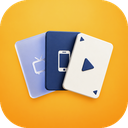
- A new app icon: three cards with a TV, a phone and a play card on deep blue, on every device, in the store and in the account panel, and on white in the Android TV and Google TV launcher.
- Signing out now clears the device: playlists, history, Continue watching, favorites, profiles, settings and saved sign-ins of your account are removed after a last sync, and come back when you sign in again; the device also stops taking up a place on your account. Before it goes, the app tells you what will be removed and asks whether to delete your downloads and recordings too.
- Watch from start in Sports and catch-up from the TV Guide, Search, a channel’s page and Continue watching now play while a channel of the same provider account plays in the background, instead of saying the provider didn’t record the programme. When every stream of your account is in use, for example on another device, the app now says so.
- Pause and rewind live channels on LG TVs: turn on Timeshift in Settings → Player or in the account panel. The TV keeps only a few minutes of the channel, as many as fit in its memory, so you can pause, go back and return to live. An Xtream channel opens as one continuous stream for it by itself, and a channel the TV cannot pause this way plays as before, with a short note. Samsung TVs do not have it yet.
- Play from start in the player settings and From start on a channel’s page now show for every programme on air within the channel’s catch-up days, also while a channel of the same provider account plays. The app checks the recording when you press it, and the channel panel on the TV marks a programme Not recorded only after it found no recording there.
- On LG TVs, the Magic Remote pointer now works in the TV Guide: point at a programme or a channel to select it, and press OK to watch it.
- When the side menu on the TV is longer than the screen, Up from Settings at its bottom now goes to the last item of the menu instead of one in the middle.
- TMDB connected with only an API key now reads Connected with an API key · Titles and posters only in Settings → Integrations and in the account panel, and Sports hero on the TV and Pin what I follow on the phone describe what they show. The account panel says how to restore a purchase on each device, and why an LG TV cannot record.
- Live TV buffer is now called Timeshift, in Settings → Player and in the account panel: it pauses and rewinds live TV on any channel, also one whose provider has no catch-up.
- On Android TV, Fire TV and Android phones, the app no longer takes more and more storage after the guide or the playlist updates in the background, and lists and the guide no longer pause for seconds after such an update.
- The player on Windows and the Mac has a volume slider next to the mute button, and the mouse wheel over the picture turns the volume up and down. The computer remembers the level for the next channel or film.
- When a provider’s catch-up plays a different part of the recording than the programme picked in the guide, set Catch-up time offset for that playlist, from 12 hours back to 12 hours ahead: on the phone when editing the playlist, on the TV, Windows, the Mac and LG and Samsung TVs in the playlist’s options in Settings → Playlists, or in the account panel. The guide keeps its times.
- IPTV Deck starts faster on LG and Samsung TVs, Windows and the Mac.
- Behind a match in Sports, on the phone hero, a pinned match, the match page and the backdrops on the TV, the picture of the sport now carries the colours of both teams instead of club and competition artwork.
- The app icon on Android TV and Google TV now looks like the one on the start screen and in the store: a white ace with a play sign in front of the two cards.
- TV Guide opened from a playing channel on the TV goes straight to that channel, without the list of categories flashing open first.
- A new server address and password you give a playlist on one device now reach your other devices reliably: a device opened at the same moment no longer keeps the old server, and a device that stays open takes the new password at once instead of the next time you come back to the app.
- The app from the website, the one-file download for any device, now also opens on Windows Subsystem for Android, Chromebooks and other x86_64 Android devices instead of closing right after it starts.
- On Android TV and Fire TV, going from TV Channels to the TV Guide through the side menu no longer rebuilds the picture of the channel playing in the preview, so the Guide opens with one short pause less.
- After you install or update the app from Google Play on Android TV and Android phones, it opens faster from the very first start, without waiting for the system to optimise it overnight: on a Chromecast with Google TV the first screen shows about 1 s sooner.
- Profile pictures that used an emoji now show a matching drawn icon, the same on every device, also where the emoji used to show as an empty box.
- The free trial now ends at the same time on every device of your account, also on a device that started its own trial before you signed in on another one.
- A channel you chose for a match on one playlist no longer shows on Home and in Sports while another playlist is active: every screen now names the same channel of the playlist you use, and your choice comes back when you switch back.
- With a playlist full of sports channels, the app no longer freezes for a minute or more after you remove a playlist or while playlists and the guide update, and Home with sports no longer stutters while matches get their channels or scores refresh, most of all on Android TV and Fire TV.
- Home and Sports For you on Android TV and Fire TV move smoother with a match at the top, also with a theme picture.
- With several playlists shown together, Movies and Series now sort all of them as one list: sorted by year, rating, name or recently added, the titles of every playlist mix instead of coming one playlist after another. To go back to one playlist after another, choose it under Playlists in Sort & filter on the phone, or untick All playlists together in Sort on the TV, Windows, the Mac and LG TVs.
- With several playlists shown together, Home has Recently added movies and Recently added series for each playlist, with its name, so a playlist that adds titles less often no longer drops out of these rows.
- Record live TV on Apple TV: Record in the player and the guide records the channel while it plays on screen, and a programme on a channel with catch-up is saved from the archive after it airs. Recordings stay in the Apple TV cache, which Apple TV may clear when it runs low on space.
- On the TV and LG TVs, the categories in TV Channels and TV Guide slide away when you move into the list, so channels and the guide get the whole width. Press Left or Back and they slide back in, pushing the list aside. Turn this off with Hide categories while browsing in Settings → General. On Windows and the Mac the categories always stay next to the list. The side menu now slides open and closed the same way.
- Back from a live channel can take you to the TV Guide, as in TiviMate: choose TV Guide under Back from the player returns to in Settings → Player. The guide opens on that channel, which keeps playing in the guide preview, and OK brings it back to full screen. On the TV, Windows, the Mac and LG and Samsung TVs, and in the account panel.
- Choose how long the channel info and the player controls stay on the picture: 2.5, 5 or 10 seconds, or until you hide them, now 5 seconds unless you chose otherwise, with Player info stays for in Settings → Player, on every device and in the account panel. On the TV, Windows, the Mac and LG and Samsung TVs the channel info also sits on a darker band, so it reads well on a bright picture and over the channel’s own logo.
- Restart channel in the player: when a live channel stutters or freezes, one press opens it again from your provider, on the phone, the tablet, the TV, Apple TV, Windows, the Mac and LG and Samsung TVs. After a pause, Go live takes its place.
- Your favorite channels on the Android TV home screen: they get their own row next to your other apps and start playing with one click. Turn it off in Settings → General if you do not want it.
- AetherEngine as a player on Apple TV, iPhone and iPad with tvOS or iOS 18 or newer: pick it in Settings → Player, or for one device in the account panel. With Auto, the app also tries it when the built-in player cannot play a film or a channel, before VLC, and it records channels too. Films with Dolby Vision, HDR and Dolby Atmos then play in the picture and sound your TV and speakers support, also in MKV files, and on the iPhone and iPad AirPlay sends films and channels from it to an Apple TV or an AirPlay TV. Auto stays the default, and VLC stays available everywhere.
- While a film or a channel plays over AirPlay, the player on the iPhone and iPad shows the name of the device it plays on.
- On the phone and the tablet, the Trailer button and the trailers further down a movie or series page now play at the top of the page, in the same small player as automatic trailers, with sound. Tap full screen in the player to watch it sideways, or × to close it.
- On Android TV, Fire TV, Windows and the Mac, the Trailer button and the trailers on a movie or series page now play behind the page, like automatic trailers, with sound. The trailer’s picture shows the moment you pick it while the video loads, and a trailer already playing by itself just goes on with sound instead of starting over. Buttons next to it turn the sound off or on, show the trailer full screen or stop it, each with its name under it when selected, and Back stops it too. Automatic trailers get the same buttons.
- On Android TV and Fire TV, automatic trailers start a little sooner after you open a movie or series page, and going back to a page you just saw no longer waits for your provider again.
- Sports For you starts with a Last results row: the results of the teams and leagues you follow from today and yesterday, newest first, with your teams before the leagues. The rows below it show only what is on and what comes next. Hide scores covers the new row too.
- The app opens again on an Apple TV with tvOS 17 or older, where it used to close right after you opened it.
- A match centre over the game you are watching: when the channel you watch shows a match, the player shows its score, and opening it lists every channel of your playlist that shows the match, with the one playing marked, so you can switch between them while the picture keeps playing. Next to it are the score by period, stats, lineups, the league table and Follow for both teams, on the TV, the phone, Windows, the Mac and LG TVs. The player shows one trophy for it, and with sports mode on the other live matches are a tab of the match centre.
- Basketball stats for the NBA, the WNBA and college basketball: the stats of every player and the game leaders on a game’s page and in the match centre over the picture, season stats and players on a team’s page, league leaders, and season averages and recent games of each player, on the phone, the TV, Windows, the Mac and LG TVs. With Hide scores on, a game’s player stats stay hidden until you choose Show score.
- In Sports Scores a result with two three-digit numbers, as in most basketball games, now fits in its box on one line, on the TV, Windows, the Mac, LG TVs and the phone.
- Mark a whole season or the whole series as watched or unwatched: tap ⋯ next to the season on the phone and tablet, or open the options of an episode on the TV, Windows, the Mac and LG TVs. After the last episode of a season or a series, the series page no longer offers S1 E1 when the earlier episodes were never marked: it goes on to the next season, or stays on the last episode.
- A film or episode you watch now shows as watched in every copy of it, also in your other playlists: watch an episode in one playlist and the same episode is ticked off in the other. Mark as unwatched takes the mark off everywhere, and where you stopped in an unfinished one stays with the copy you watched.
- Rate a film as it ends: Rate this sits next to Finish the film on the phone, the TV, Windows and the Mac, and sends your rating to Trakt or TMDB. On the TV the Finish the film note no longer stays in the corner of the picture through the end credits: press OK to finish or rate the film. Finish the film now shows closer to the end of the film, when the credits are about to start.
- Catch-up on Android phones, tablets, Android TV and Fire TV goes on where you paused it, also after a long pause, and plays on past the moment where some providers restart their recording, where it used to stop or start again, with both player engines. The seek bar shows the whole programme, keeps running to its end and jumps to the very second you pick. On Windows and the Mac you can also jump anywhere in a catch-up programme, far beyond the part that has loaded, and on the Mac a catch-up programme no longer stops partway through.
- When a catch-up programme ends, the next programme of the channel starts by itself, so the end of a show that runs late is not cut off. Autoplay next in Settings turns this off, together with the next episode of a series.
- Moving channels, categories, groups and Home sections is quicker: hold Up or Down and the item keeps going, faster the longer you hold, and quick presses no longer get lost, on the TV, Windows and the Mac. While you move a channel or a category in the channel list, the picture behind the list is hidden, and on Android TV and Fire TV moving channels is also smoother.
- One background colour for the whole app: the side menu, the category columns, the guide, Movies and Series, Settings, movie and series pages and Sports all take their tones from the background colour in Settings → Appearance, each panel one step lighter than the menu. Panel opacity, now from 100 to 50 percent and 90 by default, sets how much of the theme picture or the playing channel shows through every panel, the channel list over the picture too, and replaces Channel list background and Category column background.
- Catch-up only in the categories of TV Channels and the TV Guide, on the TV, Windows, the Mac and LG and Samsung TVs: turn it on and Favorites, your groups and every category show only their channels with catch-up, with their counts, and the ones without any are left out. Catch-up in the categories still lists every channel with catch-up. On the phone and tablet, the Categories of Catch-up list only the groups and categories that have catch-up channels.
- Catch-up on the phone and tablet can now be filtered like Live TV: search its channels, or show only your favorites, one of your groups or a category. Add a channel to your favorites with its star, or to a group with +, right in the Catch-up list.
- The category list of TV Channels, the TV Guide, Movies and Series now goes round: Down on the last category takes you to the first category, and Up on the top row takes you to the last category, on the TV, Windows and the Mac. Holding the button still stops at the end of the list.
- In the TV Guide on Android TV and Fire TV, after you pick another category the card above the guide now names the channel you are on, and Up and Down go to the next channel of that category.
- A bigger side menu on its own: choose Menu size in Settings → General on the TV, Windows, the Mac and LG TVs, or in the account panel. Home and the rest of the app keep their size.
- Pin the side menu open on Windows and the Mac: click the pin next to the IPTV Deck logo at the top of the menu and it stays open beside every screen, also after you restart the app, instead of folding to icons. Click the pin again, or use Keep the side menu open in the account panel, to let it fold.
- On Android phones and tablets, opening the app from a notification on the lock screen, such as a kick-off alert or a reminder, no longer leaves only the app logo on screen after you unlock: the app opens as usual.
- Opening the app from a link straight into one of its screens, such as the pairing code of a TV scanned with the camera, no longer shows an empty app without your playlists until you close it, on phones, tablets and tablets in the TV layout.
- On the iPhone, iPad and Apple TV, channels that played sound over a black screen, often 4K ones, now switch to the VLC player by themselves after a few seconds and show the picture, when the player engine is set to Auto.
- Your Trakt or TMDB watchlist now shows on a playlist you just added, as soon as its films and series have loaded, instead of staying empty for hours.
- In the TV Guide on Windows and the Mac, clicking a channel name or logo, or a channel that has no guide yet, now opens the channel, and a right-click opens its menu.
- On Windows, films, episodes and catch-up programmes from a provider whose addresses start with https play again, instead of stopping with This video would not play.
- On the iPhone and iPad, downloaded films the built-in player cannot play, such as MKV, AVI or TS files, play again with the VLC player.
- A recording made with the VLC player now records the whole programme in one quality, instead of stopping after the first few seconds, on Android phones, tablets, Android TV, Fire TV, the iPhone and the iPad.
- Films and episodes from a provider whose server labels them as a web page now play and download on phones, tablets, TVs, iPhone, iPad and Apple TV, instead of stopping with The provider answered with a web page instead of the film.
- On some Android TV boxes, such as certain X4 and X96Max models, playlists with a username and password can be added again and keep their password, and the box can be paired with your phone. End-to-end encryption cannot be used on these boxes, and the app now says so instead of failing.
- With TMDB connected, episodes your provider lists only as Episode 1, Episode 2 and so on show their real names from TMDB, next to the pictures TMDB already gave them.
- Reassign EPG with more than one guide source: pick a source above the list to see only its channels instead of all of them mixed together, on the phone, the TV, Windows, the Mac, LG TVs and in the account panel.
- Holding Channel up or Channel down on the remote now runs through the channels until you let go, instead of moving only one channel, on Android TV and Fire TV, LG TVs, Windows and the Mac, where Page Up and Page Down do the same.
- Scroll TV Channels and the TV Guide a page at a time: Channel up and down, Page Up and Page Down or Rewind and Fast forward move one screen of channels, and holding a channel button keeps going, also in the channel list and the guide over the picture, on Android TV and Fire TV, LG TVs, Windows and the Mac.
- Choose what the buttons of your TV remote do: Settings → Player → Remote buttons lets you give an action such as the TV Guide, subtitles, last channel or a page of the channel list to any button, or to holding it, on Android TV and Fire TV and on LG and Samsung TVs. Each TV keeps its own buttons, the hints in the player name the buttons you chose, and the account panel can put them back to the defaults.
- More buttons on the TV remote work in the player: Guide opens the TV guide over the channel you watch, and where your remote has them, Subtitles opens subtitles, Record records the programme, Bookmark adds the channel to your favorites and Next and Previous switch episodes. On Apple TV the channel buttons of a remote change the channel.
- When a recording plays to its end, the player now closes back to your recordings instead of showing “That title is no longer in your playlist”, and a recording no longer offers Finish the film or sends anything to Trakt.
- When the Sports service does not answer, For you now says the scores are unavailable and offers Try again, instead of saying that nothing you follow is coming up.
- A kick-off alert or a reminder that shows up while the player controls are open keeps its selection, so you can pick Watch or Dismiss with the remote, on the TV, Windows, the Mac and LG and Samsung TVs.
- When one channel’s guide runs early or late, such as a +1 channel that shares the guide of the main channel, shift only that channel: Guide time offset sits in its EPG options on the phone, in its channel options on the TV, Windows, the Mac and LG TVs, and in the account panel. It reaches your other devices and moves the programme times in the guide, search, catch-up and Sports too.
- With Trakt connected, the app now asks before marking a film or an episode as unwatched, because Trakt then forgets every time you watched it, also the times other apps added.
- On phones and tablets, channel logos can go without the dark tile behind them: choose None under Channel logo background in Settings → Appearance, or in the account panel.
- On Apple TV, Left from the channel list or from the posters now goes back to the category you came from, and no longer jumps past the categories into the side menu.
- If your version of the app ever stops being supported, it now tells you and takes you straight to the update: a restart, the app store or the installer, depending on your device.
- On Apple TV, Right from the categories in TV Channels goes back to the channel you were on, Up from the top of Home reaches the TRIAL badge, and Back from the player, also from its error screen, returns to where you started it.
- On Apple TV, the screens shown when your free trial ends, when too many devices use your subscription or while the app checks your access can be used with the remote again: the selection now moves to every button and device on them.
- On a TV, Plex is offered right on the first screen, next to typing a playlist with the remote.
- The remote on your phone no longer offers the arrows for an Apple TV, a computer or an LG TV, which cannot take them from the phone, and says so instead of asking for an update.
- Settings on a TV, Windows and the Mac can open with its groups folded: turn on Fold the groups of Settings in Settings → General, then open Library, Playback and the others one at a time.
- On TVs, Windows and the Mac, the channel list over the picture now always opens with the playing channel selected, also after you looked at another category, and choosing a category there keeps that category selected. Before, sometimes nothing was selected and the remote did nothing until you went back and changed the channel.
- Sports now lists every channel your provider names after a game, such as each NHL, NFL, DAZN and Game Pass feed of a match, instead of stopping after the first few. A channel of a youth game between the same clubs no longer shows with the senior match.
- On LG TVs, Windows and the Mac, a row you scrolled to the right now walks back left card by card instead of jumping to the menu, and in a text field Down moves to the buttons under it and Up returns to the field.
- When you are not signed in, Sports now says it needs an IPTV Deck account: the login from your provider only adds the playlist.
- On LG TVs, Windows and the Mac, lists scroll a little further so the next row shows under the one you are on, Left from a Settings page goes back to the section you are in, and Back from a channel you started in the TV Guide returns to the programme you picked.
- Turn off Show playlist updates in Settings → Playlists, or in the account panel, and your playlists and TV guide update quietly in the background when you open the app, with no progress or messages. A new playlist, an update you start and problems that need you, such as an expired account, still show.
- On Windows and the Mac, double-click the picture to go full screen and double-click again to leave it. In full screen the player also has a close button: move the mouse to show the controls and click × to close the player, as Backspace does. When a film or the last episode of a series ends, or you choose Finish the film, the app leaves full screen, so Back is there on the page you land on.
- Movies and Series sorted by year open much faster in large playlists, also with several playlists sorted together.
- Channels in Sports: the sports networks of your playlist in one place, such as ESPN, TSN, NBA TV or Sky Sports, with their logos, grouped into league, sports and regional networks, with what is on now and next and the match a channel is showing. On the TV the channel you highlight plays at the top, just like in the TV Guide and with the same Guide preview follows the cursor setting, and OK plays it full screen. Copies of one network share a tile: hold OK on the TV, or press and hold on the phone, to pick another. On the phone, the TV, Windows, the Mac and LG TVs.
- With a large playlist and Sports on Home, the channel list, the categories and Home answer sooner right after the app opens or comes back, and Sports no longer repeats the same search for the channels of games in a large guide every few minutes, on the TV, the phone, Windows, the Mac and LG TVs. While a large playlist and its guide load for the first time, bringing in your favorites and watch history from your other devices no longer holds up the guide and the screens.
- On the TV, Windows, the Mac and LG TVs the side menu now folds to its icons as soon as you move into a screen, on every screen, and stays folded when you come back to it. Press Left or Back on the menu to open it with its names, pushing the screen aside; on Windows and the Mac it also opens under the mouse. Home, Search, Recordings and Downloads used to keep it open and now get the whole width while you browse them.
- Channels and Guide in the player now open the same TV Channels and TV Guide as the side menu, on the category and the channel you watch, which keeps playing in the preview, as in TiviMate. Back or Left goes to the categories and then to the side menu, and holding Back returns to the full picture. In TV Channels, OK on the channel that plays brings it to full screen.
- What plays on a TV no longer flickers between playing and paused on the phone remote and in the account panel. A pause on the TV shows there a moment after you press it.
- On Windows and the Mac, when the system lets IPTV Deck read its data but not change it, the app now says so and what to allow, instead of quietly not saving your playlists and settings. A broken link in place of its temporary files folder is repaired by itself.
- On phones and tablets the app shows Home much sooner after it opens, without the empty screen after the logo: the first rows appear at once and the rest follow while you look.
- The list of versions of a film now shows the file size of every version whose size your provider reports, also where the app cannot read which audio and subtitles the file has.
- The label next to a version says Subtitles, Voice-over or Dubbing in the language of the app, where it used to show the Polish words.
- Movies, Series, My Groups, the TV Guide, Multiview and Settings now look like TV Channels: the name of the screen sits above the list on the left, a line separates that list from the rest, and the margins, the width of the list and the space next to it are the same on every screen, on the TV, Windows, the Mac and LG TVs. Make the list on the left wider with Category column in Settings → General, on each device or in the account panel.
- In the account panel, the look preview now stays on the right while you scroll through themes and colours, so you see every change without going back up.
- On phones and tablets the Controls locked note now goes away after a few seconds so it no longer covers the subtitles. Touch the screen to bring it back, then tap it to unlock.
- Turn off Swipe gestures in Settings → Player on a phone or tablet, or in the account panel, so a swipe in the player no longer changes the brightness, the volume or the channel by accident. The screen brightness is then left to the phone.
- On Android TV and Fire TV, the question to start scheduled recordings on time, which shows after your first Record, now answers to the remote: Back or Not now closes it, and Allow exact alarms opens the system setting.
- Jellyfin, Emby and Plex: add your own media server next to your playlists, Jellyfin and Emby with the server address and your account, Plex with a code from plex.tv/link, on the phone, the TV, Windows and the Mac. Its films and series show up in Movies, Series, Home and search, with their posters, descriptions and episodes. What you watched and where you stopped stay the same in the app and in the server’s other apps, subtitle files kept next to a film come along, and Skip intro appears where the server knows the intro. With Jellyfin and Emby your favourites follow too, each profile can sign in with its own user of the server, and the server’s Live TV channels come with their guide and a programme can be recorded on the server.
- A light look: choose Light colours in Settings → Appearance for a light background with dark text and a bright version of your theme picture, on the phone, the tablet, the TV, Windows, the Mac and LG TVs, or in the account panel. Each profile picks its own, and the player stays dark.
- Let your theme picture show through: Panel opacity in Settings → Appearance makes the side menu, the guide, the settings panels and the Home tiles see-through, at 85, 70 or 55 percent, on the phone, the TV, Windows, the Mac and LG TVs, or in the account panel. Each profile picks its own, and text always stays readable.
- Trailers can start by themselves: open a movie or series page and its trailer soon fades in behind the title on the TV and on Windows and the Mac, and in place of the picture on the phone, muted or with sound. It is off until you turn it on in Settings → Player, each profile chooses for itself, and it never plays on mobile data. Apple TV and LG TVs open trailers outside the app, so they do not have it.
- Auto frame rate on Android TV and Fire TV: the TV can switch to the frame rate of the film or channel you watch, so movement looks smooth instead of juddering. Turn it on in Settings → Player, for films and series only or for live TV too.
- Sports mode now shows the scores of every team and league you follow, from all sports at once, and a score pops up during films and series too, named for its sport: a goal, a touchdown, a run, a try or a set. You can turn these popups off with Goal alerts in Settings → Sports.
- Sports can hide scores: turn on Hide scores in Settings → Sports and matches show without scores and results on cards, in lists, on Home and in the player, until you choose Show score on a match. Each profile has its own setting, and all Sports settings now live on one page, on the phone, the TV, Windows and the Mac.
- When your playlist has no country tags in channel names, Sports now plays a match first on the channel that holds its rights in your country, such as Ligue 1+ in France, instead of another channel that only shows the match in its guide. That channel stays as the next choice.
- Sports no longer suggests a channel from another country just because it has the same name, such as the US TNT for a match shown on TNT in Mexico. A channel in another country now comes only from your TV guide.
- Sports now finds games your TV guide shows on local stations, such as an MLB playoff game on FOX or an NBA game on MSG, and plays them there.
- Sports now finds the channels of your provider’s league packages, such as an NBA, NHL or NFL package: a channel named after the game shows with the match, and the channels of both teams show under Might be on.
- Channels your provider names after a game or a show, such as the event channels of an NBA or NHL package, now show that game in the TV Guide, the channel list and the player, at the time the name gives, instead of No programme, the programmes of another channel, or a placeholder in the guide from your provider that does not name the game.
- In Sports on the phone, Tomorrow and Yesterday next to a match no longer break in the middle of the word.
- Your own subtitles: in the subtitle list of a film or an episode choose Load subtitles from a file and pick an .srt or .vtt file, on the phone, the tablet, Windows and the Mac. For a TV, send the file while the film plays from your phone (Settings → Devices → your TV) or from the account panel. The app remembers your file for that title, with its delay.
- Subtitle position: move subtitles lower or higher on the picture in Settings → Player or in the subtitle menu while you watch, on the phone, the TV, Windows, the Mac, LG TVs and in the account panel. It moves subtitle files and downloaded subtitles everywhere, and built-in subtitles except on the VLC player and on the iPhone and Apple TV system player.
- Choose the shape of the picture: next to Fit, Fill and Stretch the player now offers 16:9, 4:3 and 21:9, with black bars where the screen has a different shape. The choice is remembered for live channels, films and series separately, on the phone, the TV, Windows, the Mac and LG TVs.
- On Android TV and Fire TV, widescreen films and other pictures that are not 16:9 no longer look squeezed on the VLC player.
- On Windows and the Mac, Backspace or X closes the player in one press, also in full screen, and Esc in full screen now only leaves full screen.
- An episode that will not play can be found in another copy of the series: the error screen offers the copies that have the same episode and open, and Other copies in an episode’s menu lists every copy with whether it opens, on the phone, the TV, Windows and the Mac.
- In an Xtream Codes playlist, a channel or film your provider lists in several categories, such as its own Favorites, now shows in each of them, and the number next to a category matches what it shows. It stays one channel: the same favorite, history and place in All channels. Playlists you already have fill in at their next update.
- A film or episode you delete from your network folder on the NAS now also leaves Downloads on the phone or TV that saved it, so a download of a lost or replaced device can be removed from any computer.
- A recording from catch-up no longer cuts off the channel you are watching or fails when all streams of your provider account are in use: it waits until a stream is free and then saves the programme.
- The order you set for Favorites, the Watchlist and your groups now stays the same on every device and in the account panel, also when a device shows only some of your playlists or categories.
- On the phone you can pause a channel without going full screen: the small picture above the channel and above a match has a pause button, and Go live takes you back to the live picture.
- On the TV, Windows and the Mac, the player now shows what the current programme is about under its name, when your guide has a description: when you press OK and each time you change the channel.
- Turning on encryption in Settings while signed out now takes you to sign in, instead of failing with an error.
- On an iPad or an Android tablet the app now turns with the device, so you can use it sideways, for example with a keyboard attached. Films and series show more posters in a row on a tablet.
- On the phone you can now pick the TV guide of a channel in one of your own groups: select the channel and tap EPG, the same as in Live TV.
- On the phone, a playlist refresh now shows as a small spinner in place of the icon of the tab it updates, instead of a message above the tab bar. The message stays only while your library loads for the first time.
- A series you have watched to its last episode now leaves Continue watching by itself, on every device and in the account panel, and comes back at the front when a new episode shows up.
- On slower Android TV boxes, such as the NVIDIA SHIELD, saving favorites and watch progress and syncing with your other devices no longer wait up to a minute while the app clears out old guide programmes.
- Choose what the side menu shows on the TV, Windows and the Mac: Settings → General → Side menu hides the items you do not use. Movies and Series also leave the menu by themselves while your playlists have no films or series.
- More themes in Settings → Appearance: sunny, travel and after-dark pictures. A theme also sets how strongly its picture shows, until you choose that yourself.
- Settings → Categories on the TV has a Select mode: tick several categories, also across searches, then hide, pin, lock or remove them from the device in one go. The list of channels, movies or series inside a category has the same, on the TV and on the phone.
- On the TV, Windows and the Mac, a category can open as soon as you move onto it, without pressing OK: turn on Open a category when it is highlighted in Settings → General.
- A series page shows what the series is about right above the episode list, on the TV and on the phone.
- When you add a playlist, Live TV only on the category screen leaves out all films and series at once, on the phone and the TV.
- Extra guide sources you add one after another in Settings → EPG & Guide all load now, and saving or removing one no longer downloads every other source again, which some guide services count against a download limit. With several large guide sources the guide updates faster. The app, the TV Guide and syncing with your other devices no longer stall while it does, and Sports no longer switches back to “Checking your guide…” after every source.
- US local channels with the station’s call sign in their name, such as Local FOX (KDFW), now get their programmes from an extra guide source that lists that station.
- The channel list you open over the picture can have a darker background, or a solid one that hides the picture, so it stays easy to read on a bright picture: choose Channel list background in Settings → Player on the phone, the TV, Windows, the Mac and LG TVs, or in the account panel.
- TV Guide has more room for long channel names: choose a wider channel column in Settings → General on the TV, Windows and the Mac, and a name that still does not fit scrolls while its row is highlighted.
- On Samsung TVs, leaving a channel for the TV Guide no longer shows a black screen or loses the selection, and with a theme picture the guide preview shows the channel instead of the picture.
- On Android TV and Fire TV, scrolling through Movies, Series, the channel list and the rows on Home no longer skips a press or jumps to another list while posters, programmes or more titles are loading, right on the last poster of a row stays there instead of jumping to the top bar, and left from the first poster of a newly opened category goes to the category list instead of the side menu. On Windows, the Mac and LG TVs, pressing up at the top of Home no longer jumps into the side menu, right from the side menu lands on the category you are in, left from an empty group goes to the category list, and right from Trailer or Download on a film or series page reaches the button next to it. On the TV, Windows and the Mac, going back up to the tabs of Sports shows them again instead of leaving the selection above the screen.
- On the TV, Windows and the Mac, the selected match in the Sports row on Home now always shows whole: it no longer stays cut off at the edge of the screen or hidden under the side menu after you move along the row and back.
- On the TV, picking a colour in Settings → Appearance keeps the selection on that colour, also after watching a channel, instead of jumping back to the start of the row.
- On Android TV and Fire TV, opening the TV Guide or another screen from the account panel while a channel plays full screen no longer leaves the TV on a black screen.
- On the TV, What’s new and an actor’s biography now scroll with the remote: press down to read on, and OK or Back closes them.
- On the TV, with the big picture at the top of Home turned off, pressing right from the side menu takes you into Home again after a visit to Settings or another screen.
- On the TV, Windows and the Mac, moving a section in Settings → Home works again: hold OK on a section, move it up or down and the page follows it, with the hint for OK and Back at the bottom of the screen.
- On the TV, Windows and the Mac, pinning, unpinning or hiding a category or a genre from the list keeps the selection on the next one instead of jumping to the Pinned block at the top, so several can be pinned one after another.
- On Android TV, posters in Movies and Series stay in their columns to the end of a list: the last rows no longer have gaps or posters you cannot reach, and Down from a column with nothing below lands on the last poster. With Interface size at 125% or 150% the selected row shows whole, with its titles.
- On the TV, Windows and the Mac, the hint under Delay in the subtitle menu now names the right buttons: plus when subtitles run ahead of the picture, minus when they lag behind.
- On the TV, Windows and the Mac, My groups keeps the side menu narrow, like Movies and Series, so your groups and their posters get more room.
- On the TV, Windows and the Mac, the Guide you open from the player has the category list on its left, like TV Guide in the side menu: pick a category, your favorites or a group, search or sort, and its channels show in the guide while the picture keeps playing above.
- Themes: pick a background picture with its own colours in Settings → Appearance on the phone, the TV, Windows and the Mac, from calm scenes to pictures for kids and gaming, or choose your own accent and background colour. Each profile keeps its own look on every device, and a parent can pick one for a child’s profile. On the phone, match cards and channel tiles on Home let the picture show through.
- A kids profile has its own Settings again: its theme, Home rows and audio and subtitle language, and a way to switch profile. Everything else, including buying Premium, stays with the parents.
- Each profile now hides its own categories and channels. An adult profile can set up a child’s one too: open it in Settings → Profiles and choose what it sees, its Home rows and its audio and subtitles, on the phone, the TV or in the account panel. Each profile also keeps its own sort and filters in Movies, Series and Live.
- Search can leave out what you do not want to see: choose My categories to skip hidden categories and channels, or Pinned to search only your pinned categories. It is under Filters on the phone and under Search in on the TV, Windows and the Mac, and each profile keeps its own choice.
- Favorites and your own groups in Live TV on the phone keep the order you set. Channel up and down in the player now stays in the list you started from, also after starting a channel from the Home rows on the TV.
- Coming from Televizo? Restore its backup file the same way as an IPTV Deck one, on the first screen or in Settings → Storage → Restore data on the phone, or in Add a playlist on Windows and the Mac. Your playlists, favorites, hidden and renamed channels, guide sources and the films you were watching come along.
- For an Xtream Codes playlist, Settings → Playlists now shows when your subscription with the provider ends, on the phone, the TV, Windows and the Mac. In its last week the app reminds you once a day, so the channels do not stop without warning.
- Each profile now has its own Trakt account and its own TMDB sign-in on the shared TMDB key, so watchlists and ratings stay with the person they belong to. Connecting on one device is enough: with Keep my passwords in my account on, your other devices follow by themselves. A profile can also use the sign-in of another profile, so a kids profile needs no sign-in of its own.
- Downloads and recordings now belong to the profile that saves them: a kids profile does not see what other profiles save, and an adult can still show everything saved on the device.
- On the TV, a reminder now shows whichever profile is watching, with the name of the profile that set it.
- The network folder can be locked with the parental PIN: kids profiles then do not see it, and adults enter the PIN to open it.
- With a large film library, Home and the lists of films, series and channels open much faster, and switching back to a profile shows its lists at once.
- Choose which sports and leagues Sports shows: tap Choose sports in the sport list, or hold a league’s name in Scores or Matches to pin it to the top, follow it or hide it. Leagues are listed by name: pinned first, then the ones you follow, then the rest. Teams and competitions you follow always show.
- Live channels cast to a Chromecast now run much closer to live, and catch up by themselves after the provider falls behind.
- When two of your devices play on a provider account that allows one stream, they no longer keep taking it from each other: the one that lost the stream says it is in use, and Try again takes it back.
- Live channels your provider renames without replacing them, such as channels named after today’s match, now show the new name after the next playlist refresh instead of up to a week later.
- Playback speed now works on Android TV and Fire TV boxes that send Dolby sound to the TV or soundbar.
- A new film starts at normal speed. The speed you picked stays for the same film and for the next episode of a series.
- A film whose picture the TV box cannot decode, such as some anime releases, switches to VLC by itself within seconds instead of loading forever.
- With Trakt connected, a film you watch in one language no longer brings its copy in another language back to Continue watching.
- A series or a film no longer drops out of Continue watching, and an episode keeps its watched mark, when you open it and leave before it starts playing.
- Home rows are now short enough to reach their end, and every row with a list of its own opens it, with Show all at the end of the row on the TV, Windows and the Mac and See all on the phone: categories, groups, genres, favorites, your watchlist, Recently added sorted by date added and the rows of a streaming service. Back returns to the row.
- Phones and TVs that save downloads and recordings to the same network folder now list and play the films, episodes and recordings the others saved there.
- Browse the network folder from Downloads: walk through its folders and play films you copied there yourself, with titles read from the file names.
- When a film ends, its page opens so you can rate it or pick the next one. During the end credits, for many films right when they begin, a Finish button marks the film as watched and takes you there.
- Episodes your provider gives no pictures for, such as Bluey in some languages, now show the pictures of the same episodes from another language of the series.
- With Trakt connected and the app in a language other than English, title pages no longer replace the description and genres from your provider with English ones when Trakt has no translation.
- The Up next card now appears when an episode’s end credits begin, for many series exactly where they start, otherwise a few minutes before the end, and earlier for a series where you usually start the next episode early. With Trakt or TMDB connected, choose Rate this on the card to rate the episode, and the countdown to the next episode waits for you. After the last episode, the series page opens on its rating. Your rating shows on the card and next to each episode on the series page, and the star there rates the episode or changes the rating. With both Trakt and TMDB signed in, one rating of a film, a series or an episode goes to both.
- Sports: once you follow a team or a competition, For you opens on what you follow, whatever the day and the sport. Your teams come first with their next matches, today or in three weeks, and each league you follow has its own row. The list of what you follow, with adding teams and alerts, is now behind the Following button. A race weekend is no longer one big card: practice, qualifying, sprint and race each show as their own tile, like a match.
- Sports: when a followed team and a followed competition play at the same time, the team’s match comes first on Home, and a match with a kick-off alert on the way shows a lit bell in every list.
- On a day when nothing you follow plays, the Sports hero on the TV Home and the pinned match on the phone show the next match you follow, tomorrow or later, instead of an empty card.
- After the free trial ends on the phone, the subscription screen still lets you sign in from another device with a QR code or a code.
- The versions of a film can be listed from the largest file to the smallest: choose Largest file at the top of the version list, on the phone, the TV, Windows and the Mac.
- On Apple TV the selection no longer disappears when you move up to the playlist card or down to Settings in the side menu, or onto the buttons on Home, the season list and settings choices. Moving right from the side menu now reaches the screen from every item, the selection stays where it was after you close a page, and in TV Guide each swipe on the remote moves one channel or programme.
- Each profile now chooses its own Sports hero on the TV Home and its own pinned match on the phone Home, so a kids profile can go back to the usual Home. Set it in Settings → Home on the TV or Home screen on the phone, or for a child from the parent’s profile.
- Sports now lists every match under the day it is played by your own clock, so an evening game in the US shows under Today while it is on, not under Tomorrow.
- Sports finds the channel for more games, such as Fox Sports 1, TNT and TBS in the US, and picks the broadcaster’s own country’s version of a channel instead of another country’s. A streaming service such as Paramount+ or Netflix shows as a name, not as a channel to watch.
- On Windows and the Mac, a slight touch of the mouse no longer brings up the controls of the player or of a multiview window. Move the mouse a little further and they appear as before.
- With more than one playlist, a film or series page shows which playlist the title comes from, next to its other tags.
- On Windows and the Mac, films, episodes and channels can play in a small picture-in-picture window over other apps: choose Picture in picture in the player options.
- On the Mac, films, episodes and channels with Dolby or DTS sound now play with sound, together with the subtitles inside the film.
- On Windows, films in Dolby Vision that showed green or purple colours, often 4K releases, now play in their normal colours and in their full 4K resolution. Subtitles stored as pictures inside a film now show too.
- After you change the server or password of a playlist, series episodes load from the new address right away instead of failing with Could not load the episode list.
- On Android TV, a guide download that arrives broken is downloaded again instead of being read over and over, so playback no longer stutters and the app no longer closes while the guide refreshes.
- On the TV, Windows and the Mac, Up next no longer covers the picture and subtitles while the end credits roll: press OK to play the next episode or rate this one from the cards above the progress bar, which are smaller too. The full card with Play now and Stay here appears only for the last seconds of the countdown. A film shows a small Finish the film note in the corner, clear of subtitles.
- With TMDB connected, episodes your provider gives no pictures for, such as series from a MAC portal, now show their pictures from TMDB on the series page and on the Up next card.
- On the TV, Windows and the Mac, the numbers next to the categories in TV Channels, Movies and Series now count what the list shows, with your filters, search and hidden items, so they match the totals.
- On Android TV boxes, browsing Home and the film and series lists uses much less memory, so the app stays smooth through a long evening, and the selection no longer jumps back to the menu when a list of posters updates.
- On the TV, Windows and the Mac, the series page opens its episode list on the episode to continue also when that episode is in a later season, instead of showing an empty space above the list.
- An episode you already watched starts from the beginning when you pick it on the series page of the TV, Windows and the Mac, or send it from the phone to the TV, instead of from its last minutes.
- On the phone, the note about the TV guide updating no longer pops up above the tab bar every time you open the app. Guide progress still shows in TV Guide and in Settings.
- On the iPhone, closing the picture-in-picture window with its X now stops playback, so its controls no longer stay on the Lock Screen and in the Dynamic Island.
- On Windows and the Mac, a profile PIN can be set again, and a profile protected with a PIN set on another device opens with it.
- With Trakt connected, what you add on trakt.tv to your watchlist or lists, and episodes you watch in other apps, now show up in the Home rows when you come back to the app or within five minutes, without restarting it. A title you put on the watchlist from its page appears on Home right away.
- With Trakt or TMDB connected, the watchlist you keep there has its own entry in Movies and Series on the TV, Windows and the Mac, right under Watchlist, with every title your playlist has. Its row on Home opens the same list with Show all, and with See all on the phone.
- Recent searches can be cleared: choose Clear next to them in Search on the phone, the TV, Windows and the Mac. It clears the searches of the profile you are in.
- On an Android phone, the first screen now starts with adding a playlist or trying the demo. Signing in is below, for those who already have an account.
- With a provider that carries the same station for several countries, a channel now shows its own guide instead of that station’s programme in another language. Channels that already show the wrong one correct themselves at the next guide update.
- On the TV, Windows and the Mac, channel lists and categories can be made bigger on their own: choose List size in Settings → General. Home and the rest of the app keep their size.
- In an M3U playlist, Series now shows one tile per series with its seasons and episodes inside, instead of a tile for every episode. Playlists you already have regroup at their next update.
- In an M3U playlist, a channel or film listed in several categories now shows in each of them, so categories you put together yourself are complete. It stays one channel: the same favorite, history and place in All channels. Playlists you already have fill in at their next update.
- A shortened playlist link that leads to an Xtream Codes account is now added as that account, the same as the full link.
- On the TV, the selection stays on the update button in Settings while an update downloads and after you close the installer.
- Tennis in Sports now lists the matches of the ATP and WTA tours with the score in sets. A match gets a Watch button on the channel of yours that shows its tournament. A player you follow shows their match while it is on, their next match and last results, and you get an alert before they play.
- College basketball in Sports now lists every Division I game of the men and the women, with the live clock, the score by half or quarter, team records, rankings and US channels. Schools that were missing from the team list, such as Ole Miss, can be followed, and both leagues are in the list of basketball leagues.
- Catch-up has its own list: open Catch-up in Live TV on the phone, or in the categories of TV Channels and TV Guide on the TV, Windows and the Mac, to see only the channels that keep past programmes and how many days back each one goes. Pick a channel to browse its past days and play a programme from the start. In the other lists these channels carry a small mark next to their name.
- Search now finds every past episode your provider still keeps for catch-up, also on a new install, and opens each on the channel it belongs to instead of on a channel from another country that shares its guide. A past day in a channel’s catch-up shows the whole day your provider has, not only its last hours.
- Subtitles have two smaller sizes, Smallest and Very small, and the dark box behind them can be switched off with Subtitle background in Settings → Player or in the subtitle menu of the player. On Android, with the Native player, subtitles built into a film or a channel now stay on screen when the picture fills the screen or is zoomed in, and keep the size you chose.
- On the TV, Windows and the Mac, Manage in the playlist menu and the other shortcuts to Settings, the TV Guide or Sports work again after you add a playlist, without restarting the app. TV Channels no longer shows two clocks.
- Choosing categories when you add a playlist on the TV, Windows and the Mac has a new screen: Load everything and Load selected stay on the left with the number of categories you ticked, and you can search the list and tick or untick only what the search found.
- With an Xtream Codes playlist, a series shows a new episode as soon as your provider adds it, on every device. A device where you had opened the series earlier that day no longer lists one episode fewer than your other devices.
- A film or series your provider keeps in a folder named after a country, such as Movies Germany, now shows that country as a tag on its tile and on its page, so copies of one title in different languages are easy to tell apart.
- On the TV, Windows and the Mac, Up and Down on a live channel can show the player controls instead of changing the channel: choose it in Settings → Player → Up / Down on a live channel. The channel buttons of the remote, the number keys and the channel list still change channels.
- A new Sports section on the phone and the TV: matches, races and other events from yesterday to six days ahead, with live scores, tables, line-ups and highlights, from football and Formula 1 to tennis, cricket and darts. Pick a match and it plays on the channel of your own playlist that shows it.
- Follow your teams, players and competitions: their matches come first, the Following list groups them by league, the My teams switch shows only their matches and scores, Home can show a followed match while it is on, and an alert comes 15 minutes before kick-off with a button that plays the channel.
- American football, basketball, baseball and hockey games show the quarter and clock while they are on, the score by quarter or inning, team records, college rankings, playoff series and standings.
- Sports mode in the player keeps the scores and goals of every live match over the picture. From the trophy button you switch matches, or pick several to watch together in multiview.
- Trakt: connect your account in Settings → Integrations. What you watch is marked on both sides, your watchlist, lists and recommendations come to Home, and title pages show IMDb, Rotten Tomatoes and Metascore ratings.
- On Android TV, reminders and kick-off alerts can show over other apps while IPTV Deck is closed: turn on Alerts when IPTV Deck is closed in Settings → Reminders.
- Live channels start faster when a provider is slow, and come back by themselves after a short drop or an outage of a minute or two. On Android they no longer jump back or skip ahead every half a minute.
- Multiview windows reconnect by themselves after a freeze or an outage, and on Android TV they are drawn by the TV’s video hardware, which takes much less of the device.
- Downloads and recordings can be saved to a network drive such as a NAS: on Android, Android TV and Fire TV under Network folders in the storage settings, on Windows with Choose folder.
- Home on the TV, Windows and the Mac has the rows the phone has: Favorites, My groups and your own watchlist.
- Your groups and genres can be rows on Home: choose Add to Home when you hold one, or tap the Home button on a group on the phone.
- On the TV, Windows and the Mac, a group in My groups with All picked shows its films and series under its channels.
- Update all the playlists you have open at once from the playlist menu, and a playlist that could not update without a connection is tried again soon.
- An adult profile now decides which playlists the other profiles can open, and a device can always open in the same profile, such as a child’s tablet in Kids.
- Your own rating of a film or an episode goes from 1 to 10, with half stars on the phone, as on trakt.tv, and a rating changed on the Trakt website shows on the title page within a minute. A film’s page also has a Mark as watched button next to Watchlist and Favorites.
- A film’s page shows its picture quality and file size before you play or download it.
- Pin a genre to the top of the category list in Movies and Series by holding it.
- Each profile keeps more of its own: pinned categories and genres, the preferred audio and subtitle language with the subtitles mode, the rows on Home and the recent searches. A profile starts with what the main profile has and goes its own way with its first change.
- Searching for an actor in Latin letters finds them in every app language.
- On Fire TV, the app installs its own updates from the next one on, without the browser.
- On Android TV and Fire TV, holding Back takes you straight to the channel that is playing.
- The player on the TV, Windows and the Mac can show a small clock in the corner: Settings → Player → Clock while watching.
- The Live TV buffer on Android also works for radio and TV tuner channels, and a new Buffer length applies at once.
- Channels from a TV tuner such as an HDHomeRun start more reliably on every platform.
- On iPhone and Apple TV, channels that send only MPEG-TS and channels with rtsp, rtmp or udp addresses, such as those of a FRITZ!Box, now play.
- On Windows and the Mac, live channels start sooner, radio with Dolby sound plays, subtitles in films with Dolby sound stay in time, and a programme from the archive shows its full length on the seek bar from the start.
- Films start more reliably on slow providers and connections, and the VLC player picks the right audio and subtitles from the first second.
- A film switched to the VLC player goes on from where it was, instead of starting over and dropping out of Continue watching.
- On the TV, a film found in Search has Details next to Play.
- On Android, films from a provider whose server needs 15 seconds or more to answer start again instead of failing.
- On iPhone, the app no longer stops reacting after an update when your profile has a PIN, and on the phone a profile with a PIN asks for it every time the app starts.
- After Update now, the app keeps working until it restarts and opens properly again.
- On Windows and the Mac, the app no longer asks you to sign in again after the computer was switched off.
- Removing a playlist or switching off categories frees the storage again, and when the app’s data is damaged it offers to rebuild it and keeps your favorites and history.
- After an update, settings made on your other devices, such as the teams you follow, come to this device at once instead of after the next change.
- Fixes for several smaller issues with recordings, subscriptions, sync and the TV player.
- A new look on the TV, Windows and the Mac: the menu, Home, channels, guide, search, film and series pages, player, multiview and Settings are all redesigned.
- Pause and rewind live channels on Android: turn on the live TV buffer in Settings → Player.
- Subtitles and the audio track are remembered for each film and series, also across your devices.
- The app is faster and smoother, most of all on slower Android TV boxes, and scrolling on phones and tablets is smoother too.
- Film and series pages on the phone have a new look, and posters and channel lists on phones and tablets show clean titles with labels for year, language and quality.
- Recording comes to Windows and the Mac. On Android, recordings keep going in the background and scheduled ones start on time even with the app closed.
- Multiview has a picture-in-picture layout, a channel can be moved to another window, and each window shows the whole picture, so the score in the corner stays in view, or fills the window if you prefer. On Windows and the Mac a channel can open in its own window, and multiview fills the screen, recovers from cut streams and keeps playing when minimized.
- Browse Movies and Series by genre. Needs your TMDB account.
- The player has a mute button.
- On the TV, holding OK opens the channel list while a channel plays, and the blue button switches to another version of the channel.
- Choose how far the skip buttons jump in Settings → Player.
- Home rows can be hidden and put in your own order, any category of your playlist can be its own row (hold it and choose Add to Home), and new rows show new releases, top rated titles, streaming services, 4K and what is popular on TMDB.
- On Android, choose stereo or surround sound for films that have both.
- Settings that belong to one device come back when you reinstall the app and sign in.
- Settings are easier to find your way around, and Settings → Categories lets you hide single channels or films.
- Pin categories to the top of the category list in Live TV, Movies, Series and search: hold a category to pin it, and the pin reaches your other devices.
- With several playlists open, the categories of each playlist fold away under its name.
- On Android, films start, resume and skip ahead faster on a slow connection, and a stream that goes silent reconnects by itself.
- On Android, the Large and Very large buffer sizes now work for live channels too: a channel starts a moment later and stops less often.
- When the provider is not broadcasting a channel, the player says so instead of retrying forever.
- Adding and updating playlists and loading the TV guide are faster, and on Android they keep going after you leave the app.
- On Android, playlists and the guide refresh in the background every few hours again.
- A new favourite or other change reaches your other devices at once, even while a playlist updates.
- Episodes of a series show up without the long wait.
- With TMDB, descriptions and genres come in the language of the app.
- With TMDB, a film page shows every part of its series you have, in release order and in the language of the film you opened, and More like this, genres and your watchlist find many more of your titles.
- Section titles from your provider, such as ##### SPORT #####, show as headings only under All channels.
- On Android, leaving the app frees your provider connection.
- Changing player settings now also applies to the channel you go back to.
- With VLC, subtitles turned on in the middle of a film show right away.
- Search fixes typos better, and on the phone it looks into hidden categories again.
- On the TV, Try the demo fills the app with sample channels, films and series until you add a playlist.
- On phones and tablets: a tap shows the player controls at once, the tab bar is easier to see, the offline banner works when Wi-Fi has no internet, and buttons no longer hide under the navigation bar.
- The AirPlay button now really shows on the iPhone and iPad.
- Pulling down notifications over the player no longer makes the screen go dark.
- On Windows and the Mac: downloads can go to any folder, lists can be reordered with the mouse, and the app no longer freezes behind an error message.
- Settings → Devices lists each device once, and your data can be sent to any other device.
- An actor’s page lists their titles by year, newest first.
- A MAC portal that turns a device away now says why.
- Many fixes on the TV: focus stays where it should, a typed channel number works with OK, and Back on the Apple TV Home goes to the menu first.
- Fixes for several crashes.
- MAC portals: add a Stalker or Ministra portal with its address and the MAC your provider registered, on the phone or the TV. It syncs to your other devices with your favourites, hidden and renamed categories, and it plays, downloads and records like any other playlist. Categories the portal marks for adults never show on a Kids profile.
- Continue watching on the Android TV home screen: films and episodes you have not finished sit in the launcher row and open where you stopped. It can be switched off in Settings → System.
- AirPlay on the iPhone and iPad: a button next to the cast one sends a film or a channel to an Apple TV or an AirPlay 2 television.
- Films, series and channels with several soundtracks start in your language instead of English, and so do subtitles set to Auto. Settings → Player lets you choose another language.
- No playlist yet? Try the demo on the first screen of the phone app to look around with sample channels, films and series.
- OLED is truly black everywhere, and the TV layout has its own Theme row.
- Casting to a Chromecast works again, whether or not the app is installed on the television.
- In the player and on a channel page, Chromecast and your own TVs and phones sit behind one button, the same one films and series already had. The cast button is gone from the phone home screen, and both lists scroll when you have more devices than fit on the screen.
- Choosing Chromecast on a film, a series or an episode now plays that title on the television, instead of only connecting and leaving whatever played there last. Sending to a screen has the cast icon everywhere, and while a Chromecast is connected the same sheet has a button to stop casting. The casting bar at the bottom of the screen has a solid background, so it no longer blends into what is behind it.
- On the television, the channel list shows the time in its top corner, over the playing channel too.
- Keep playlist passwords in your account: one switch in Settings → Account & sync, on from the start for new accounts and off for everyone else until they turn it on. Every device you sign in to then has your passwords, portal MACs and TMDB and OpenSubtitles sign-ins ready, and a password you change on one device reaches the others.
- Playlists update much faster and the app stays usable while they do, because the daily refresh of an Xtream playlist now saves only what changed. A bad answer from your provider can no longer empty a section.
- On Android and Android TV, live channels from Xtream playlists start closer to live. A playlist can be set to Auto, MPEG-TS or HLS in its edit screen; pick HLS if live channels stutter on an unsteady connection.
- Films and episodes no longer pause and start over every few minutes with some providers. Fetching films over several connections is now off; switch it on in Settings → Player if your provider limits the speed of each connection.
- Channels and films can use different players. Settings → Player has a separate engine row for live, so VLC can take the channels while films stay on the default player.
- When a live channel plays at only a few frames a second, the app tells you and points to the setting that usually fixes it.
- Deinterlacing in Settings → Player sharpens older channels that show jagged edges on movement.
- The phone player can turn with the phone instead of always opening sideways: switch on Player turns with the phone in Settings → Player. Films then start the way you hold the phone, and full screen goes back upright when you do.
- The TV layout has an interface size, from 70% to 150%, in Settings → System.
- Search for an actor by name on the phone or the TV to see every film of theirs in your playlist. Needs your TMDB account.
- A profile can be limited to some of your playlists in Profiles.
- Downloads come to Windows and the TV layout, and on the phone a whole season can be queued at once.
- Categories can be renamed on the phone and the TV.
- Every playlist has Reload from scratch, which downloads the list again and keeps your favourites, history, groups and category settings. Changing a playlist’s link or login asks whether to keep those or start clean.
- A playlist’s name, User-Agent, spare hosts and Reload from scratch are together in its edit screen, and password fields have a Show button.
- Signing in with a code, or sending from Settings, also opens the same playlists on the new device.
- A device you remove from your account can be added back after 24 hours. Its screen tells you from what time.
- Multiview windows cut off by your provider reconnect behind the picture instead of freezing.
- Switching live channels on the VLC engine no longer freezes for a moment at the start, and playback you paused stays paused.
- On the VLC engine, your audio track, subtitles and volume boost stay chosen when you change channel.
- Films that fail to start because of a hiccup at your provider are retried quietly before you see an error.
- Archive recordings no longer repeat the same few seconds over and over.
- On Windows and the Mac: trailers play inside the app, films with several soundtracks let you pick one, built-in subtitles show on more films, 4K films no longer keep stopping to load, the finishing time of a film no longer drifts, and update notices and short messages sit on their own panel instead of floating as bare text over the screen. A Premium bought on another device unlocks the app there even before your email address is confirmed, and the confirmation email can be sent again.
- On the iPhone and iPad the picture starts without the app freezing first, the player, multiview and guide turn with the phone, and switching to another app no longer breaks a guide or playlist update that was downloading.
- On Samsung DeX and other external displays, the menu and channel list are no longer pushed off screen.
- On NVIDIA Shield, closing a VLC channel no longer freezes the app.
- Heading rows in a provider’s channel list, like ##### SPORT #####, are shown as headings and skipped when you zap.
- More like this shows each title once, prefers your language, and works without a TMDB account.
- Outside English, film plots and genres come in your language when TMDB has them.
- Film and series cards on the phone open without stutter, and so does Settings.
- Posters keep loading however long you browse, instead of stopping after a few hundred titles.
- A channel that comes without a logo in your playlist shows the logo from the TV guide, and a new setting can show the guide logos on every channel.
- Search on the TV is split into tabs, a search for a programme lists every channel airing it, and the keyboard no longer flickers or closes after the first letter.
- On the TV, focus stays where you left it, including when scrolling through playlists in Settings, and Continue watching holds as many titles as on the phone.
- Browsing channels while something plays is smoother on the phone.
- The player header shows quality, frame rate and sound; seeking is steadier; switching channels no longer flashes the previous one.
- In the TV guide, “Guide preview follows the cursor” works as described, and OK on a past programme opens the recording when your provider has it.
- Reminders, Downloads and Recordings share one Settings section, and holding a favourite, watchlist title or group on the home screen offers to remove it.
- Low latency live now only plays closer to live and no longer shrinks your buffer.
- Sync is quicker and steadier: changes no longer bounce between devices, and Sync now on the TV works while a playlist is being saved.
- The TV guide no longer stops part way after a dropped connection, rebuilds itself when its data on the device gets damaged, and guides from servers that mislabel their files load again. More channels find their programme when a guide writes quality marks in small raised letters, like TVN ᴴᴰ, and versions of a channel named that way show their quality and are ordered by it.
- The app is no longer busy for a minute after every start on a big playlist.
- Installing an update no longer leaves a playlist saying it failed to refresh, and a refresh that runs out of storage says so.
- A single odd character in a title no longer stops a whole section of your playlist from updating.
- Adding your first playlist on a TV is faster.
- A TV that cannot download a playlist waits before trying again instead of asking your provider every minute, and its screen no longer switches to “Loading your account” every minute.
- A PIN you removed no longer comes back, and a Kids profile can no longer open the profile editor.
- The app no longer gets stuck on a blank screen at start, and closing the player with Minimize no longer leaves old data on screen.
- Updates appear as a banner instead of a dialog, and Maybe later keeps it quiet for three days.
- Moving from monthly to yearly on Android replaces the plan instead of adding a second subscription, and if you bought Lifetime with a subscription still running, the app points you to where to cancel it.
- Settings mentions Family devices to subscribers who do not have it yet.
- When a Chromecast cannot be reached, you get one message instead of two.
- Fixes for several crashes.
- Several playlists at once: tick more than one in the playlist switcher and Live TV, the guide, Movies, Series, search and the home screen show them together, each category under the name of its playlist and every tile marked with where it comes from. Favorites, groups, history and reminders are kept exactly as they were whichever playlists you tick.
- The app speaks Arabic, Urdu and Hindi, and in Arabic and Urdu the whole layout reads from right to left.
- Apple TV stops locking up: starting a channel or a film no longer freezes the remote while the file is being opened, and the guide answers again while a preview plays under it.
- On the iPhone and iPad the app no longer stalls for a few seconds every time something starts playing.
- On the iPhone and iPad the app no longer freezes when the screen turns, and crashes in multiview and while syncing are fixed.
- Multiview on the iPhone, iPad and Apple TV plays its channels instead of spinning on them.
- Apple TV has trailers again: picking one opens it in the YouTube app, since the TV itself has no browser to play it in.
- Films start sooner on providers that cap the speed of a single connection, because the beginning of the file is now fetched over several at once, and on a slow line the player no longer downloads the opening of the file twice before the picture appears. Jumping to the middle of a film picks the picture up faster too, because it no longer works its way back up to full speed after every jump.
- On Android a brief server error in the middle of a film no longer stops it: the failed piece is fetched again.
- Last channel: the yellow button on the remote jumps back to the channel you were watching before, and again to return. Remotes without colour buttons find it in the player settings, and a remote with its own Last key uses that.
- On the phone, turning it sideways while a channel plays opens the full screen, and turning it back closes it. Off switch under Settings › Player.
- Stepping through the versions of a film and pressing Back now leaves the whole chain at once instead of walking you through every version you looked at.
- A leftover working folder no longer stops the channel list from refreshing.
- An Xtream playlist trimmed to a few categories refreshes much faster, because only the categories you keep are downloaded.
- Changing a playlist’s server or password keeps its TV guide instead of wiping it at the next refresh.
- Resetting all data on the iPhone no longer restarts the app in place.
- On Android and the desktop, Update now no longer leaves the app unable to save anything until it is restarted.
- Fixes for a crash when a stream was stopped at the same moment the player was being released.
- On NVIDIA Shield, closing a channel that plays in the VLC engine no longer freezes the app.
- Downloads to a USB stick or SD card are written there now, with their subtitles, and a download says so when the drive is not connected instead of failing quietly. Recordings of past programmes are saved to the stick too.
- On the iPad and on Android tablets using the TV layout, a Back button appears wherever only the remote’s Back key used to take you out.
- With several playlists ticked, each guide is refreshed when it needs to be instead of all of them at once, adding a playlist downloads only its own guide, and Settings names a playlist whose guide is behind.
- The Play/Pause button on a TV remote pauses and resumes again instead of springing straight back.
- On the TV, a list of choices opens with the selected one fully in view even when it is the last, and the day picker in the guide opens on today with its highlight in one piece.
- On the TV, pressing down in search reaches a single result under its heading instead of jumping past it to the next section.
- On the desktop, signing in with Google or Apple is remembered, channels with AC-3 or E-AC-3 sound and embedded subtitles play, Premium is recognised even when the computer’s clock is wrong, and a live channel no longer freezes when the provider switches its source.
- Multiview on the TV no longer slows the whole app to a crawl with several 4K channels: a tile the TV cannot decode says so instead, and every tile lets go of its stream while multiview is off screen.
- Closing the player on TV Channels goes back to the channel you were watching instead of quietly starting an older one in the background.
- Missing posters fill themselves in while you browse, and a cover your provider points at but cannot serve is replaced with the real artwork instead of an empty tile.
- On the TV you can set how early a recording starts and how late it stops.
- Downloads and recordings can live on a USB stick again: the folder is created even when it sits outside the app’s own storage, and a finished recording there is filed under its own title.
- Closing a programme in the guide puts you back on that programme instead of the menu, and a programme with more buttons opens tall enough to show them.
- On the TV the audio and subtitle tracks are written out as a list, and those buttons carry icons like the rest.
- Resume on the home screen resumes, and a film opened from there has the Details it was missing.
- Signing in as somebody else takes the previous profiles off the device with it.
- A locked iPhone stops reporting a sync error when it cannot reach the encryption key with the screen off.
- Tablets can run the TV layout, marked experimental in Settings, and every screen stands up in landscape the way iPads now require.
- A provider that only serves MPEG-TS is believed on every refresh, and one whose certificate will not validate says so in plain words.
- Fixes for crashes when a list shrinks while you are scrolling it, and on the desktop when a stream is torn down mid-play.
- On a slow TV box, pressing the remote while the app is still opening no longer ends in an “app is not responding” dialog.
- Changing channels on the TV keeps up with the remote: the number and the name change as you press, holding up or down rolls through the list, and what is on now comes with them.
- The controls at the bottom of the player open when you press OK and stay out of the way otherwise. Starting a channel or a film shows only the banner at the top, and the focus lands on the pause button.
- A guide source is listed under its own name instead of the address it happens to live at.
- A download that arrives in one piece is finished instead of starting over.
- On the TV, an episode row no longer changes size when the focus lands on it.
- The app now speaks Polish, German, Spanish, French, Italian, Dutch, Portuguese, Romanian, Turkish and Indonesian.
- Live TV opens on your provider’s groups and remembers the one you were in.
- A Buffer size setting under Playback, for a weak device or a slow connection.
- The desktop app has an Interface size setting, so more fits on the screen.
- A series opens on the episode you would resume, marked in the list.
- Every trailer a title has, not just the first one.
- Closed captions now work on live channels on Android.
- Downloads that stalled just short of the end finish on the first try.
- Fixes for the remote on the TV, the guide, versions, and running in a window.
- A PIN now belongs to a profile, not to the whole app. A profile with a PIN asks for it at start and before a locked category; a profile without one, Kids included, never sees a locked category anywhere — not in lists, not in Recently watched, not in search. Your old app PIN moved onto your adult profiles.
- Forgot a profile PIN? Settings → Profiles & PIN → the profile → Forgot the PIN confirms your account and removes it. Changing or removing a PIN asks for the current one first.
- Profiles can wear a picture instead of an emoji: twenty avatars — real faces, the characters of a deck of cards and cartoon friends for the kids. The picture travels with the profile to your other devices.
- Every version of a film or series is listed, in your own language first. Series versions say what audio and subtitles they carry, and a series card now has Related, the creators, the network and the episode length, the way a film card does.
- Sign in from another device is on the first screen now, next to Google, Apple and email, and Send your data from Settings → Devices carries your playlist passwords too, encrypted for that one device. If you keep your synced data encrypted, it hands over the key as well, so a device that was locked stops asking you to type the recovery code.
- Settings → Appearance lets you switch off rows of the home screen you never use. Hiding a row keeps your history, so resume still works from the title.
- When the connection to a film drops while VLC is the player, the app no longer treats it as the end of the film: it reconnects, or hands the film to the other player, and your place is kept. Zoom, Fill and Stretch work on VLC on the TV again.
- Films and episodes get more time to start on a slow link, and a dropped connection or a provider out of stream slots reconnects on the same player instead of switching to VLC.
- On iPhone, iPad and Apple TV a live channel whose address ends in .ts now plays. Those players cannot read a raw MPEG-TS stream at all, so a playlist saved with output=ts, or a channel that fell back to that format, used to load for ever while the same channel played on Android.
- When a network hands the player a web page instead of the film, which is how some mobile carriers block a provider, the app says so and names the address, instead of bouncing between players with “VLC could not play this stream”. VLC no longer takes such a page for a finished film, so your place in it stays.
- Pause a live channel and you come back behind the broadcast. The player says so now: LIVE dims, and a Go live button jumps back to the live edge.
- The TV guide loads on the first try on a fresh install, a playlist you add on the phone gets its guide right away, and Keep the guide for finally frees the space it promises.
- Installing an update right after the library synced no longer crashes the app on its way to the new version.
- Cast to now marks a TV that cannot take the stream as Unsupported instead of letting you tap it, and a name too long for its row scrolls past instead of ending in three dots.
- On the desktop app, guides and downloads from a provider that redirects you to another server work again, and closing the app or installing an update no longer leaves errors behind.
- Films and series now come with proper details: plot, cast with photos, genre, rating, poster and trailer, in your own language. Connect a free TMDB account under Settings → Integrations and the app fills in whatever your provider leaves out.
- Online subtitles run on your own OpenSubtitles account, so you get your full daily allowance instead of sharing one with everybody else.
- Variants: hold a film or series, or open it, and pick another copy your provider carries — a different language, quality, lektor or subtitles — the same way channels already worked.
- Search finds what you mean: words in any order, the start of a word, a name typed without Polish letters and a misspelt word (“openheimer”, “batmna”) all land on the title, with the best matches first. This works the same in channels, films, series and the global search, and searching the guide on a TV takes a blink instead of seconds.
- Typos are forgiven the way the big search engines do it: a slip anywhere in a word, even in the first letter, a misspelt beginning (“barca” finds Barcelona), a word typed without its space (“spiderman”, “starwars”), and when a whole phrase matches nothing the app drops the last words until something does (“witcher season 2” shows The Witcher).
- When TMDB stops accepting your key or sign-in, Settings → Integrations says so and asks you to reconnect, instead of the app asking TMDB again and again in silence.
- Every version of a film or episode now says what is inside it before you play it: which audio languages it has and which subtitles it carries.
- Tap an actor to see their biography and every film and series of theirs that your own playlists actually carry. Actors with hundreds of credits no longer stop at their forty best-known titles: the app finds what your provider labels by id and offers Show more for the rest.
- “More like this” stays in the category of the title you opened, so a Telugu film suggests Telugu films rather than whatever is popular worldwide.
- With TMDB signed in you get your watchlist on the home screen, and you can add titles to it, mark favorites and rate them from the app.
- Film, series and actor screens are rebuilt on the phone and the TV, and hold OK on an episode on the TV for play, rate, mark watched and download.
- Background audio is on from the start and no longer stops a few minutes after the screen goes dark.
- Volume boost is one setting for everything you play, it stays where you put it, and the steps now say how much louder they make things: Off to +12 dB, twice as far as before.
- Settings are grouped into Library, Playback, Account, Services and System, so a setting is where you would look for it.
- Family devices covers 4 phones and 4 TVs; the screens used to say 2 TVs.
- Picking a channel in the TV channel list keeps the highlight on the channel you picked. It used to jump back to the channel you had opened the list for earlier.
- “Continue watching” and “Recently watched channels” on the TV home screen are drawn by the TV itself now, so moving between them is as smooth as the poster rows.
- Home on the TV is smooth again. The poster rows are drawn by the TV itself, so holding Down no longer stutters, and rows are ready before you reach them.
- Focus looks the same everywhere. Dialogs and panels show the proper highlight ring instead of a thin line, and buttons no longer get a double outline.
- Going back from a title returns you to the poster you opened, and Right from the menu takes you back to where you left off.
- Programme titles in the TV guide stay readable when a programme started before the left edge of the screen.
- Closed captions show up as “Closed captions” in the subtitle list, and your choice is remembered per channel.
- A new “Keep the guide for” setting trims how many days of programme data stay on the device, so the guide takes less space.
- Update now works while the library is still syncing. Only an active recording holds it back.
- Sending playlists to a TV: one code now carries all your playlists, and a used code tells you to start again on the TV instead of failing silently.
- The “Starting now” reminder panel in the player can be used with the remote and closed with Back.
- Downloads show how far you watched next to their size, say when they are reconnecting, and belong to the playlist they came from.
- The TV picks its own time format, and the app can be moved to a USB drive set up as internal storage.
- Premium now covers two TVs and two phones, and Extra devices doubles that to four of each.
- A new phone can be set up from one you already use: it shows a code, the other device scans it, and your account and playlists come across. Categories are picked per playlist, the same way as for a TV.
- Settings now lists your other phones and computers next to your TVs, so the categories you keep can be sent to any of them.
- The TV can do it the other way round too: type the code your phone shows into Settings → Connect a device, and the TV signs that phone in and hands over its playlists and categories.
- Multiview streams no longer drop every half minute, and the picture in each window keeps up.
- A multiview window can switch to another version of its channel: hold OK on the TV, right-click on the computer, or hold the window on the phone, then pick Versions.
- Choosing categories on the TV: Load selected, Load everything and Back now sit at the top of the screen, where the remote can reach them, instead of below a list you would have to scroll to the end.
- Poster rows in Movies and Series on the TV line up again. A short title no longer pulls its column up, so the rows below stayed staggered.
- Multiview keeps the picture clear. The channel name appears when you move to a window or change what is in it and then fades away, and a small speaker marks the window you are hearing.
- The TV app moves much faster. The guide grid, the poster rows and the home rails are drawn by the TV itself now, and opening a screen takes about half the time it used to.
- Focus on the TV behaves. Picking something on the side menu no longer drags you into the content, Right steps in when you want it, and Left always brings you back.
- Changing channels no longer rebuilds the video, so zapping is quicker.
- The TV guide refreshes noticeably faster, and while it works it tells you what it is actually doing instead of sitting on one message.
- The guide stops disappearing. A channel that briefly had nothing on air could lose its guide for good, and nothing brought it back.
- Subtitles you download stay downloaded. They were kept somewhere Android was free to clear.
- Continuing a series resumes the episode you were watching, not the first one.
- Hiding or favouriting a channel keeps your place in the list instead of throwing you back to the top.
- Screen brightness returns to normal when you leave the player, so the system slider works again.
- The playback notification shows a progress bar, and search now sits on the right in every tab.
1.4.16
Section titled “1.4.16”- Moving between channel details and full screen no longer restarts the stream.
- Changing the default player now also applies when you return to a channel that is already playing.
- Programme reminders are more reliable and open the right channel.
- Live playback, catch-up and the TV guide include reliability improvements.
- Sending a channel to a paired TV can now wake supported Android TV devices first.
- New Family add-on: one Premium subscription now covers four phones and two TVs.
- More live channels play. The app works out the format your provider allows, and when a channel still will not start it tells you what went wrong.
- A channel that stops to buffer no longer starts over from the beginning.
- Playlists can keep a backup address and switch to it when your provider goes quiet.
- Adding a playlist got easier: paste any link and the app works out what it is.
- Your playlists and settings can be locked with a password, and they no longer duplicate themselves across your devices.
- Playlists and the TV guide refresh in the background again, even when the app is closed.
- Home opens faster, and the TV app is easier to move around with the remote.
- Device management now opens in a dedicated details screen.
- Release highlights now appear once after installing each new app version.
