
Player settings
Settings → Player on a phone and on a television, where it is in the Playback group.
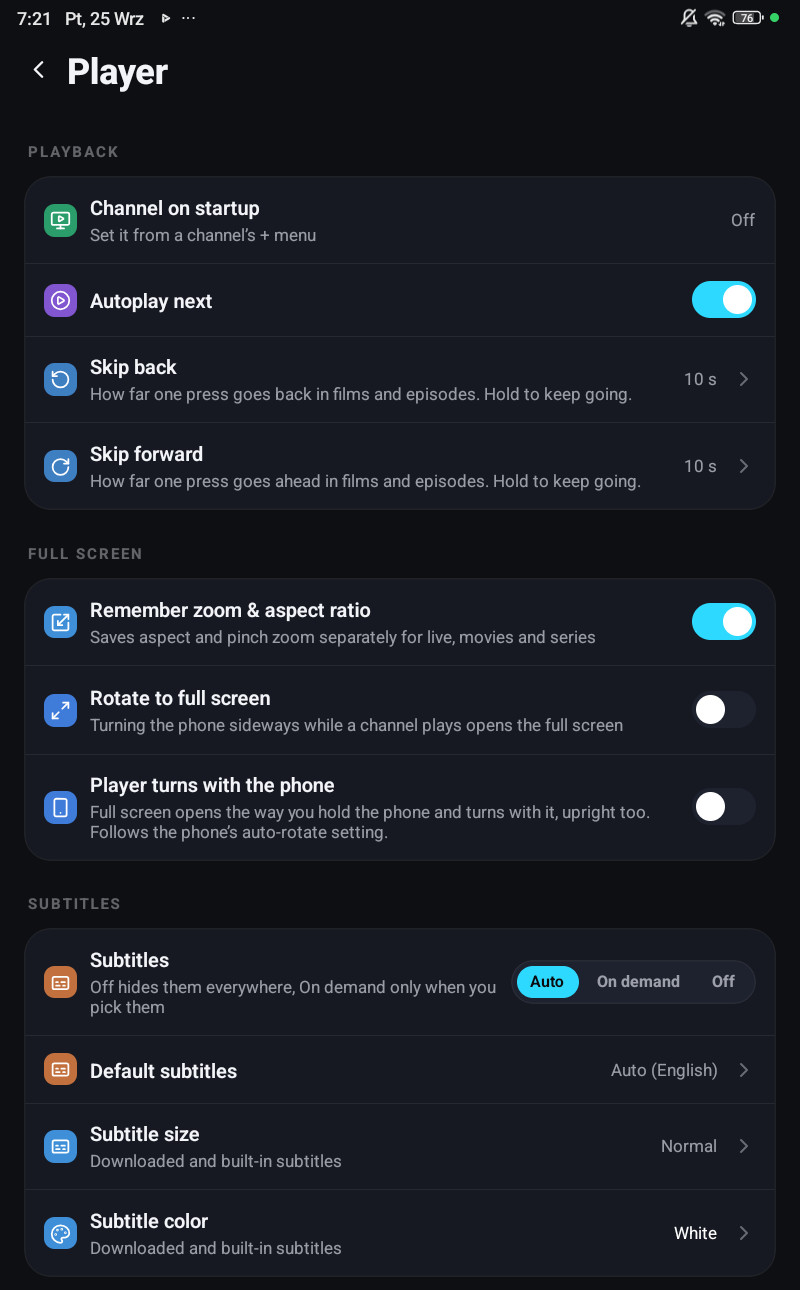
The rows are grouped by what they are for. Most of them belong to the device they are set on, so the television and the phone can differ. The account panel in your browser can change them for one device at a time; where it cannot, the row says so below.
Playback
| Row | What it does |
|---|---|
| Channel on startup | Opens a chosen channel when the app has been closed for a while. Set it from the channel, its + menu on a phone and hold OK → Play when the app opens on a television, not from here. Tap the row (or OK on it) to turn it off. The account panel only shows it |
| Autoplay next | Starts the next episode, or the next programme of a catch-up, when one finishes. On by default. This one follows your account, so it is the same on every device |
| Help improve Up next timing | Sends where the credits of a film or an episode start, without your account or device, so Up next and Finish the film come at the right moment for everyone. On by default, follows your account, see below |
| Play trailers automatically | Off, Muted or With sound. Muted by default everywhere but Fire TV, see below |
| Skip back | How far one press goes back in films and episodes: 5 s, 10 s, 15 s, 30 s or 60 s, 10 s by default. Hold to keep going |
| Skip forward | How far one press goes ahead, with the same choices. Hold to keep going |
Full screen, on a phone and a tablet
| Row | What it does |
|---|---|
| Remember zoom & aspect ratio | Saves aspect and pinch zoom separately for live, movies and series. On by default |
| Rotate to full screen | Turning the phone sideways while a channel plays opens the full screen |
| Player turns with the phone | Full screen opens the way you hold the phone and turns with it, upright too. Follows the phone’s auto-rotate setting |
| Swipe gestures | On by default. Swipes up and down in the player change the brightness, the volume and the channel. See below |
| Player info stays for | How long the channel info and the controls stay on the picture: 2.5 s, 5 s, 10 s or Until hidden. 5 s by default, see below |
Another player, on Android phones and tablets, the iPhone and the iPad
| Row | What it does |
|---|---|
| Open films in another player | Adds Other player to films and episodes, for a video player app you prefer. Off by default, see below |
| Other player | VLC or Infuse, the app it opens. iPhone and iPad only, once the row above is on |
Subtitles
| Row | What it does |
|---|---|
| Subtitles | Auto, On demand or Off |
| Default subtitles | The language the player looks for on its own |
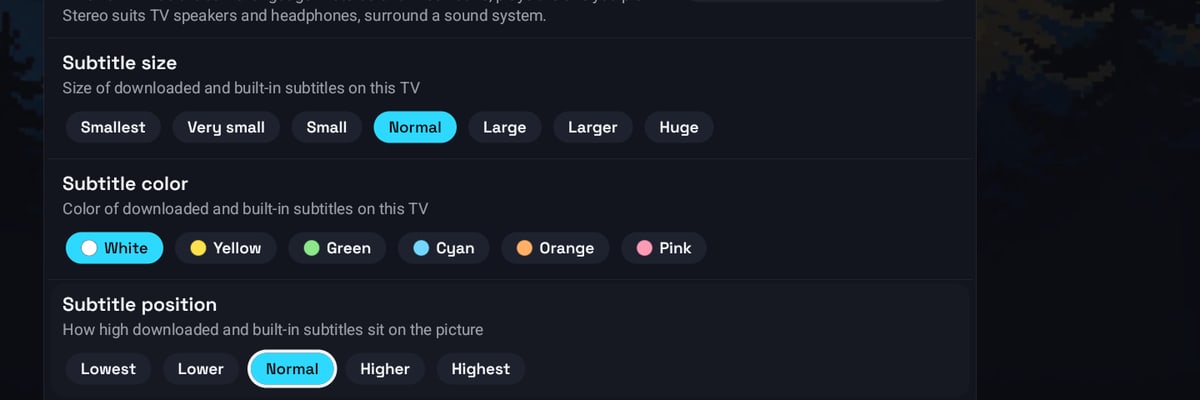
| Subtitle size | For downloaded and built-in subtitles, from Smallest to Huge |
| Subtitle color | Same |
| Subtitle background | The dark box behind the subtitles. On by default |
| Subtitle position | How high subtitles sit on the picture, from Lowest to Highest, see below |
| Live subtitles | Standard (about 23 US cents an hour) or More accurate (about 44), for live subtitles with Gemini. Android phones and tablets only |
Subtitles and Default subtitles belong to the profile you are in, see What a profile holds.
Audio
| Row | What it does |
|---|---|
| Default audio | The audio language the player picks when it exists |
| Stereo or surround | When a film has the same language in stereo and in surround, which one to start with. Android only |
| Sound output | Auto sends Dolby and other surround sound to your TV or sound system when it can play it. Stereo turns it into two channels first, for a TV or soundbar that stays silent, crackles or stutters on channels with surround sound. Android only |
| Background audio | Keeps the sound playing when you leave the app or turn the screen off. Phones and tablets |
Default audio belongs to the profile you are in as well.
Engine, on Android phones and tablets, iPhone and iPad
| Row | What it does |
|---|---|
| Player engine | Auto, Native or VLC, plus AetherEngine on an iPhone or iPad with iOS 18 or newer. Applies to films, episodes, catch-up and recordings. Auto by default, see below |
| Engine for live channels | The same choices, for live channels only. Auto by default, see below |
| Deinterlacing | Off, Light, Balanced or Smooth. Off by default. VLC engine only, see below |
| Hardware decoding | Applies to the VLC engine. On by default. Turn it off if the picture is torn or green |
Buffering
| Row | What it does |
|---|---|
| Buffer size | Small, Auto, Large or Very large. Auto by default. Android only, see below |
| Fetch films over several connections | Fetches a film over several connections at once. Off by default. Android only |
| Timeshift | Lets you pause and rewind live channels, kept on this device. Off by default. On Android, the iPhone and the iPad, see below |
| Timeshift length | How far back Timeshift goes: 15 min to 180 min, 30 min by default. Shows once Timeshift is on |
| Keep Timeshift running when you leave the app | Timeshift keeps saving the channel in the background, and coming back plays from where you left. Off by default. Shows once Timeshift is on. Android only |
| Low latency live | Plays closer to the live edge. Off by default. On every device |
On an iPhone or iPad the Buffering group holds Timeshift, Timeshift length and Low latency live.
Where Timeshift is kept, internal storage, an SD card or a USB drive, is Timeshift saved to, in Settings → Storage on a phone and in the Buffering group on Android TV and Fire TV. It is chosen on the device itself, the account panel does not show it.
Watch history, on a phone and a tablet, is its own screen: Settings → Watch history, with Clear Recently watched and Clear Continue watching. On a television, Windows and the Mac the same two rows are the Watch history group of Settings → Player, see below.
On a new device, and once on a device updated from version 1.8.5 or older, the app offers a short Set up the player page after you choose Sports or Regular: Timeshift and its length, low latency live, buffer size, Auto frame rate, stereo or surround, subtitles and their size, and trailers that play by themselves, each with one line on what it gives and only where the device has it. Save keeps what you changed, Skip keeps everything as it is, and every choice stays here to change later.
On a television, Windows, the Mac and LG and Samsung TVs the groups are different:
| Group | Rows |
|---|---|
| Startup & playback | Channel on startup · Autoplay next · Help improve Up next timing · Skip back · Skip forward · Remember zoom & aspect ratio · Auto frame rate, on Android TV, Fire TV and Apple TV · Open films in another player, on Android TV, Fire TV, Windows and the Mac · Player info stays for · Player controls background · Clock while watching · Play trailers automatically, not on Apple TV and LG and Samsung TVs |
| Watch history | Clear Recently watched · Clear Continue watching |
| Multiview, on a computer | Keep playing when minimized |
| Live & guide | Up / Down on a live channel · Back from the player returns to · Remote buttons, on Android TV, Fire TV and LG and Samsung TVs · Sound in the guide preview · Guide preview follows the cursor · Low latency live · Show FPS counter |
| Audio & subtitles | Preferred audio · Subtitles · Preferred subtitles · Stereo or surround, on Android TV and Fire TV · Sound output, on Android TV, Fire TV, Windows and the Mac · Subtitle size · Subtitle color · Subtitle position · Subtitle background · Live subtitles, on Android TV, Fire TV, Windows and the Mac |
| Engine, on Android TV, Fire TV and Apple TV | Player engine · Engine for live channels · Deinterlacing · Hardware decoding |
| Buffering | On Android TV and Fire TV: Buffer size · Fetch films over several connections · Timeshift · Timeshift length · Timeshift saved to · Keep Timeshift running when you leave the app. On Windows and the Mac: Timeshift · Timeshift length · Timeshift saved to. On LG TVs: Timeshift · Timeshift length. On Apple TV: Buffer size, once VLC is picked as an engine · Timeshift · Timeshift length |
Windows, the Mac and LG and Samsung TVs have one engine, so the Engine group is not there. Samsung TVs have no Buffering group either.
Which device has which row
Section titled “Which device has which row”| Row | Phone and tablet | Android TV, Fire TV | Apple TV | Windows, Mac | LG, Samsung |
|---|---|---|---|---|---|
| Skip back, Skip forward, Autoplay next, Help improve Up next timing, Player info stays for, Low latency live | yes | yes | yes | yes | yes |
| Swipe gestures | yes | ||||
| Play trailers automatically | yes | yes | yes | ||
| Open films in another player | Android, iPhone, iPad | yes | yes | ||
| Up / Down on a live channel, Back from the player returns to, Show FPS counter, Player controls background | yes | yes | yes | yes | |
| Remote buttons | yes | yes | |||
| Player engine, Engine for live channels, Deinterlacing, Hardware decoding | Android, iPhone, iPad | yes | yes | ||
| Buffer size | Android | yes | with VLC picked | ||
| Fetch films over several connections | Android | yes | |||
| Timeshift, Timeshift length | yes | yes | yes | yes | LG |
| Keep Timeshift running when you leave the app | Android | yes | |||
| Clear Recently watched, Clear Continue watching | in Settings → Watch history | yes | yes | yes | yes |
| Volume boost, in the player | Android | yes |
Auto frame rate
Section titled “Auto frame rate”Settings → Player → Auto frame rate, in Startup & playback, on Android TV, Fire TV and Apple TV (tvOS 17 or newer), and for that device in the account panel. Phones, tablets (also in the TV layout), Windows, the Mac and LG and Samsung TVs do not have it.
| Choice | What switches |
|---|---|
| Off | Nothing. The default |
| Films and series | Everything except live channels, which play at the TV’s usual rate |
| Films, series and live TV | Live channels too |
What it gives: a film made at 24 frames a second, or a European channel at 25 or 50, played on a TV that runs at 60 shows its frames for uneven lengths of time, which reads as a slight judder in slow pans. With Auto frame rate on, the box asks the TV for the rate of what is playing, in the same resolution the TV already uses, so every frame stays on screen for the same time.
What happens when it is on:
- The TV switches when the picture is full screen. The small picture in TV Channels, the TV Guide and Sports does not switch it.
- The screen goes black for a moment, usually a second or two, while the TV changes its mode. The film or channel keeps playing during that moment, so you may miss a second of picture, not of the story.
- The rate stays while you move from one channel to another of the same rate, and while you go back to a list. It goes back to the TV’s own rate when playback ends, when you cast, when you turn the setting off, or when something plays that your choice does not cover, such as a live channel with Films and series.
- The rate is read once, at the start of a film or channel. A channel that changes its rate partway stays at the rate it started with.
On Apple TV the app tells the Apple TV the frame rate and the picture of what plays (SDR, HDR10, HLG or Dolby Vision), and the Apple TV switches the TV only as far as Match Content in its own settings allows: Settings → Video and Audio → Match Content, with Match Dynamic Range and Match Frame Rate. With Match Content off the row says so and the TV stays as it is. AetherEngine switches the TV on its own, whatever this row says.
When to turn it on: you watch films and series on a TV and notice judder in camera pans. Films and series is the safe choice. Pick Films, series and live TV only if your channels judder too.
Typical problems:
- The screen goes black every time I change channel. Your channels come at different rates, for example 50 and 60, and each change makes the TV switch again. Choose Films and series, or Off.
- Nothing switches. Some TVs offer only one rate to the box, often when the TV was off while the box started: then the TV stays as it is. Turn the TV on, restart the box and try again. With VLC as the engine, a film or channel that does not state its frame rate does not switch the TV.
- A black screen of several seconds. That is the TV changing its mode, which some TVs do slowly. Choose Off if it bothers you.
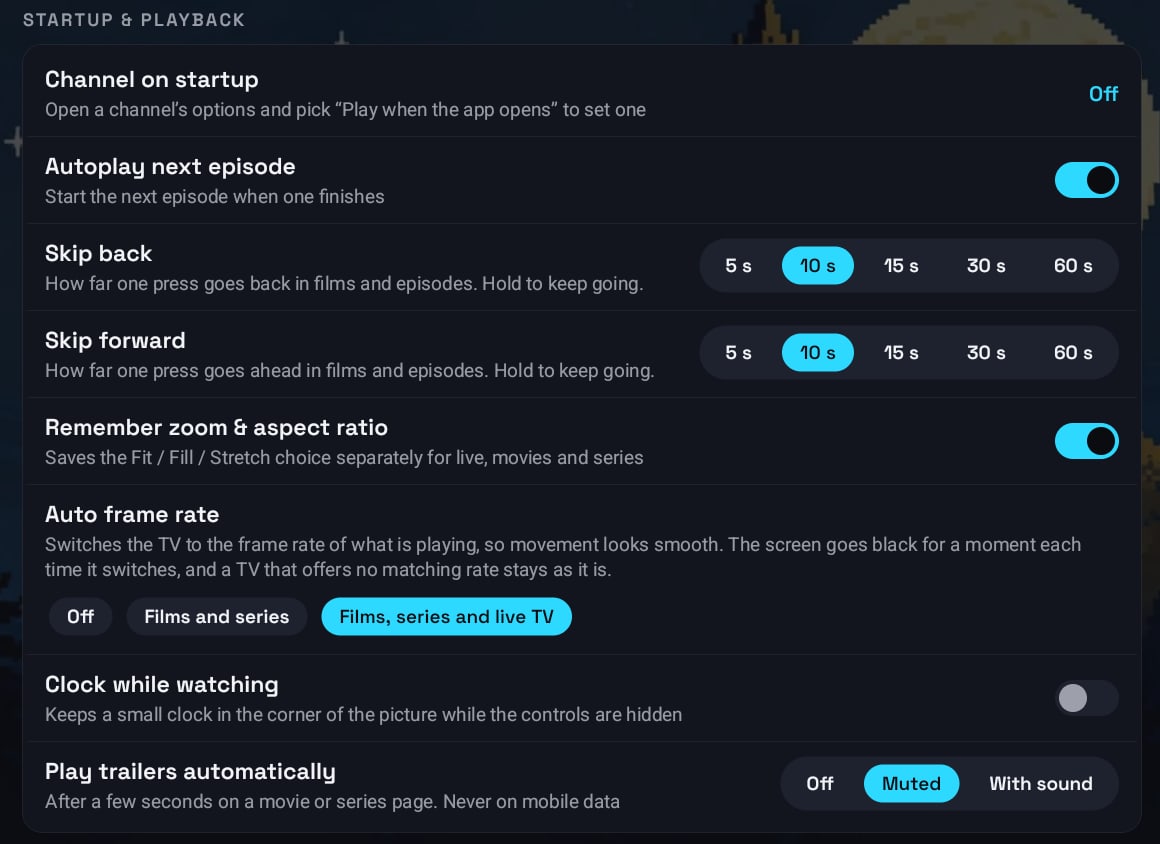
Play trailers automatically
Section titled “Play trailers automatically”Stay a moment on a movie or series page and its trailer starts by itself: behind the title on a TV, Windows and the Mac, and in place of the picture on a phone. Muted plays it without sound, With sound with it. It never plays on mobile data, and each profile chooses for itself.
Until you choose, it is Muted on phones, tablets, Windows, the Mac and Android TV, and Off on Fire TV. The update to 1.8.6 turns it on, Muted, once for every profile that had it Off; turn it off again and it stays off. Change it here, in the player setup page, or in the account panel. Apple TV, LG TVs and Samsung TVs cannot play trailers inside the app, so they do not have it.
Open films in another player
Section titled “Open films in another player”Settings → Player → Open films in another player, or the account panel for one device. Off by default. With it on, films and episodes get Other player to open them in a video player app you prefer, such as VLC or MX Player. Play still opens them in IPTV Deck.
- On a phone and a tablet the row has a group of its own, Another player. On the iPhone and iPad Other player under it picks the app: VLC or Infuse.
- On Android TV, Fire TV, Windows and the Mac it is in Startup & playback.
- Apple TV, LG TVs and Samsung TVs do not have it.
How it works on each device is in Films and series.
Player controls background
Section titled “Player controls background”Android TV, Fire TV, Apple TV, Windows, the Mac and LG and Samsung TVs, in Startup & playback, and for that device in the account panel. It decides what sits behind the channel info and the controls over the picture:
| Choice | What you see |
|---|---|
| Clear | The default. Keeps the most of the picture, with a light shade at the top that ends just below the channel info |
| Darker shade | A darker shade behind the info and the controls |
| Dimmed picture | The whole picture is darkened while the controls are open |
| Dark panels | Dark panels behind the info and the controls, the easiest to read on a bright picture |
Help improve Up next timing
Section titled “Help improve Up next timing”Every device, and the account panel under Common settings. On by default. Where no database knows the credits of a film or an episode, viewers teach the app: leaving a title during its credits sends the moment they began, so Up next and Finish the film come at that moment for everyone. What is sent carries neither your account nor your device. Turn it off and nothing is sent; you still get the moments other viewers sent. It follows your account, so it is the same on every device. See Up next.
Player info stays for
Section titled “Player info stays for”Every device, and the account panel. 5 s by default; the other choices are 2.5 s, 10 s and Until hidden. It sets how long the channel info and the player controls stay on the picture after you press a key or touch the screen. With Until hidden they stay until you hide them yourself: Back on a television, a tap on the picture on a phone. While a channel is still loading the controls wait for it before they go.
Clock while watching
Section titled “Clock while watching”Television, Windows and the Mac. Off by default. It keeps a small clock in the corner of the picture while the controls are hidden; with the controls up, the clock is in their header anyway.
Up / Down on a live channel
Section titled “Up / Down on a live channel”Television, Windows, the Mac and LG and Samsung TVs. Change channel by default. Show the controls makes Up and Down on a playing channel bring up the player controls instead. The channel buttons of the remote, the number keys and the channel list still change channels either way. If you gave the channel buttons another job under Remote buttons, the row says which buttons still change the channel.
Back from the player returns to
Section titled “Back from the player returns to”Television, Windows, the Mac and LG and Samsung TVs, and the account panel. Where you came from by default, or TV Guide. It decides what Back does on a live channel in full screen:
- Where you came from closes the player and returns to the screen you started the channel on.
- TV Guide opens the guide on that channel instead. The channel keeps playing in the guide preview with the cursor on it, and OK brings it back to full screen.
Films and series always go back where you came from.
Remote buttons
Section titled “Remote buttons”Android TV, Fire TV and LG and Samsung TVs. Remote buttons lets you give an action to a remote button, or to holding it, separately for a live channel, for films and episodes and for the channel list and the guide. Each TV keeps its own buttons, and the account panel can put them back to the defaults. The list of actions and the defaults are in Remote and keyboard keys.
Show FPS counter
Section titled “Show FPS counter”Television, Windows, the Mac and LG and Samsung TVs. Off by default. A frame-rate readout in the top-right corner of the picture, for telling whether a stutter is the stream or the device. On a phone the same number is in Stream info in the player.
Swipe gestures
Section titled “Swipe gestures”Phones and tablets, and the account panel. On by default. In the player, a swipe up or down on the left of the picture changes the brightness, on the right the volume, and in the middle the channel. Turn it off so a swipe never changes them by accident; the screen brightness is then left to the phone. Taps, double taps, holding and pinching work either way.
Subtitle background
Section titled “Subtitle background”On by default. It puts a dark box behind downloaded and built-in subtitles so they stay readable on a bright picture; turn it off for the text alone. The same switch is in the subtitle menu of the player, next to the size and the colour.
Subtitle position
Section titled “Subtitle position”Moves subtitles lower or higher on the picture, from Lowest to Highest. The same choice is in the subtitle menu of the player while you watch. It moves subtitle files and downloaded subtitles everywhere, and subtitles built into a film everywhere except on the VLC engine on Android, Android TV and Fire TV.
On the iPhone, iPad and Apple TV, Subtitle size, Subtitle color, Subtitle position and Subtitle background reach the subtitles inside a film or series on every engine: the built-in player, AetherEngine and VLC. In picture-in-picture and on AirPlay the system draws those subtitles its own way. See Subtitles inside a film on iPhone, iPad and Apple TV.
Player engine
Section titled “Player engine”Android phones and tablets, Android TV, Fire TV, iPhone, iPad and Apple TV. The account panel can change it for one device. Leave it on Auto unless you have a reason.
| Choice | What happens |
|---|---|
| Auto | The default. The player built into the device starts first. When it cannot open or decode a stream, the app moves to the next engine by itself |
| Native | Always the player built into the device, with no change of engine |
| VLC | Always VLC, with no change of engine |
| AetherEngine | iPhone, iPad and Apple TV with iOS or tvOS 18 or newer. Always AetherEngine, except for addresses it cannot open, which go to VLC |
On Auto the order is the built-in player, then VLC on Android. On an iPhone, iPad and Apple TV with iOS or tvOS 18 or newer it is the built-in player, then AetherEngine, then VLC; AetherEngine plays films with Dolby Vision, HDR and Dolby Atmos in what your TV and speakers support. A channel that plays sound over a black screen on these devices also moves to VLC by itself after a few seconds.
Fixing it to VLC is for a stream that only VLC opens: it plays at once instead of after the built-in player has tried and failed. VLC holds more before it shows anything, so starts are slower, and it uses more power. Fixing it to Native stops the app switching away from a stream that is merely struggling.
Windows, the Mac and LG and Samsung TVs have no second engine to choose, so the row is not there. On Windows and the Mac a film plays in its full quality without any setting: 4K, Dolby Vision in the right colours, Dolby and DTS sound, and the subtitles stored as pictures.
You can also switch the engine while something plays: Player settings → Player engine on a phone, Options → Player engine on a television, or the green key on an Android TV or Fire TV remote. On an iPhone, iPad or Apple TV with AetherEngine it offers VLC next to AetherEngine and the built-in player, so you can move a film or channel to VLC without going to Settings. A switch in the player does not change the setting here. See Switching the engine while it plays.
Engine for live channels
Section titled “Engine for live channels”The same devices and the same choices as Player engine, Auto by default, but for live channels only; Player engine then covers films, episodes, catch-up and recordings. It exists because VLC can rescue a channel your box cannot decode, while seeking through a film is faster on the built-in player. Pick VLC here when live stutters but films are fine.
Low latency live
Section titled “Low latency live”Every device, and the account panel. Off by default. It plays as close to the live edge as the stream allows, without changing your buffer size. It has the most effect on channels that arrive in pieces; where a channel already arrives as one continuous stream you are near the edge anyway. A weak Wi-Fi will stutter more with it on, and with Buffer size on Large or Very large it gives away part of its gain. A channel in HLS played by VLC ignores it.
On an iPhone, iPad and Apple TV it works on continuous channels played by the VLC engine only, and the row says so.
Deinterlacing
Section titled “Deinterlacing”Older channels broadcast each picture as two half-pictures, which shows as comb-shaped lines on movement. This smooths them. It works on the VLC engine only, and only where the channel says it is interlaced. Light asks least of the device, Smooth the most, so a weaker box can take the cheapest one. Off by default.
Fetch films over several connections
Section titled “Fetch films over several connections”Android phones, tablets, Android TV and Fire TV, off by default. When on, a film is fetched over several connections at once, which helps where a provider caps the speed of a single connection. Turn it on only if films start slowly. Leave it off if films pause and start over every few minutes with it on, or stutter on a weak Wi-Fi, where the connections compete with each other. It also needs your provider to allow more than one connection.
Timeshift
Section titled “Timeshift”Timeshift is pause and rewind for live TV: the channel you watch is kept on this device, so it works on any channel, also without your provider’s archive. It is not Catch-up, which plays programmes that already aired from your provider’s archive and only on channels that have one. Timeshift reaches back only to the moment you started watching the channel. Until version 1.8.6 the row was called Live TV buffer.
Off by default, on the device and for that device in the account panel:
| Device | Where it is kept | How far back |
|---|---|---|
| Android phones and tablets, Android TV, Fire TV | Internal storage, an SD card or a USB drive | The Timeshift length you choose, as far as the free space allows |
| Windows and the Mac | A folder on the computer, Timeshift saved to | The Timeshift length you choose, as far as the free space allows |
| iPhone, iPad, Apple TV | The app’s own space on the device, nothing to choose | The Timeshift length you choose, as far as the free space allows |
| LG TVs | The memory of the TV | Only a few minutes, as many as fit in the TV’s memory, whatever length you choose. The row says how many |
Samsung TVs do not have it. The iPhone, iPad and Apple TV need version 1.8.6 or newer from the App Store; on an older version the rows are not there. With it on, the channel you watch is kept, so you can pause it, skip back and ahead, and return with Go live. It uses the same provider connection you already watch on.
- Turn on Settings → Player → Timeshift.
- Pick Timeshift length: 15, 30, 60, 90, 120 or 180 min. The row says how much fits in the free space, on an LG TV in its memory.
- On Android and on a computer, optionally pick where it is kept (Timeshift saved to). On Android you can also choose whether it goes on saving when you leave the app (Keep Timeshift running when you leave the app).
- Play a channel. The bar shows how far behind live you are.
What to know:
- Timeshift starts again when you change channel, play a film or catch-up, cast, turn the setting off or change where it is kept, and when the app starts.
- Leaving the app ends it, unless Keep Timeshift running when you leave the app is on, which only Android has. With that on, the provider connection stays in use while you are away. On Windows and the Mac it goes on while the window is minimised, and stops when you close the window. On the iPhone, iPad and Apple TV it goes on while the channel keeps playing with the app in the background, as background audio or picture-in-picture, and ends when you close the player or the picture-in-picture window.
- On Apple TV it shares the little free space with the system, which may clear the app’s space when it runs low. The Timeshift length row says how many minutes fit.
- It works on channels that arrive as one continuous stream. With Timeshift on, an Xtream channel on the Auto format opens as one continuous stream by itself, on Android, the computer and LG TVs. Multiview and casting play without it, and so does a MAC portal channel on an LG TV.
- A channel Timeshift cannot keep plays as before, without pause. On an LG TV a short note says so: Timeshift isn’t available for this channel right now, or on this TV for a channel whose picture or sound the TV cannot pause this way.
- When the picture stops to load, the channel goes back to live by itself, unless you paused or went back on purpose.
- It needs free space on the chosen storage and gives space back when the device runs low; the settings warn when the length you chose does not fit.
- On Android, while it goes on saving with the app in the background, a notification shows, as for a recording.
Messages you may see, and what to do:
| Message | What to do |
|---|---|
| Not enough free space for Timeshift | Pick a shorter Timeshift length, free some space, or choose a USB drive, an SD card or another folder under Timeshift saved to |
| Free space is running low, so Timeshift keeps less | Timeshift goes on, but holds less time than you chose. Free some space |
| Timeshift is full. Play on to watch what it kept, then it goes back to live. | You paused for longer than the Timeshift length. Press play: you watch what was kept, then the channel returns to live |
| Connect the drive chosen for Timeshift, or choose another place in Settings | The USB drive or card you chose is not there. Plug it in, or change Timeshift saved to |
Typical problems:
- Pause holds only a few seconds. Timeshift is off, or you are on a device without it (Samsung TVs, or an iPhone, iPad or Apple TV with a version older than 1.8.6), or the channel does not arrive as one continuous stream.
- Pause holds only a few minutes on my LG TV. That is the TV’s memory; it cannot keep more.
- Another device cannot watch while I am away from the app. With Keep Timeshift running when you leave the app on, the channel keeps your provider connection busy. If your provider allows only one connection at a time, turn that row off, or close the channel before you leave.
- Timeshift is gone after I changed channel. That is by design: each channel starts again.
On a television and a computer Left and Right then skip, and hold OK opens the channel list. On a phone the skip buttons appear next to pause, and a double tap skips too. See Pausing live, and Go live.
Watch history
Section titled “Watch history”Two rows empty a list of the profile you are in, after asking, and your other devices follow:
| Row | What it removes |
|---|---|
| Clear Recently watched | Every channel, film and series in Recently watched. Continue watching keeps where you stopped |
| Clear Continue watching | The films, series and catch-up programmes you have not finished. Watched marks stay |
A row with nothing to clear says Empty. On a phone and a tablet they are in Settings → Watch history, on a television, Windows and the Mac in the Watch history group of Settings → Player. The same is offered when you hold a card in either row on Home, in the Recently watched list, and in the Library of the account panel, see Removing items.
Buffer size
Section titled “Buffer size”Android phones, tablets, Android TV and Fire TV, and since 1.8.6 Apple TV once VLC is picked under Player engine or Engine for live channels. It stays on the device, and the account panel can change it for that device.
| Choice | What it is for |
|---|---|
| Small | Least memory, for weak devices. Handles only brief drops |
| Auto | The default. Short for live, long for films. Right on most connections |
| Large | Handles longer drops. Live channels start a little later. Uses more memory |
| Very large | The longest buffer, for a slow but steady line. Live channels start a few seconds later. Uses the most memory |
The larger profiles help on a connection that stalls in bursts; they do nothing for a connection that is simply slow, and they never make a stream start faster. On live channels Large and Very large hold more before the picture starts: a channel starts a moment later and stops less often on a provider that sends the picture in bursts. Two places ignore it: a channel in HLS played by VLC keeps its own buffer, and each window of multiview has a small buffer of its own. Which choice fits which kind of buffering is in It plays, then stops to buffer.
Changing the buffer size, Low latency live, Deinterlacing or the engine applies to the channel you go back to: it restarts with the new setting, you do not have to pick another channel first.
Hardware decoding
Section titled “Hardware decoding”This row is about the VLC engine only, on Android, iPhone, iPad and Apple TV. On by default. The built-in player manages its own decoding, and Windows, the Mac and LG and Samsung TVs have no equivalent switch.
Turn it off when VLC gives you a torn, green or blocky picture, some cheap boxes have broken hardware decoders for particular codecs. It costs power and it can drop frames on 4K, so turn it back on when you move to another device.
It stays on the device on purpose: a broken decoder on one television has nothing to do with your phone.
Rotate to full screen
Section titled “Rotate to full screen”Off by default. When on, turning the phone sideways during a live channel opens the full-screen player, and only opens it. Turning back to portrait never closes it, and the phone has to be seen upright for about half a second first, so closing the player in landscape does not bounce you straight back in.
Player turns with the phone
Section titled “Player turns with the phone”Off by default, and nothing changes until you turn it on: the full-screen player on a phone stays sideways, as it always has. With it on, a film or a channel opens the way you are holding the phone, turns with it to either side, and goes back upright when you turn the phone back, still playing. You close it the same way as before. Multiview stays sideways.
It follows the phone’s auto-rotate setting, so with auto-rotate off the player stays upright.
Together with Rotate to full screen, a live channel works in both directions: turn the phone sideways and the full screen opens, turn it back and the player goes upright instead of staying sideways. Rotate to full screen notices the turn by itself, so with auto-rotate off it still opens the full screen, only upright.
