
Multiview
Several live channels on one screen, on phones and tablets, Android TV and Fire TV, Apple TV, Windows and the Mac. LG and Samsung TVs do not have multiview.
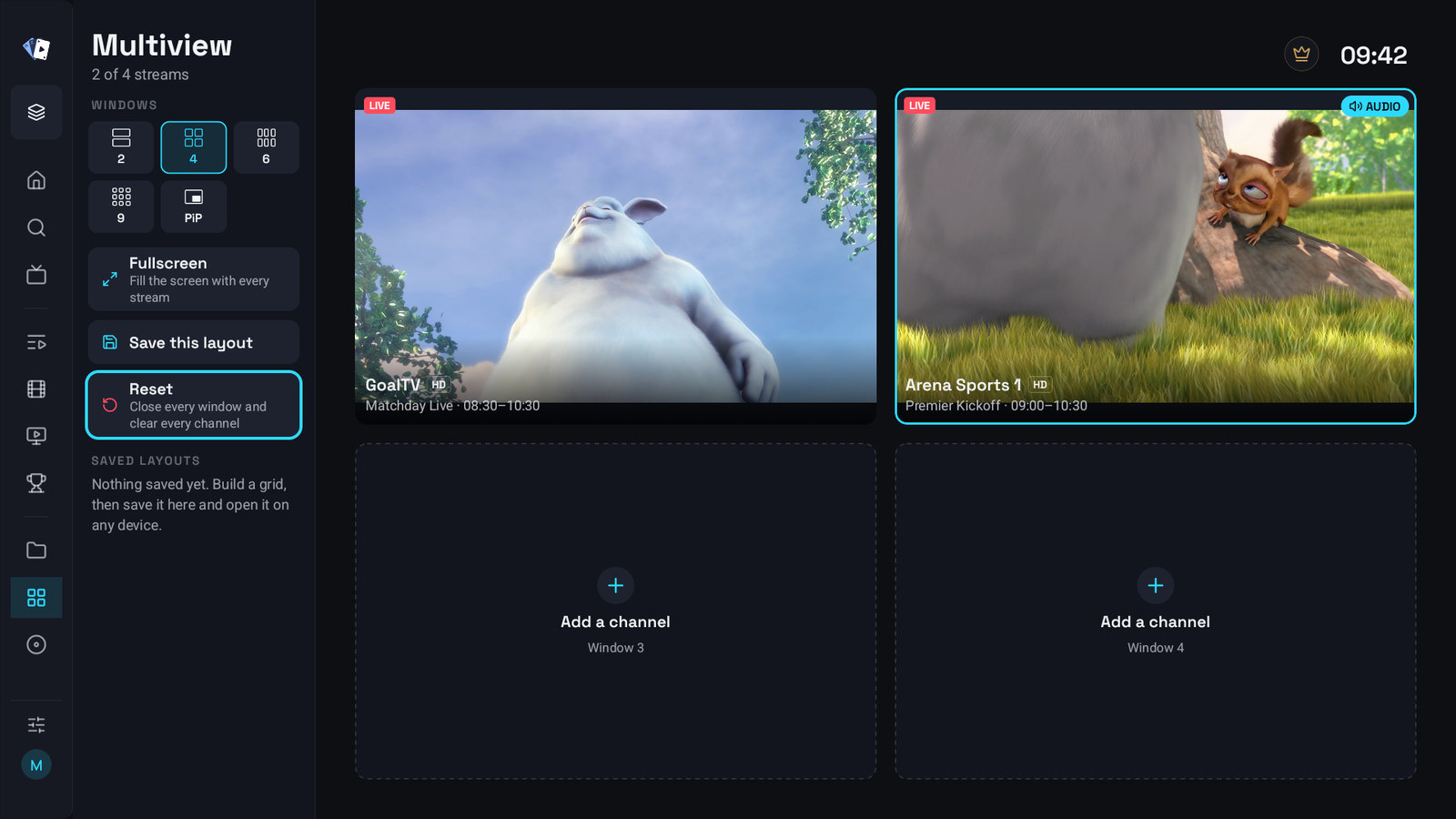
Opening it
Section titled “Opening it”- Television, Windows and the Mac: Multiview in the side menu. Or hold OK on a live channel and pick Watch in multiview, or Add to multiview once it is running. The same row is in a programme’s options in the guide and in the player’s Options.
- Phone and tablet: the grid button at the top of the channel list, or Watch in multiview in the player’s settings.
- Sports: the Multiview button of a match puts its channel in the grid.
Channels of a MAC portal cannot go into multiview, because the portal hands out one stream at a time, and neither can channels of a media server. Films and series do not play in multiview.
Filling it
Section titled “Filling it”The windows are there from the start.
- Select an empty window: Add a channel on a television, Add channel on a phone.
- Pick a channel from the list. On a phone, hold a channel in that list for its versions.
- Repeat for the other windows.
When every window is taken, the app says the grid is full: remove a channel first to make room.
Layouts
Section titled “Layouts”| Where | Choices |
|---|---|
| Television, Windows and the Mac | Windows: 2, 4, 1+3, 6, 9 or PiP. With 2 windows, Split switches between Side by side and Stacked |
| Phone and tablet | The layout button in the bar at the bottom: Side by side and Stacked for two, 4 windows, One big, three small, 6 windows, 9 windows and Picture in picture |
The picture-in-picture layout has one channel on the whole screen and a second one in the corner. On a television the yellow button swaps them.
The 1+3 layout has one big window across the top and three small ones in a row below it. On a television Down from the big window goes to the middle small one, and Up from a small one goes back.
The window count belongs to your account. Multiview windows in the account panel sets it too: 2, 4, 6 or 9, and 4 at first. A saved layout keeps 1+3 and picture in picture, and the account panel shows them on the layout under Library → Multiview layouts, where Edit changes them too.
One window plays the sound at a time. On a television, Windows and the Mac it is marked AUDIO.
| Where | How the sound moves |
|---|---|
| Television, and the keyboard on Windows and the Mac | It follows the highlighted window: move with the arrows and you hear the window you land on. An empty window leaves the sound where it was |
| Mouse on Windows and the Mac | Click a window once to highlight it and hear it |
| Phone and tablet | Tap a window |
Listen to this stream in a window’s options moves the sound too.
A window’s options
Section titled “A window’s options”On a television, Windows and the Mac:
- OK on the highlighted window, or a second click on it, opens it full screen, see below. On an empty window OK opens the channel list, on a window with Stream error it tries again.
- Hold OK (right-click on Windows and the Mac) opens its options:
| Option | What it does |
|---|---|
| Fullscreen | Fills the screen with this stream, see below |
| Fill the screen with every stream | Hides the side menu and the header; Back brings them back (Show the menu again in the options too) |
| Fill the tile / Show the whole picture | Crops the picture to fill the window, or shows it whole with black bars so a score in the corner stays in view. Whole picture is the default |
| Open in a separate window | Windows and the Mac only, see Moving a channel |
| Listen to this stream | Moves the sound to this window |
| Change channel | Opens the channel list for this window |
| Move | Moves the channel to another window |
| Versions | Another version of the channel, when it has several |
| Remove from the grid | Empties this window; the others stay where they are |
| Stop multiview | Closes every stream and empties the grid |
On a phone each window has its own small buttons: the aspect button at the top left switches between filling the window and the whole picture, × at the top right removes the channel, and holding the window opens its versions.
Fullscreen on one window
Section titled “Fullscreen on one window”OK on the highlighted window, a second click on it, or Fullscreen in its options enlarges that window over the grid. Its channel goes on without starting again, and the other windows keep playing underneath, so when you go back they are still playing instead of loading again. The corner says OK for options · Back to the grid.
- OK opens the options: Back to the grid, Change channel and Versions.
- Back returns to the grid.
That is on Android TV, Fire TV, Apple TV, Windows and the Mac.
Moving a channel
Section titled “Moving a channel”A channel can move to another window, an empty one too. On a window that already plays something the two swap places.
- Phone and tablet: drag the tile with a finger.
- Windows and the Mac: drag it with the mouse. Drag it out of the app, or pick Open in a separate window in its options, to watch that channel in a window of its own. The channel then leaves its place in the grid, the column lists the separate windows under Separate windows, and each of them can go back to the grid (Bring back to the grid) or be closed.
- TV: Move in the tile’s options, then the arrows; OK moves it there or swaps, Back cancels. In the PiP layout the options offer Move it to the small picture, Move it to the big picture or Swap the big and the small picture instead.
Removing a channel on the TV, Windows or the Mac leaves its window empty, so the others stay where they are.
Saved layouts
Section titled “Saved layouts”A layout keeps the grid, which channels, in which cells, and the window count, under a name.
- Build the grid.
- Save this layout on a television, Windows and the Mac, or Layouts in the bar at the bottom of a phone.
- Give it a name and save.
Saved layouts are listed under Saved layouts and follow your account, so a grid built on the phone opens on the television. Each belongs to the profile and the playlists it was saved with. Selecting one on a television offers Open this layout, Save the current grid into it and Delete it; deleting removes it on every device and leaves the channels where they are. When some of its channels are gone from your playlist, it opens without them and says how many are missing.
Reset, on a television, Windows and the Mac, closes every window and clears every channel, after asking Reset multiview?.
On a phone, TV in the bottom bar sends the whole grid to IPTV Deck on your television, see Watch on TV.
Why a cell sometimes refuses
Section titled “Why a cell sometimes refuses”Two limits, and they are different:
Your provider. Most accounts allow a fixed number of simultaneous connections, often one. The second cell then cannot get its stream and shows Stream error. Nothing in the app can work around that: it is your subscription’s limit, and the only cure is a plan that allows more connections at once. Select the window (OK to try again on a television, Tap to try again on a phone) once a connection is free.
Your device. A television decodes only so many videos at once, and a cheap streaming stick often manages a single 4K one. Multiview never works around that by decoding in software, because that drops the whole device to a few frames per second and takes the rest of the app with it. A cell with no room left says This TV can’t decode another video here (This device can’t decode another video here on a phone), and does not retry on its own.
That is a deliberate trade: a refused cell is better than a television that stops answering the remote. Fewer windows, or lower-quality versions of the channels, leave more room.
What it costs
Section titled “What it costs”A cell you cannot see is closed rather than paused, because a paused one would still hold its share of the television and of your provider. Leaving multiview therefore frees both at once.
On Windows and the Mac multiview keeps playing when you minimize the app or cover it with another window:
| Setting | Options | Default | Where |
|---|---|---|---|
| Keep playing when minimized | on or off | on | Settings → Player → Multiview on Windows and the Mac, and for that computer in the account panel. Turn it off to stop the windows until you come back |
